How to refund a booking made online in the back office
Last updated: June 23, 2026
This type of refunds are for bookings made through the online booking site only.
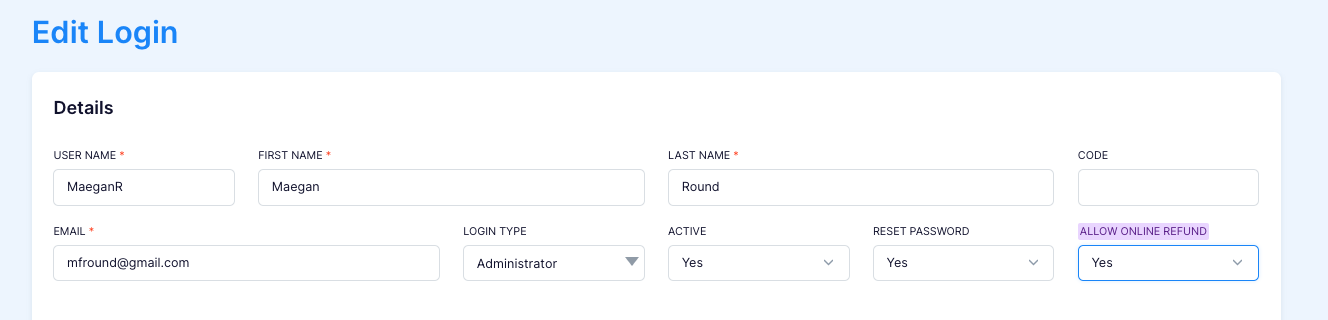
Make sure the user you are using has the "ALLOW ONLINE REFUND" ticked. You can find this by going to Settings > Logins > finding your user.

Go to Orders > View Orders or aternativley, search for the order you would like to refund.


Click on the "Transactions" tab and click on the 3 dot symbol on the right.
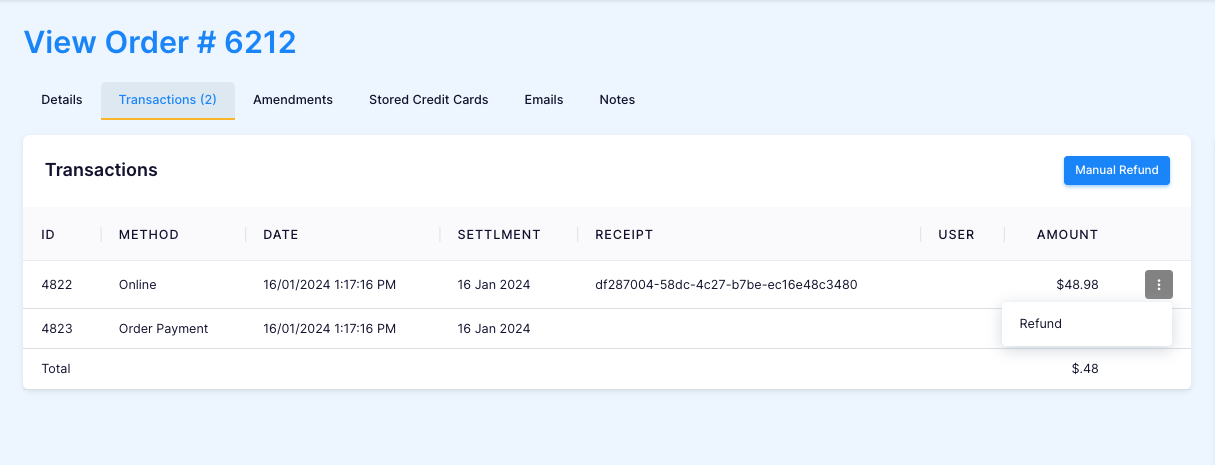
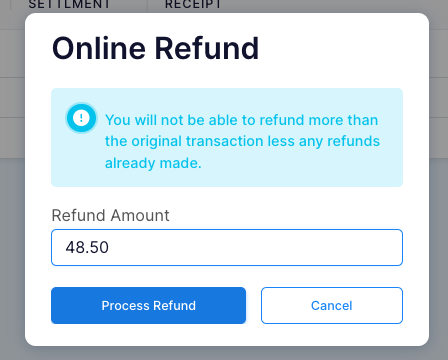
Press "refund", here you will get the option to refund the full amount of a custom amount of your choice. Type the desired amount and press "Process Refund".
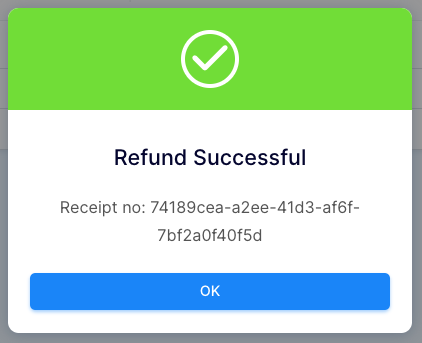
You will receive a sucessful pop up message with a reciept code.
The "Transactions" tab will automatically update with new processed refund.
