Templates - Static Tags
Last updated: May 13, 2026
Static content tags can direct users to specific sections of your booking site or external pages, such as your marketing site.
Multiple static tags can appear on a single page and be linked to various booking tags, enabling reuse across the site.
You can create an “empty” booking tag containing only static tags to display a dedicated static-only page on the booking site.
| Name | Internal reference only |
| Display on these booking pages | Select the booking pages where this Static Tag should appear. You can choose multiple booking pages if needed, or leave unselected. If you operate multiple venues, this Static Tag will appear on each location that has the selected booking page. There is currently no way to make a Static Tag location specific, however, the button link can be location specific by adding |
| Display on these product pages | Select the product pages where this Static Tag should appear: Gift Voucher, Session Voucher, and/or Membership. You can choose multiple product pages if needed, or leave unselected. If you operate multiple venues, this Static Tag will appear on each location that has the selected product page. There is currently no way to make a Static Tag location specific, however, the button link can be location specific by adding |
| Display name | The heading shown to customers |
| Display order | Sets the order when multiple tags are shown. Lower numbers display first. |
| CSS Class | Apply custom styling using predefined CSS class names: either These colours can be customised to match your branding in the Custom CSS section, located under Settings > Assets & Branding. Need Help? Change the Background colour of a Static Tag using Custom CSS |
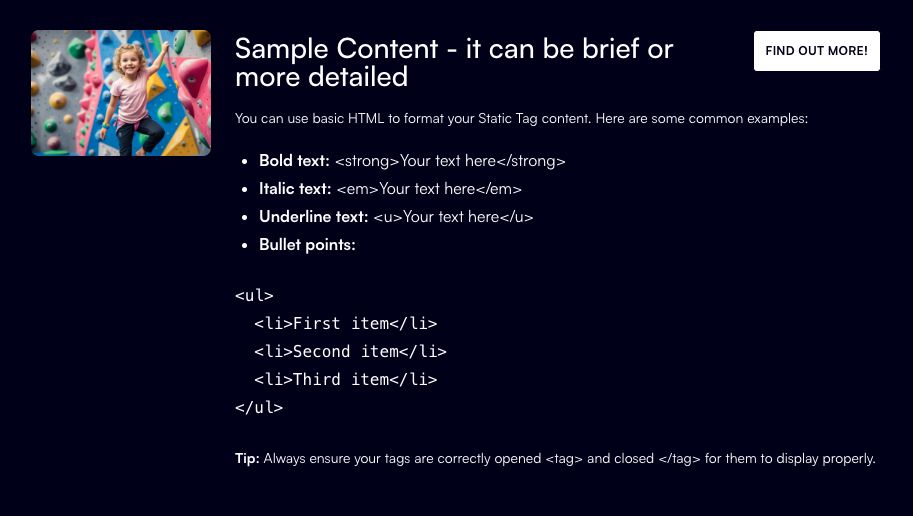
| Content | This can be brief or more detailed if required. For more control over layout and styling, you can use HTML within the content field (see example below). |
| Button text | Label for the call-to-action button. The button will only be displayed if a URL is entered. |
| URL | Enter the link that the button should direct to. This can be a page within your booking site or an external website.
|
Example:
The screenshot below demonstrates how a Static Tag will appear on your website. Additionally, the content displayed in the screenshot showcases examples of basic HTML commands for your reference.