How to set up printers for Venue Sumo POS
Last updated: May 9, 2026
In this article we'll explain how to setup printers for Venue Sumo POS.
Summary:
- A device with PrintNode and printer drivers must be logged in and connected to the internet for printing to work from Venue Sumo's POS. If the device is turned off or loses connection, printing will be unavailable.
- For uninterrupted printing, install PrintNode on a 24/7 operational computer (e.g., a security system PC) or the POS device with an internet connection.
- Setup steps:
- Install printer drivers for thermal printers
- Install PrintNode software
- Add Printers to Venue Sumo backoffice
- Add Cash Drawer settings to Venue Sumo backoffice (if applicable)
- Test printing and open cash drawer works
- Review printer troubleshooting if you cannot get it to work.
What you'll need to setup your printers:
- A thermal printer;
- Automated cash drawer with J12 cable (optional);
- Networked computer to run PrintNode and Install Printer Driver (installing PrintNode on the device is possible);
- PrintNode account credentials (from Venue Sumo support); and
- VenueSumo Back Office credentials.
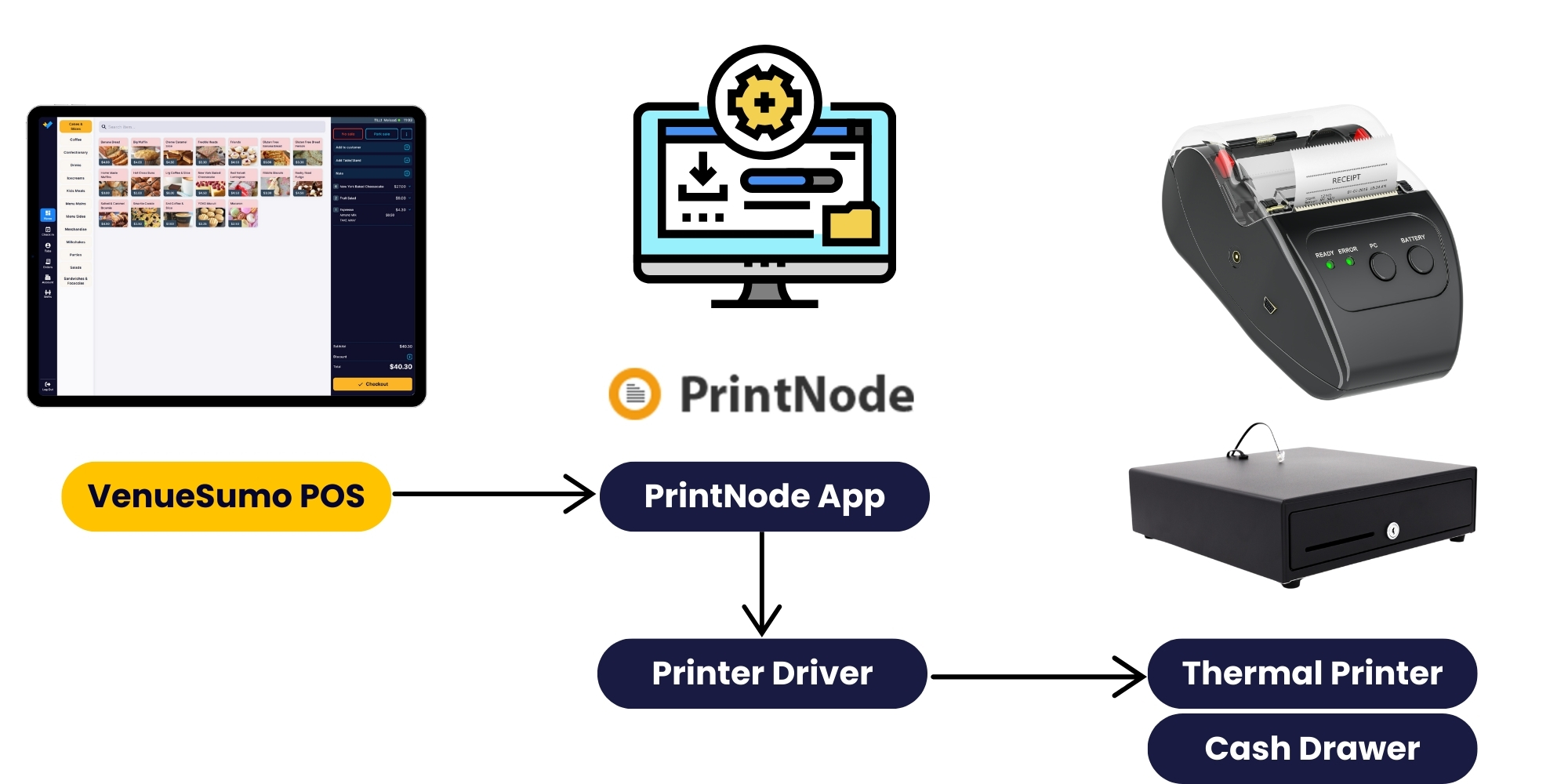
The diagram below illustrates VenueSumo POS's printing process and cash drawer operations.
1.Install printer drivers for thermal printers
You need to install your printer drivers on a device for your thermal printers to work. You need to decide if you are installing the printer drivers:
- On a server computer that is connected to your network and always left on; or
- On the POS device.
** We recommend you install PrintNode on a computer that is always on and install all printer drivers on that computers.
** If PrintNode is not installed, signed in and connected to the internet your thermal printers will not get print jobs from VenueSumo
This video guide will walk you through the process, focusing on the Epson TM-M30 printer as an example.
Step 1: Downloading Printer Driver:
- Navigate to support.epson.net/setupnavi.
- Type in your printer name (TM-M30 or TM-M30-II).
- Agree to the license and select "Epson Advanced Printer Driver 6 for TM-M30" (or your relevant printer) for download.
Step 2: Installing Printer Driver:
- Unzip the downloaded file.
- Run the application to install the driver.
- Agree to the license and wait for the installation to complete.
Step 3: Connecting Printer to a Windows Device:
- Ensure your printer is connected to Windows device.
- Install drivers for other printer brands if needed.
Step 4: Configuring Printer Settings for Network connected printers:
- Open printer settings and rename printers accordingly (e.g., Epson Front of House).
- Set the port type to Ethernet.
- Enter the IP address (printed by the printer).
- Save settings and perform a test print.
Step 5: Setting Up Multiple Printers:
- For multiple printers, name them appropriately (e.g., Epson Kitchen).
- Enter respective IP addresses.
- Set a default printer for the point of sale.
Step 6: Print a test page from the Windows driver to ensure the driver is working
- Open Control Panel on your Windows device.
- Navigate to Devices and Printers.
- Locate and right-click on your Epson TM-M30 printer.
- Select Printer Properties.
- Go to the General tab and click Print Test Page.
- If the test page prints successfully, the setup is complete.
If the test page print fails:
- Check the printer connection (USB, Ethernet, or Wi-Fi).
- Ensure the correct IP address is set for network printers.
- Restart both the printer and computer, then retry.
- Reinstall the driver if necessary.
If the test page prints 5 feet of thermal printer paper:
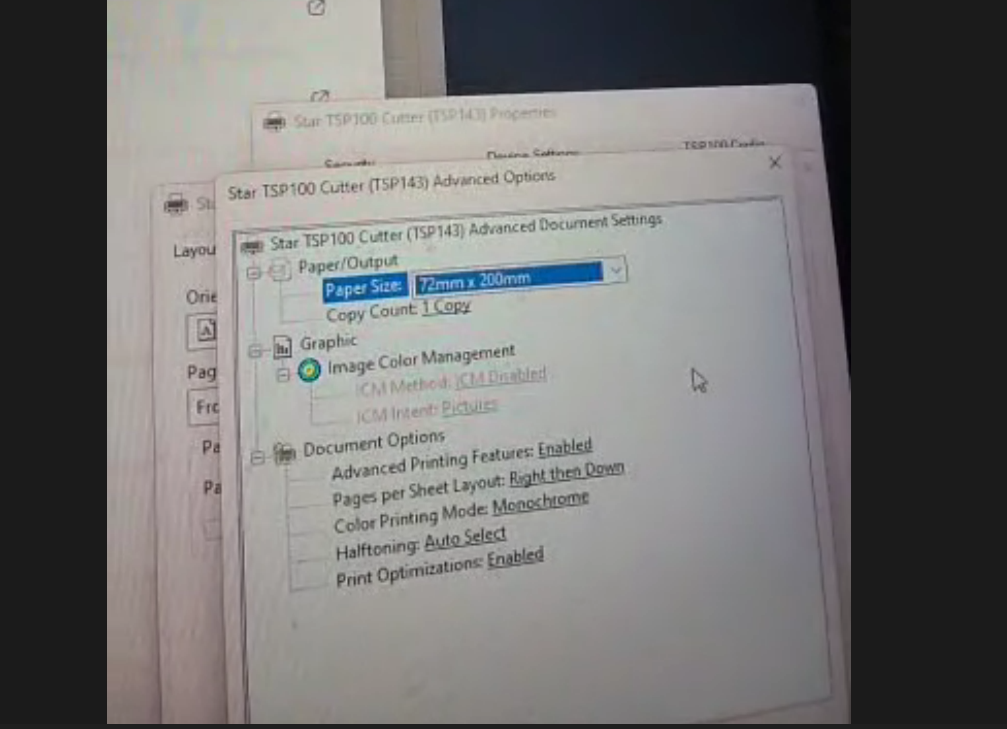
If the test page prints an excessive amount of thermal paper (e.g., 5 feet or more), this may be due to incorrect paper size settings. Some thermal printers are known to print an additional foot of blank space due to default configurations. To resolve this issue:
- Adjust Paper Size Settings:
- Open Control Panel and go to Devices and Printers.
- Right-click on your Epson TM-M30 printer and select Printer Preferences.
- Navigate to the Paper/Quality or Advanced tab.
- Change the Paper Size setting from "72mm x Receipt" (default) to "72mm x 200mm".
- Apply and Test:
- Click Apply and OK to save changes.
Print another test page to confirm that the excessive blank paper issue is resolved.
- Additional Troubleshooting (if the issue persists):
- Ensure the printer driver is fully up to date.
- Check for any custom paper size settings within the point-of-sale (POS) software.
- Restart the printer and computer after making changes.
2.Install PrintNode
VenueSumo POS uses PrintNode to send print jobs to thermal printers. As a VenueSumo customer, you can use PrintNode for free without needing to create an account.
As mentioned above, for optimal performance and uninterrupted service, we recommend connecting PrintNode and your thermal printer drivers to a dedicated computer that operates continuously, such as one used for video security surveillance 24/7. This ensures PrintNode remains active at all times, unlike office computers or POS systems which may be switched off, requiring that you reconnect to PrintNode.
PrintNode Video Setup instructions:
1. Check the printers you would like to use for VenueSumo are installed first.
Make sure that your printer devices are installed on the computer/tablet device you wish to use for your POS. Run a test print if you have not already.
2. Download PrintNode
Go to https://www.printnode.com/en/download
Follow the instructions to set up PrintNode on your workstation’s computer here - https://www.printnode.com/en/docs/installation
2 (a) - Download printnode for your device client version

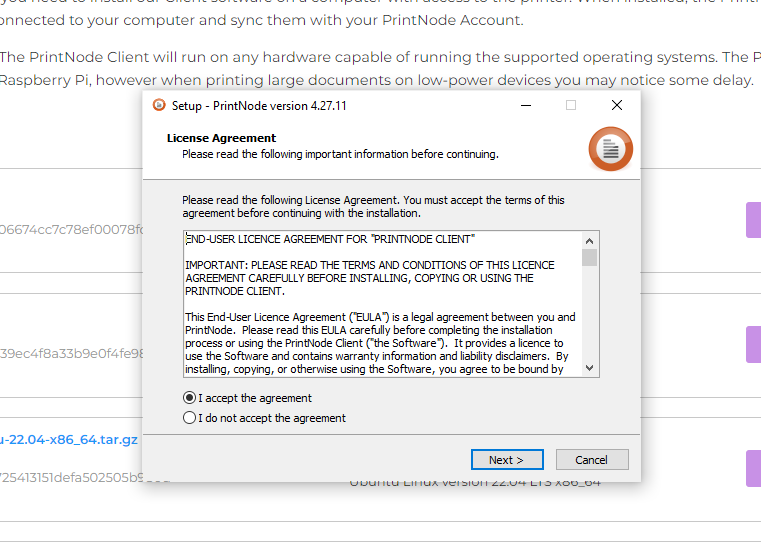
2 (b) - follow the installation prompts on your device
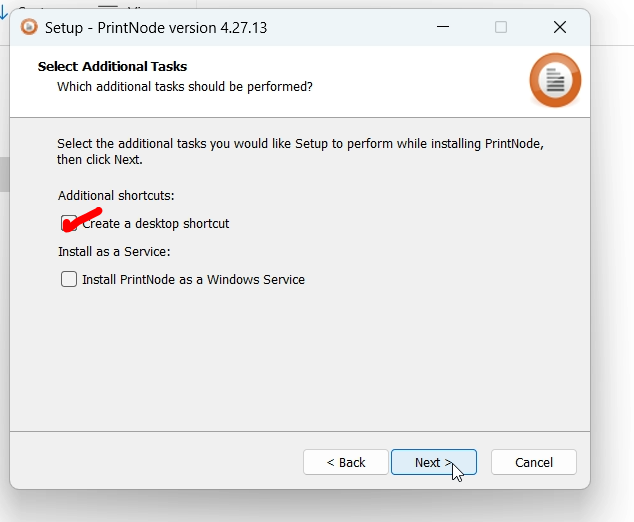
DO NOT install PrintNode as a Windows Service.
2 (c) - once installed you will come to a login screen for Printnode
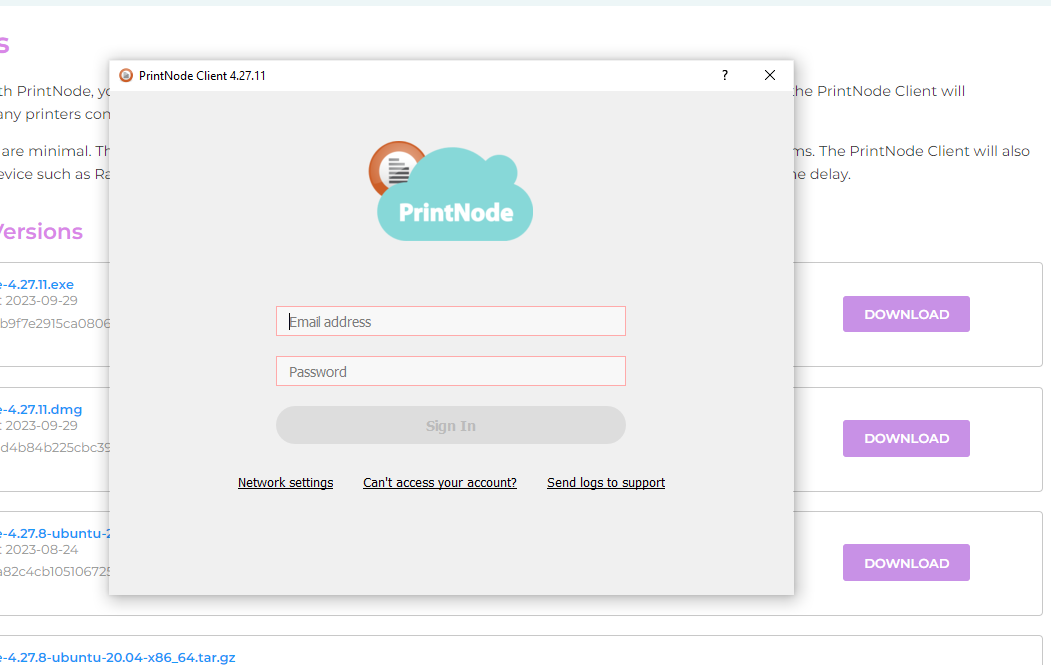
Your PrintNode Account Login Details
The VenueSumo customer support team will create your account for PrintNode. They will send you an email with the necassary login details.
If you have not received this email, please submit a support ticket through the help system (above).
Once you have your login details, you can log into the PrintNode software you have just installed on your computer/tablet.
All venues at your company will have the same PrintNode login.
3.Adding PrintNode details to VenueSumo to connect your printers
To set up PrintNode printers within your VenueSumo software, you will need the PrintNode ID numbers for the printers you would like to use.
To find the printer ID numbers;
- Login to your PrintNode program on your computer/tablet or login via - https://api.printnode.com/app/print;
- Within your account, select the Printers tab or "Devices" if you're checking online;
- From the list of all printers you will see an ID number assigned against each device;
- You can also open PrintNode on the device installed by finding the orange colored icon in the system tray on the bottom right of your windows screen.
Within VenueSumo printer settings:
Login to your VenueSumo Backoffice account
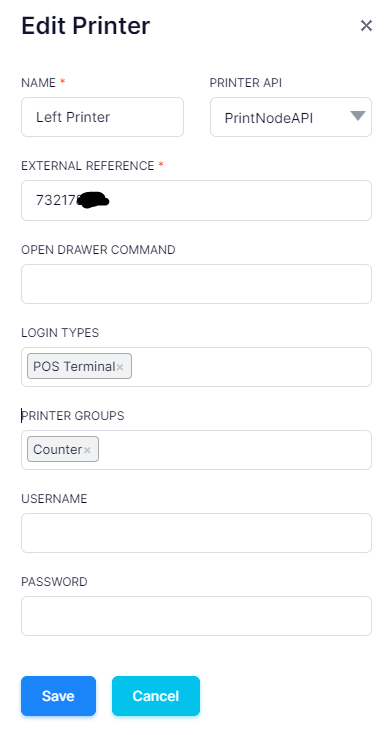
- Go to Settings > Locations > [YOUR LOCATION NAME] > Printers
- Click "Add Printer"
- Write a printer name in "Name" field;
- Change "Printer API" to "PrintNodeAPI"
- Add the ID number into "External Reference"
- Add the "Open Cash Drawer Command"
- Change "Login Types" to "POS Terminal"
- Change "Printer Group" to "Coffee", "Pizza", "Counter" or "Kitchen" depending on where the thermal printer is located in the venue;
- Leave "username" and "password" blank

Connect the Printer to the POS Login
- Login to your VenueSumo Backoffice account
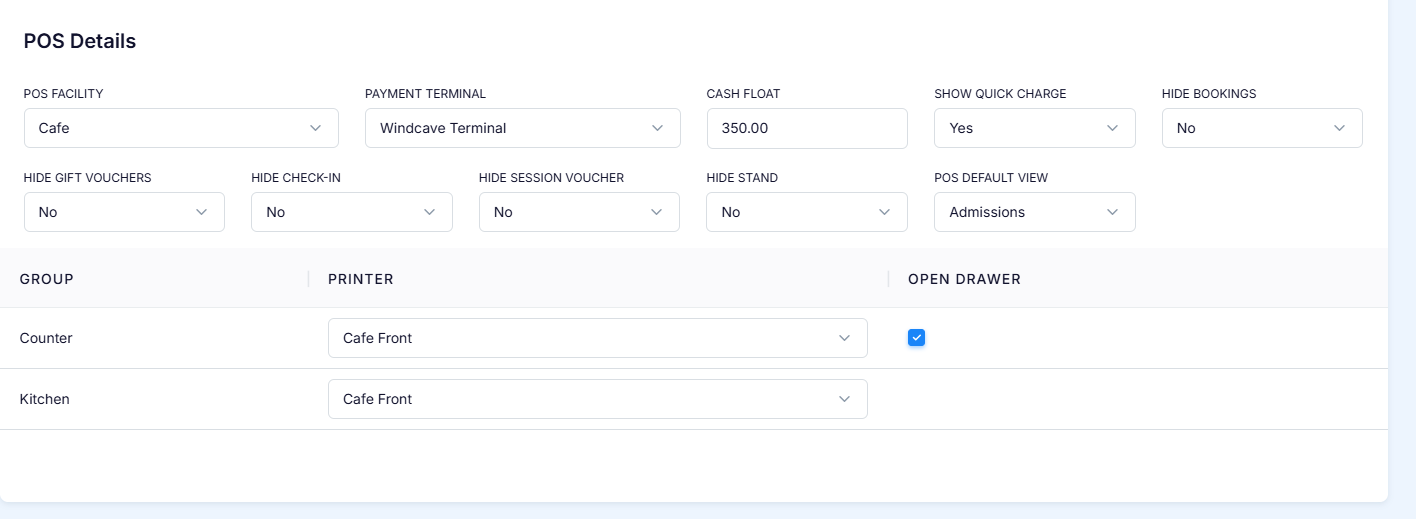
- Go to Settings > Logins and filter "TYPE" to "POS Terminal"
- Select the POS Terminal you would like to connect the printer to.
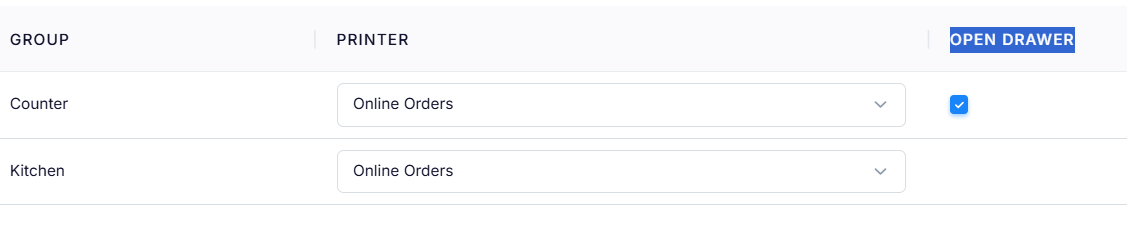
- In the POS Terminal login, scroll to the "POS Details" section (see screenshot below)
- Update the Printer Group (Counter will print your thermal receipts) and select the Printer you have added.
- Make sure you select a printer for each printer group, if applicable. Note: for more information on how to manage printer groups click here.
- If you are using a Cash Drawer, click OPEN DRAWER setting. (More instructions below for Cash Drawer settings).
4.Open Cash Drawer Command Configuration
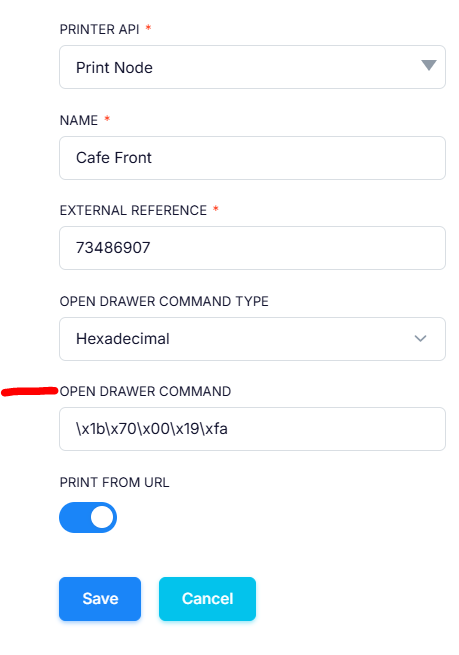
Different thermal printer brands and models can require different open cash drawer commands.
You can update the Open Drawer Command Type for each printer by following these steps:
- Navigate to Settings > Location > Printers.
- Select the printer you want to configure.
- Click Edit and update the Open Drawer Command Type field.
- Save the changes.
Activating the Open Cash Drawer Command
To enable the Open Cash Drawer function:
- Go to Settings > Logins.
- Filter Type to POS Terminal and select the POS login you want to enable open cash drawer on.
- Under the Counter Printer Group, check the Open Drawer checkbox.
- Save the settings.
Generic command that will work with 80% of Thermal Printers
- \x1b\x70\x00\x19\xfa
Below is a comprehensive list of Drawer Codes from multiple printer manufactures
EPSON
- \x10\x14\x01\x00\x08
Star
- TSP 100, TSP 100ii = 7
- TSP 100IIU, SP200, SP200-2, SP212, TSP 200 = 27,7,11,55,7
| Manufacturer | Model | Drawer Codes |
|---|---|---|
| 3NSTAR | LPT005 | 27,112,0,25,250 |
| AGPTek | SC9-5870 | 27,112,0,25,250 |
| Appostar | RTP-3280 | 27,112,0,25,250 |
| Axiohm | A715 A756 A794 | 27,112,0,48,251 OR 27,112,1,49,251 |
| Bematech | MP-250TH | 27,118,140 |
| Bematech | SRP-350PLUSiii | 27,112,0,50,250 |
| Bixolon | SRP-150UG | 27,112,0,50,250 |
| Bixolon | SRP-275 | 27,112,48,55,121 |
| Bixolon | SRP-280 | 27,112,0,64,240 |
| Bixolon | SRP-330 | 27,112,0,25,255 |
| Bixolon | SRP-350 SRP-350ii | 27,112,0,50,250 |
| Bixolon | SRP-375P | 27,112,48,55,121 |
| Code Soft | 3200 SERIES | 27,112,0,25,250 |
| Code Soft | DP7645III | 27,112,48,55,121 |
| Custom | Q3 | 27,112,0,50,250 |
| Dell | T200 | 7 |
| DCAPOS | POS 8350 | 27,112,0,25,250 |
| DIGIPOS | DS-800 | 27,112,48,55,121 |
| EC-Line | EC-PM-520 EC-PM-80330 | 27,112,0,40,168 |
| EC-Line | EC-PM-5890X | 7 |
| Epson | ? | 27,112,48,55,121 |
| Epson | TM-T20 | 27,112,48,55,121 |
| Epson | M51PD | 27,112,0,25,250 |
| Epson | TM-T60 | 27,112,32,25 |
| Epson | TM-L60II | 27,70,0,50,50 |
| Epson | TM-T70 | 27,112,48,55,121 |
| Epson | TM-T80P | 27,112,0,25,250 |
| Epson | TM-T81 | 27,112,0,25,250 |
| Epson | TM-82 TM-82ii | 27,112,0,25,251 |
| Epson | TM-T85 | 27,112,0,25,250 |
| Epson | TM-T88 | 27,112,0,25,250 |
| Epson | TM-T88II | 27,112,0,25,250 |
| Epson | TM-T88IIP | 27,112,48,55,121 |
| Epson | T88iii | 27,112,0,25,250 |
| Epson | T88iiiP | 27,112,0,64,240 |
| Epson | TM-88IV | 27,112,48,55,121 |
| Epson | TM-88V | 27,112,48,55,121 |
| Epson | TM-90 | 27,112,0,25,250 |
| Epson | M115A | 27,112,0,25,250 |
| Epson | M129C | 27,112,0,64,240 |
| Epson | M188A | 27,112,0,25,250 |
| Epson | M188B M188D | 27,112,48,55,121 |
| Epson | M192C | 27,112,0,64,240 |
| Epson | M192H | 27,112,0,64,240 |
| Epson | T200 | 27,112,0,25,250 |
| Epson | TM-200 | 27,112,0,64,240 |
| Epson | TM-200 | 27,112,0,25,250 |
| Epson | TM-U200B | 27,112,48,25,250 |
| Epson | TM-U200D | 27,112,0,64,240 |
| Epson | TM-U210PD TM-U210D | 27,112,0,25,250 |
| Epson | TM-220 | 27,112,0,25,250 OR 27,112,0,64,240 |
| Epson | TM-U220 | 27,112,0,25,250 OR 27,112,0,64,240 |
| Epson | TM-U220A TM-U220PD | 27,112,0,25,250 OR 27,112 |
| Epson | TM-U220B TM-U220PD | 27,112,0,25,250 |
| Epson | TM-U220D TM-U220PD | 27,112,0,25,250 |
| Epson | M253A | 27,112,48,55,121 |
| Epson | TM-U295 | 27,112,48,55,121 |
| Epson | ADP 300 | 27,112,0,25,250 |
| Epson | TM-300D | 27,112,0,25,250 |
| Epson | LX-300+ | 27,112,0,25,250 OR 27,112,48,55,121 |
| Epson | TM-U300PC TM-U300PD | 27,112,0,25,250 |
| Epson | TM-U325D | 27,112,0,25,250 |
| Epson | TM-U375 | 27,112,0,25,250 |
| Epson | ECP-500 | 27,112,48,55,121 |
| Epson | M665A | 27,112,48,55,121 |
| Epson | TM-T883P | 27,112,0,50,250 |
| Epson | TM-U950P | 27,112,0,50,250 |
| Epson | TM-H5000II | 27,113,0,25,250 OR 27,25,247 |
| Epson | TM-H6000 TM-H6000ii | 27,112,48,55,121 |
| Epson | TM-J7100 | 27,112,48,55,121 |
| Essae | PR-85 | 27,112,0,100,100 |
| Gainscha | GP-80160 | 27,112,0,100,250 |
| Goangzhou | AB-88A | 27,112,0,50,250 |
| Gprinter | GP-5890 GP-80160 | 27,112,0,100,250 |
| Fujitsu | fp-350 | 27,112,0,48,251 |
| Fujitsu | fp-410 | 27,112,1,49,251 |
| HP | A798 A799 A799-C40W | 27,112,0,8,8 |
| HPRT | TP805 | 27,112,0,250,250 |
| IBM | 4610 | 7 |
| IBM | 4610 | 27,112,0,50,250 |
| IBM | Sure POS | 27,112,0,250,250 |
| IDIPOS | AB-88H | 27,112,0,50,250 |
| INFOCOMM | P80 | 27,112,0,50,250 |
| Ithaca | PcOS 50 | 27,112,0,25,250 or 7 |
| Ithaca | PcOS 51 | 27,112,0,25,250 or 7 |
| Ithaca | PcOS 52 | 27,112,0,25,250 or 7 |
| Ithaca | POSjet | 27,112,0,25,250 |
| Ithaca | 80 PLUS | 27,120,1 |
| Ithaca | SERIES 90 | 27,120,1 |
| Ithaca | SERIES 94 | 27,120,1 |
| Ithaca | 150 | 27,120,1 |
| Ithaca | 280 | 27,112,0,250,250 27,112,1,49,251 |
| Ithaca | iTherm 280 | 27,120,1 27,120,2 |
| Ithaca | POSjet 1000 | 27,120,1 27,112,0,25,250 |
| Jolimark | TP820 | 27,112,0,100,250 |
| Kasir Enibit | P58B | 27,112,0,25,250 |
| Koohii | SMART 300 | 27,112,0,25,250 |
| MetaPace | T1 T3 | 27,112,48,55,121 |
| NCR | 7167 7179 7197 | Drawer #1 27,112,0,55 Drawer #2 27,112,1,55 |
| NCR | 7223 | 27,112,80,25,250 |
| NEC | TSP-100 | 7 |
| NEXA | PX700 | 27,112,0,50,250 |
| Obvios | ORP-800 | 27,112,0,25,250 |
| Ojuled | POS58 | 27,112,0,25,125 |
| Oki | OKIPOS 407 | 7 |
| Oki | OKIPOS 1000 | 27,120,1 |
| Olivetti | PRT-100 | 27,112,0,25,250 |
| POS-X | PT3 | 27,112,0,25 |
| POS-X | XR-200 XR-250 XR-500 | 27,112,0,25,250 |
| POS-X | EVO-RP1 | 27,112,0,25 |
| Posiflex | CR 4200 | 27,112,80,25,250 OR 27,112,0,25,250 |
| Posiflex | AURA 5600 AURA 8000 | 27,112,0,25,250 or 27,112,80,25,250 |
| Posiflex | PP6000 PP6900 PP7000 PP8000 | 27,112,0,25,250 |
| Samsung | STP 131 | 27,112,0,48,50 |
| Samsung | SRP 220 | 27,112,48,55,121 |
| Samsung | SRP 270 | 27,112,0,25,250 OR 27,112,0,60,240 |
| Samsung | SRP 270A | 27,112,0,64,240 |
| Samsung | SRP 275 SRP-275AP SRP-275C | 27,112,48,55,121 |
| Samsung | SRP 350 | 27,110,0,25,250 |
| Samsung | SRP 350T | 27,112,0,50,250 |
| Seiko | ESC-POS RP-B10 RP-E10 | Drawer #1 27,112,0,50,250 Drawer #2 27,112,1,50,250 |
| Sensonic | T-300 | 27,112,0,25,250 |
| Sewoo | LK-TL-322 | 27,112,0,50,250 |
| Shenzhen | POS-8350 | 27,112,0,25,250 |
| Sinocan | PO6-U/S/L | 27,112,48,55,121 |
| SNBC | BTP-M280 | 27,112,0,50,250 |
| SNBC | BTP-R880NP | 27,112,48,55,121 |
| SNBC | BTP-2002NP | 27,112,48,40,200 |
| Star | All? | 27,7,11,55,7 |
| Star | TSP 100 TSP 100ii | 7 |
| Star | TSP 100IIU | 27,7,11,55,7 |
| Star | SP200 SP200-2 SP212 | 27,7,11,55,7 |
| Star | TSP200 | 27,7,11,55,7 |
| Star | SP500 | 27,122,49,7 OR 27,7,11,55,7 |
| Star | SP512 | 27,122,49,7 |
| Star | SP550II | 27,7,10,50,7 |
| Star | TSP-600 | 7 OR 27,7,10,50,7 |
| Star | TSP-613TSP-650TSP-654iic | 7 27,7,10,50,7 27,7,11,55,7 |
| Star | TSP-700TSP-700ii | 27,07,11,55,07 |
| Star | TSP-743ii | 27,7,11,55,7 |
| Star | SP2000 | 27,122,49,7 |
| Star Micronics | TSP-650 | 27,112,0,48 |
| Star Micronics | dp-8340fm | 27,7,11,55,7 |
| Syncotek | SP-POS88VI | 27,112,48,32,64 |
| TEC | RKP300 | 27,112,0,100,250 |
| TEC | TRST-A10 | 27,112,48,55,121 |
| TEC | TRST-53 TRST-56 | 27,112,0,100,250 |
| Toshiba | TRST-A10 TRST-A15 | 27,112,48,55,121 |
| Toshiba | SUREPOS500 | 27,112,0,250,250 |
| Toshiba | SX2100 | 27,112,32,55,255 |
| TOSHIBA TEC | DRJST-51 | 27,112,0,100,250 |
| TPG | A776 A794 A798 | 27,112,1,49,251 |
| TVS | RP-3200 | 27,112,0,100,250 |
| TPG | A799 | 27,112,0,8,8 |
| Tysso | PRP076 PRP300 | 27,112,0,50,250 |
| UCOM | U808 | 27,112,0,25,25 |
| Unisys | EF4272 | 27,112,0,100,250 |
| WASP | F100 WTP-100 | 27,112,49,48,48 |
| WESTREX | 4200 | 7 |
| Xprinter | XP-C20-K XP-360 XP-350-B | 27,112,0,148,49 |
| Zjiang | POS-58 | 27,112,0,150,250 |
| Zjiang | ZJ-8200 | 27,112,0,48,48 |
| Zjiang | ZJ-8250 | 27,112,0,25,250 |
| Zonerich | AB-88H | 27,112,0,50,250 |
Source - https://keyhut.com/popopen.htm
5.Test printing is working!
Once you have completed printer setup, please test your thermal printers are working using commands from the POS with these tests:
- POS Printer Test - https://help.venuesumo.com/article/150-how-to-test-pos-terminal-is-printing-correctly
- POS Open Cash Draw Test - https://help.venuesumo.com/article/151-how-to-test-the-cash-draw-opens-from-the-pos
If you are having any issues, please:
- View our Printer troubleshooting guide; or
- Lodge a support ticket with VenueSumo support (above).