How to Set Up the Kitchen Display System (KDS)
Last updated: October 29, 2026
The KDS shows incoming orders on a screen in your kitchen, bar or any prep area, so your team can see what to make and tick items off as they're done. An optional Expo screen lets a front-of-house team member see every order across all stations.
Setting it up involves five parts in Back Office. Work through them in order.
Step 1: Set up your stations
Stations are the areas that prepare food or drinks, like Kitchen, Bar or Counter. They're set up under Printer Groups / Stations.
Create a station for each prep area. I
Already using docket printers? Your printer groups are already set up — just check the chime and timer settings below
(Optional) Turn on chime if you'd like the screen to sound when a new order arrives.
(Optional) Set a warning time and an overdue time (in seconds). Order cards show "Due in X minutes", turn orange at the warning time, and turn red with "Overdue by X minutes" once overdue.
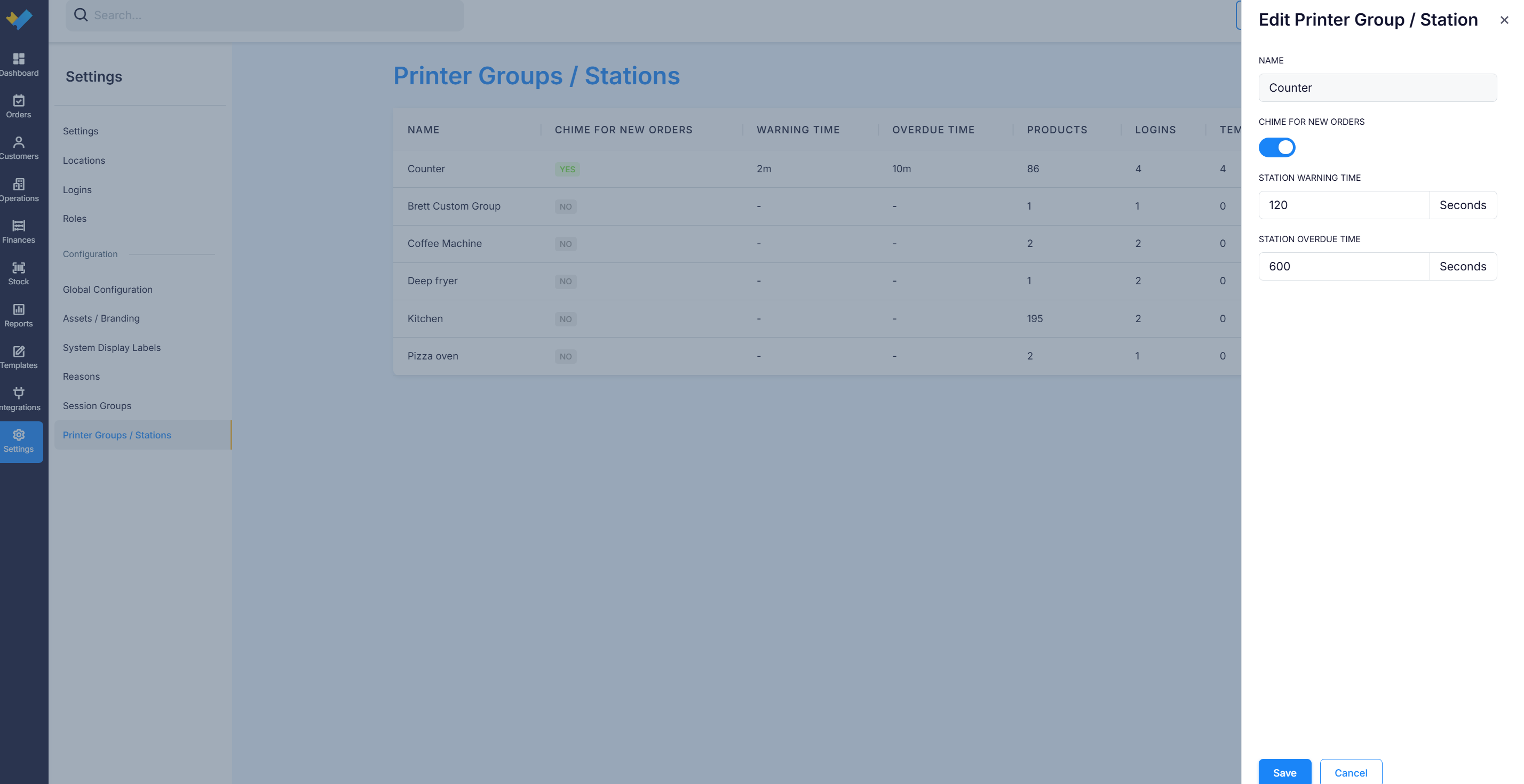
Example: for an orange warning at 5 minutes and red at 10 minutes, enter 300 and 600.
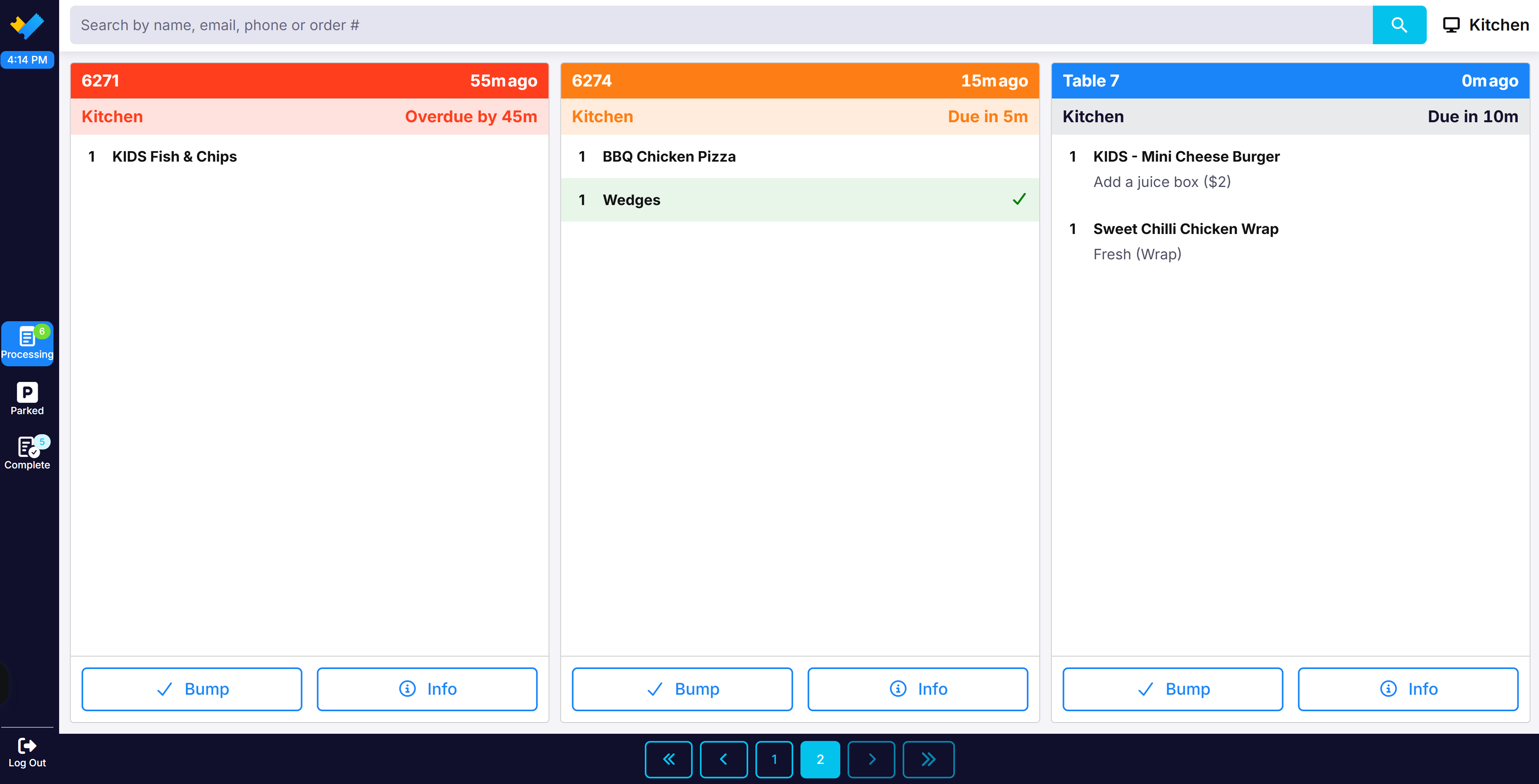
Orange means the order is nearing its due time. Red means it's overdue.
Note: If chime settings are turned on for both the station and the POS Facility, the station's setting takes priority.
Step 2: Choose how orders reach the kitchen
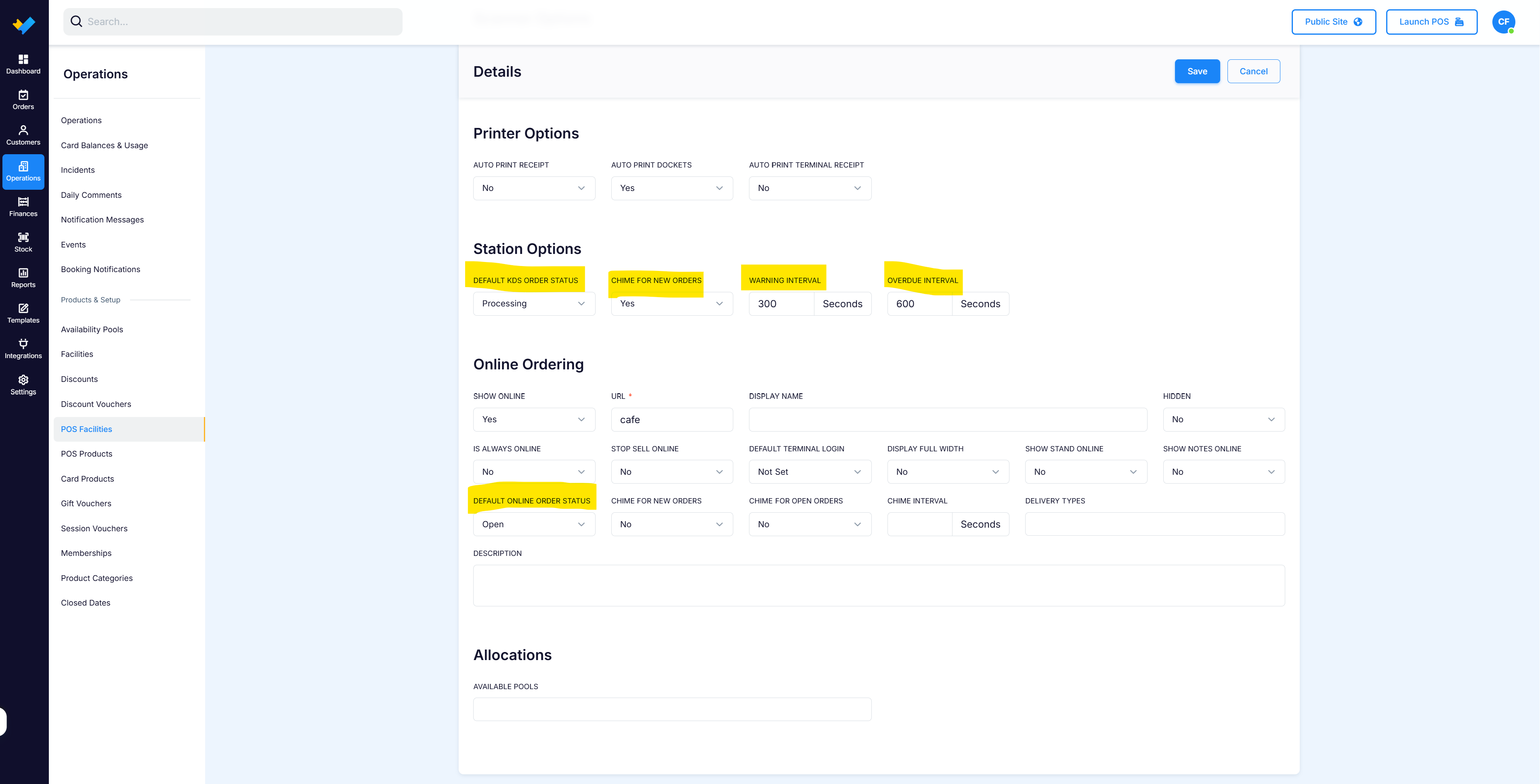
Open your POS Facility and choose the default order status for the KDS and for online orders:
Processing: Orders go straight to the kitchen screen.
Open: Orders wait on the Expo screen until a team member taps Process. This gives you a chance to accept online orders first.
Only orders in Processing show on the kitchen screen. If you don't plan to use the KDS, set the default KDS order status to Complete.
Step 3: Assign stations to your products
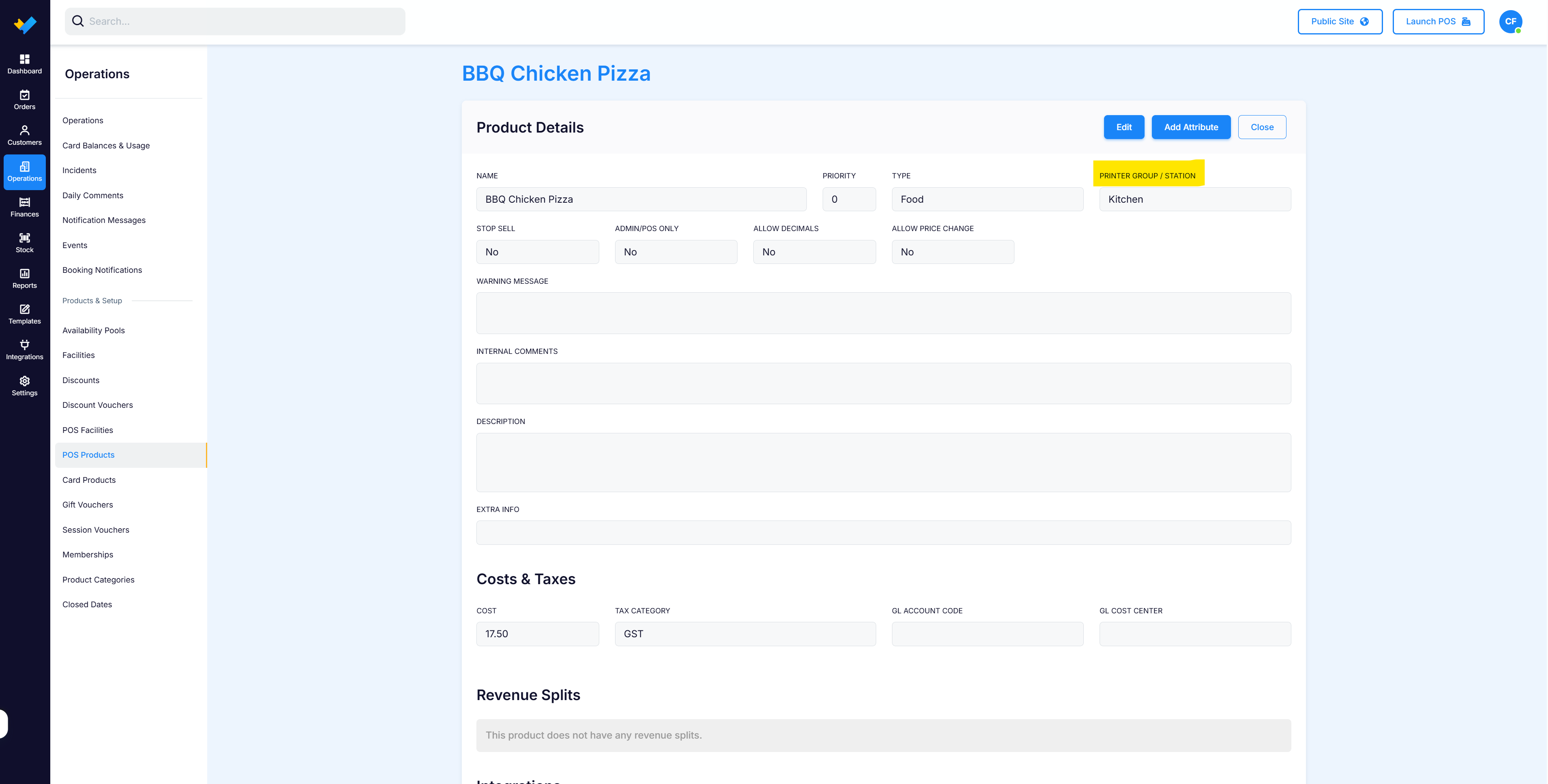
Open each POS Product and check the following:
A Printer Group / Station is selected (this decides which screen the item appears on).
The product has a category assigned and is linked to your location and your POS Facility.
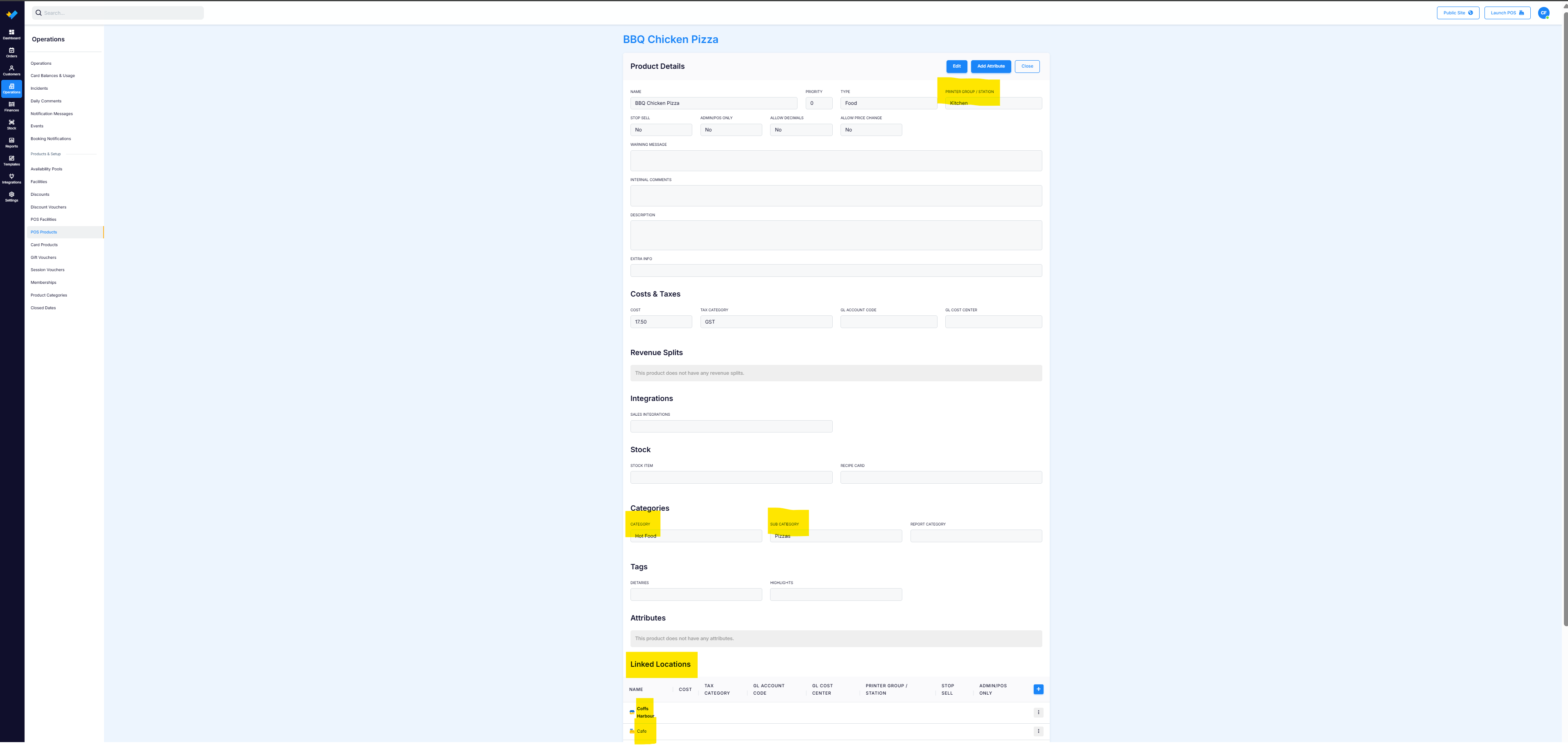
Products without a station appear under "No Station" on the Expo screen and won't show on any KDS Station screens.
Step 4: Create the kitchen screen login
Each KDS screen needs its own login.
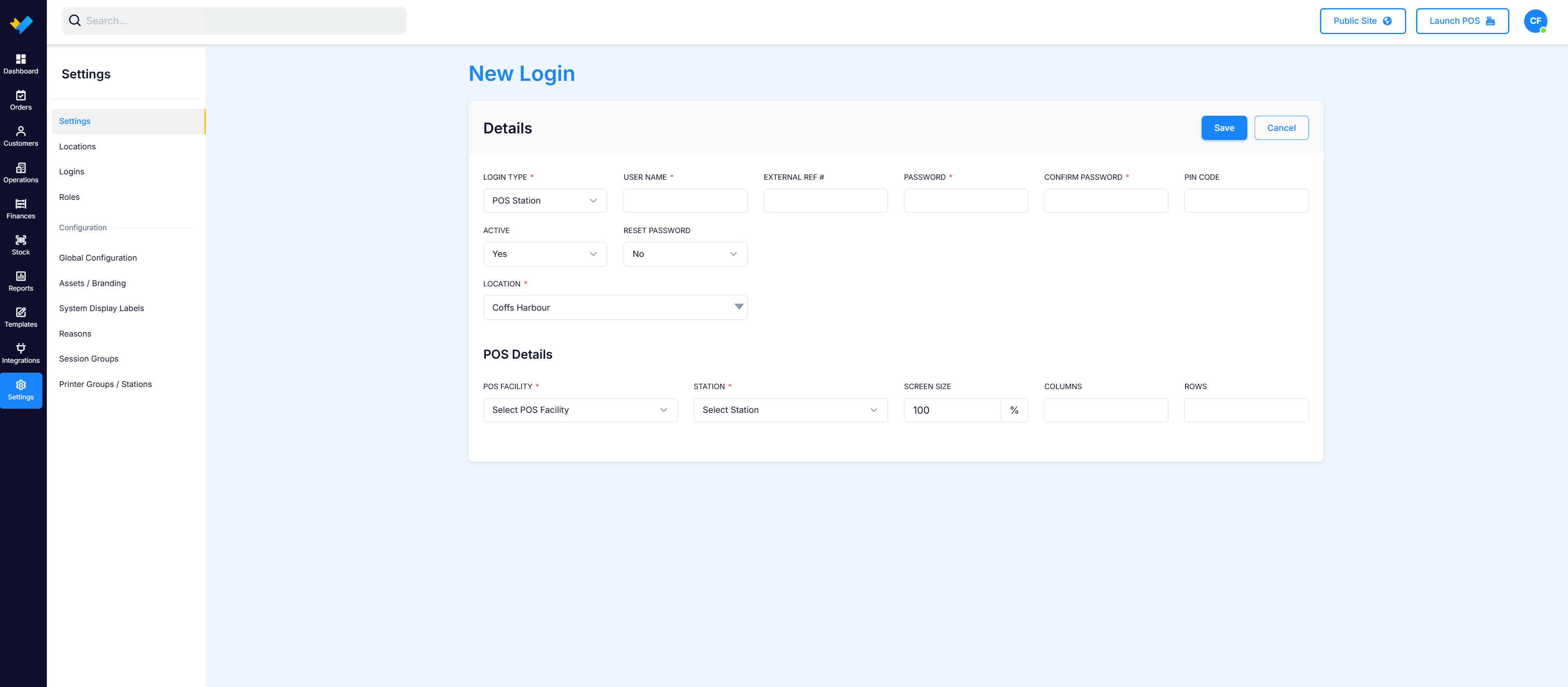
Create a new login with the type POS Station.
Enter a username (for example, Kitchen) and a password.
Select your location, POS Facility and station.
Choose the screen size, columns and rows to suit your screen. Columns can be 1 to 12 and rows 1 to 6, and together they decide how many orders show on one page. For example, 4 columns and 2 rows shows 8 orders at a time.
Tip: Test the layout on your actual screen. After changing columns or rows, open the KDS in an incognito tab and press Ctrl + Shift + R to see the change straight away.
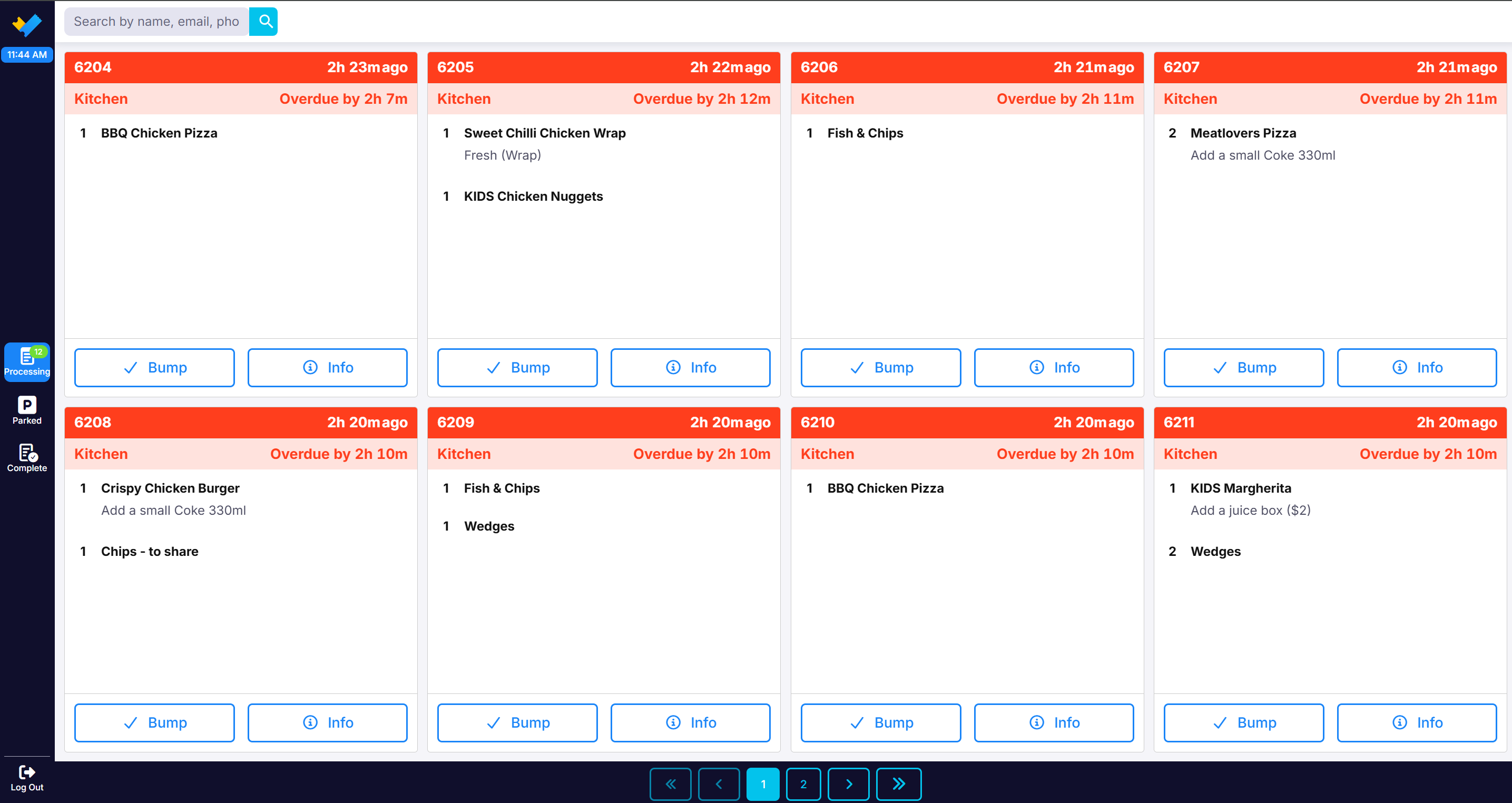
We suggest using a KDS screen that is 13 inches or bigger so orders stay easy to read at a glance.
Step 5: Turn on the Expo screen (optional)
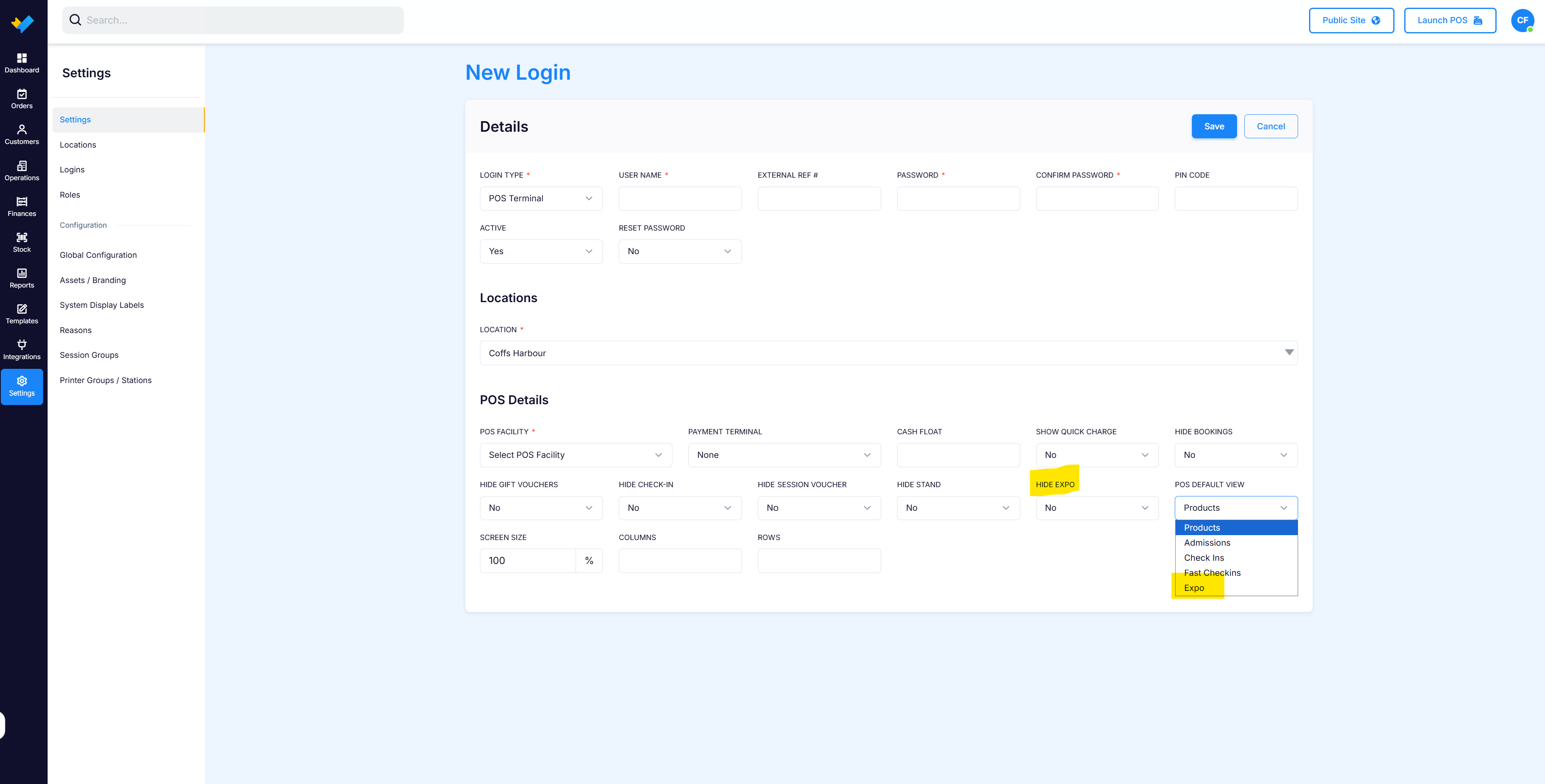
The Expo screen is part of your POS Terminal login.
Open your POS Terminal login.
Set Hide Expo to No.
Choose the screen size, columns and rows (same limits as above).
(Optional) Set the POS Default View to Expo if this terminal will mainly be used as the Expo.
Optional: Print kitchen dockets
If you'd also like paper dockets to print, make sure your printers are set up with PrintNode first (see our guide: How to set up printers for VenueSumo POS). Then check the following:
Your PrintNode API key is added and active under Integrations.
Each printer is added under Locations > Location > Printers.
Your stations are set up, for example Kitchen and Counter.
The POS Terminal login has a printer assigned to each station.
The POS Station login has the POS Facility, station and printer assigned.
On the POS Facility, set the three auto-printing options to Yes, and choose a default terminal login.
If you’re already using thermal docket printers, they’ll continue to work as normal unless disconnected.
Optional: SMS customers when their order is ready
This function requires the SMS Global integration to be enabled.
You can send customers a text when their order is being processed and when it's complete. This needs a few steps from our team, so please contact support and we'll turn on text messaging for you.
On your side, you'll need to:
Make phone number a required field in Global Configuration. To collect it only for certain products, set Require contact details to Yes on those product categories. This ensures phone number is collected at time of purchase.
Contact support@venuesumo.com to set up the SMS automation.
Customers will receive messages like these:
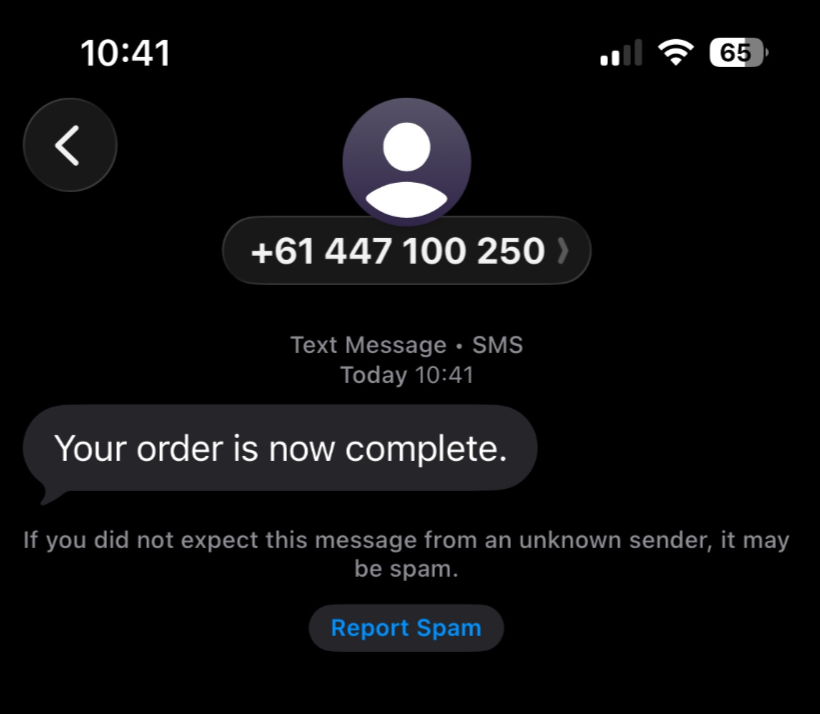
You can check the texts sent on the SMS tab of any order record in the Back Office.
Check it works
Create a test order in the POS. You should see:
The order marked as Processing in the POS (if your KDS status is set to Processing).
A kitchen docket print (if auto-printing is on).
The order on the Expo screen, if enabled.
Items on the correct kitchen screen.
Related Articles
📄 How to set up staff logins, roles and permissions
📄 How to add a POS terminal login
📄 How to set up printers for VenueSumo POS
📄 How to create and link Printer Groups
Need more help? Contact our support team here.