How to configure a POS Facility for Table Ordering
Last updated: May 10, 2026
You can use an existing POS Facility for table ordering, but creating a new one may be more convenient. This allows you to use existing POS Categories and Products while simplifying sales monitoring with a dedicated facility. Either way, there are a few important variables to consider, which are covered in this document.
Navigate to Operations -> POS Facilities and select the POS Facility to edit
Fill in the fields that relate to Table Ordering:
| Show Online | If set to YES:
If set to NO:
|
| URL | If not entered, the POS Facility will not appear online. Each POS Facility set to show online must have a unique URL. However, if you have multiple locations with only one POS Facility each, the URLs can be the same, as the location is automatically appended to the URL. |
| Is Always Online | If set to YES:
If set to NO:
|
| Stop Sell Online | If set to YES:
If set to NO:
|
| Default Terminal Login | Online orders can be assigned to a specific login for tracking within the POS. If printers are set up for the login then dockets will automatically print when online orders are placed. See guide How to Create a POS Terminal Login Dedicated to Online Ordering |
| Display Full Width | If set to YES:
If set to NO:
|
| Show Stand Online | If set to YES:
If set to NO:
|
| Show Notes Online | If set to YES:
If set to NO:
|
| Default Order Status | The default is: Open Change it to: Processing or Complete to align with your business procedures For details on how each status affects order processing, refer to guide: Processing and Fulfilling Online Table Orders |
| Chime for New Orders | If set to YES:
If set to NO:
|
| Chime for Open Orders | If set to YES:
If set to NO:
|
| Chime Interval | If left blank, the default is 5 seconds. To set a different interval, enter the desired number (e.g., 60 seconds for a 1-minute interval). |
| Description | Displays text to describe the POS facility on the bookings site |
How will it look?
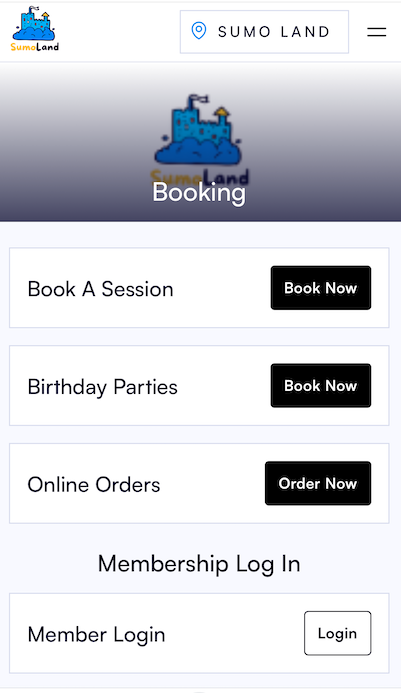
Show Online Once a POS Facility is set to "SHOW ONLINE," it will appear on your booking page, even if no products are set up:
URL = Using the unique URL, you can generate a QR code to place on café tables, providing easy access to table ordering (see help guide How to Create Custom QR Codes for Table Ordering):

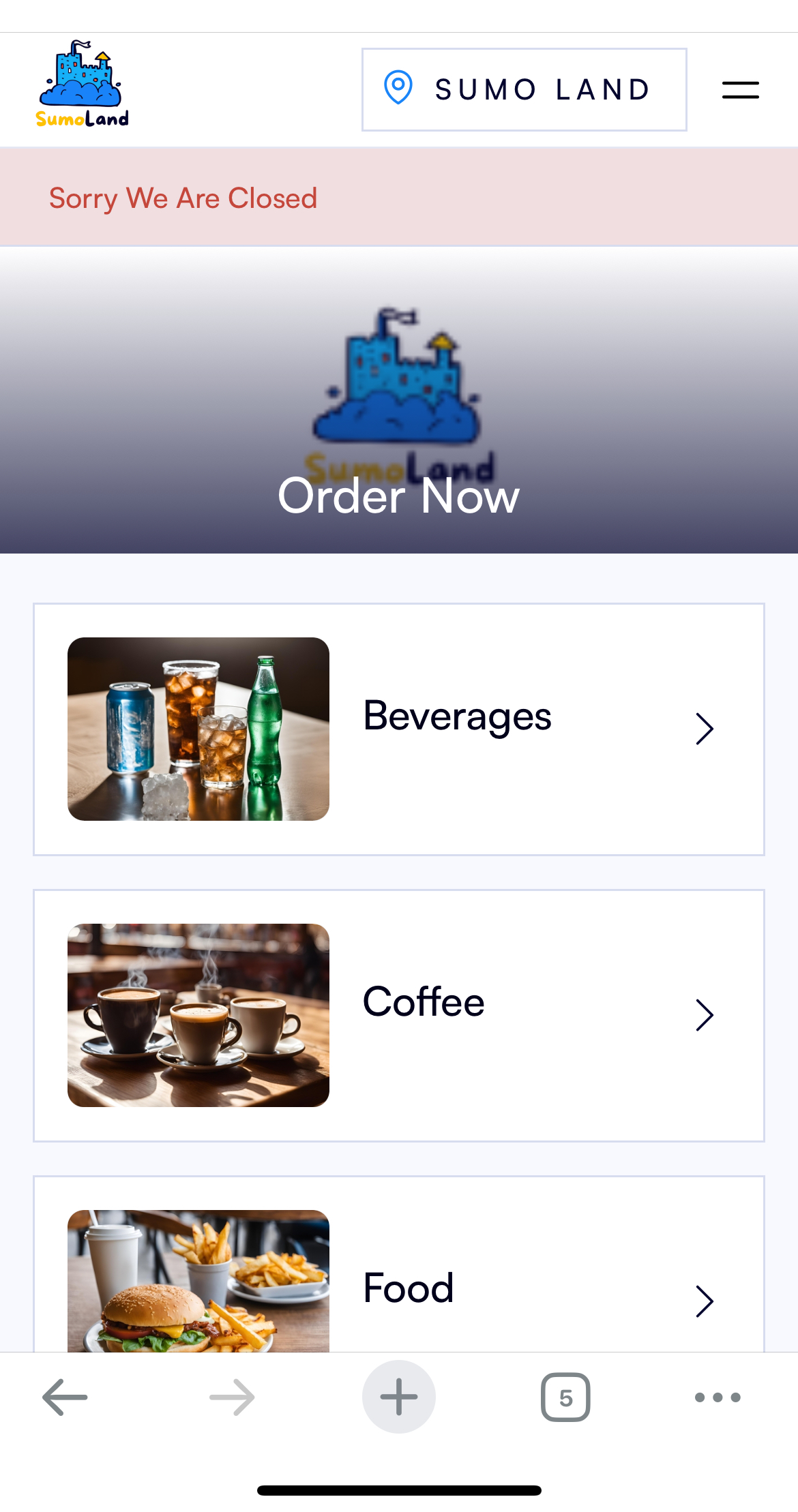
Stop Sell Online = YES, customers will see Sorry We Are Closed (this message can be changed in Settings - System Display Labels - Type: Heading):
This setting can also be accessed and updated directly through the POS login under SETTINGS:

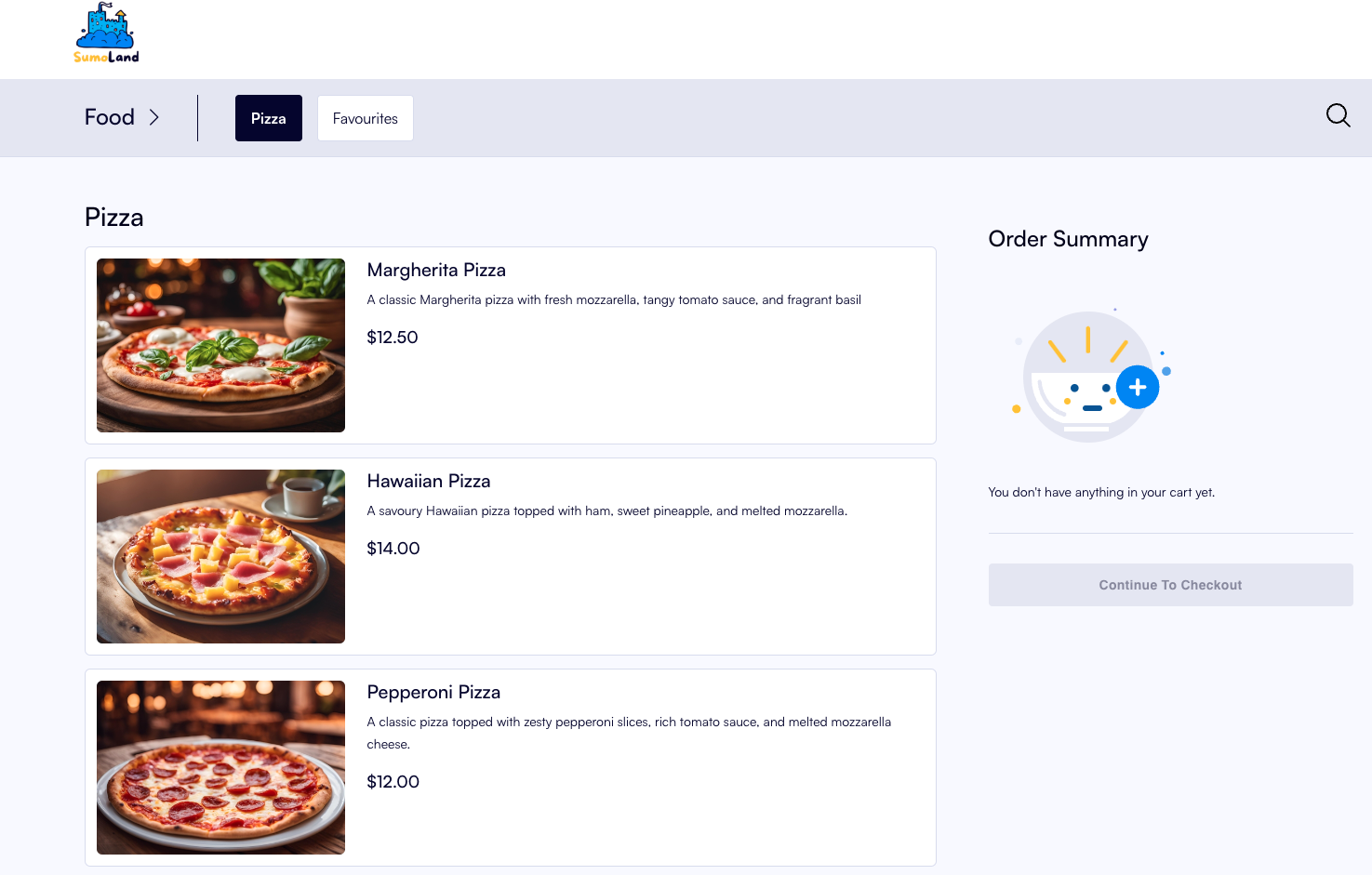
Display Full Width = YES (On mobile devices, the product display will always be full width, regardless of this setting)
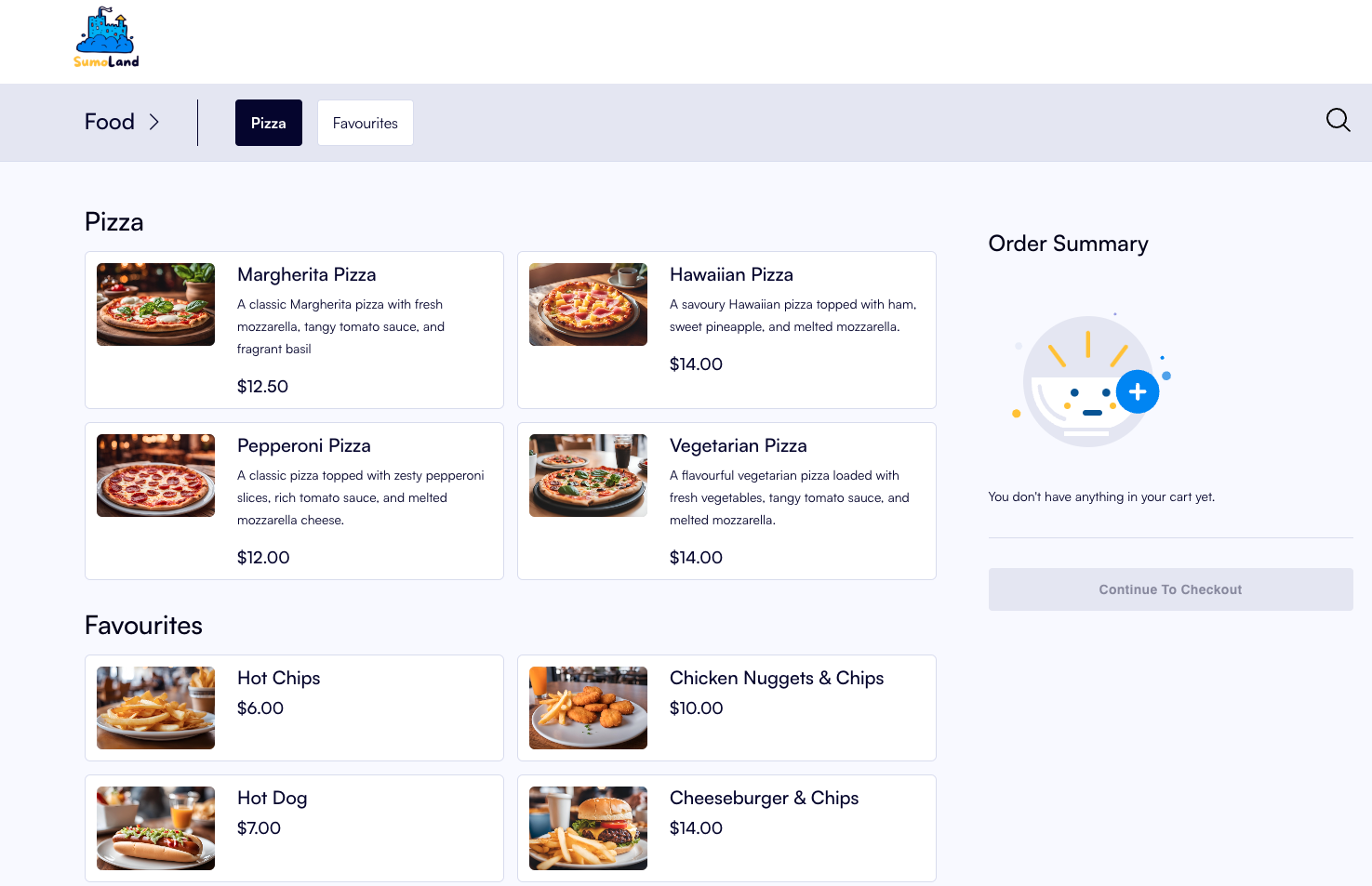
Display Full Width = NO (On mobile devices, the product display will always be full width, regardless of this setting)
Display on a mobile:

Show Stand Online = YES, customer will be prompted to select a table number at checkout:

Show Notes Online = YES, customer will have the option to add an Order Note by clicking on the PLUS icon (not mandatory):


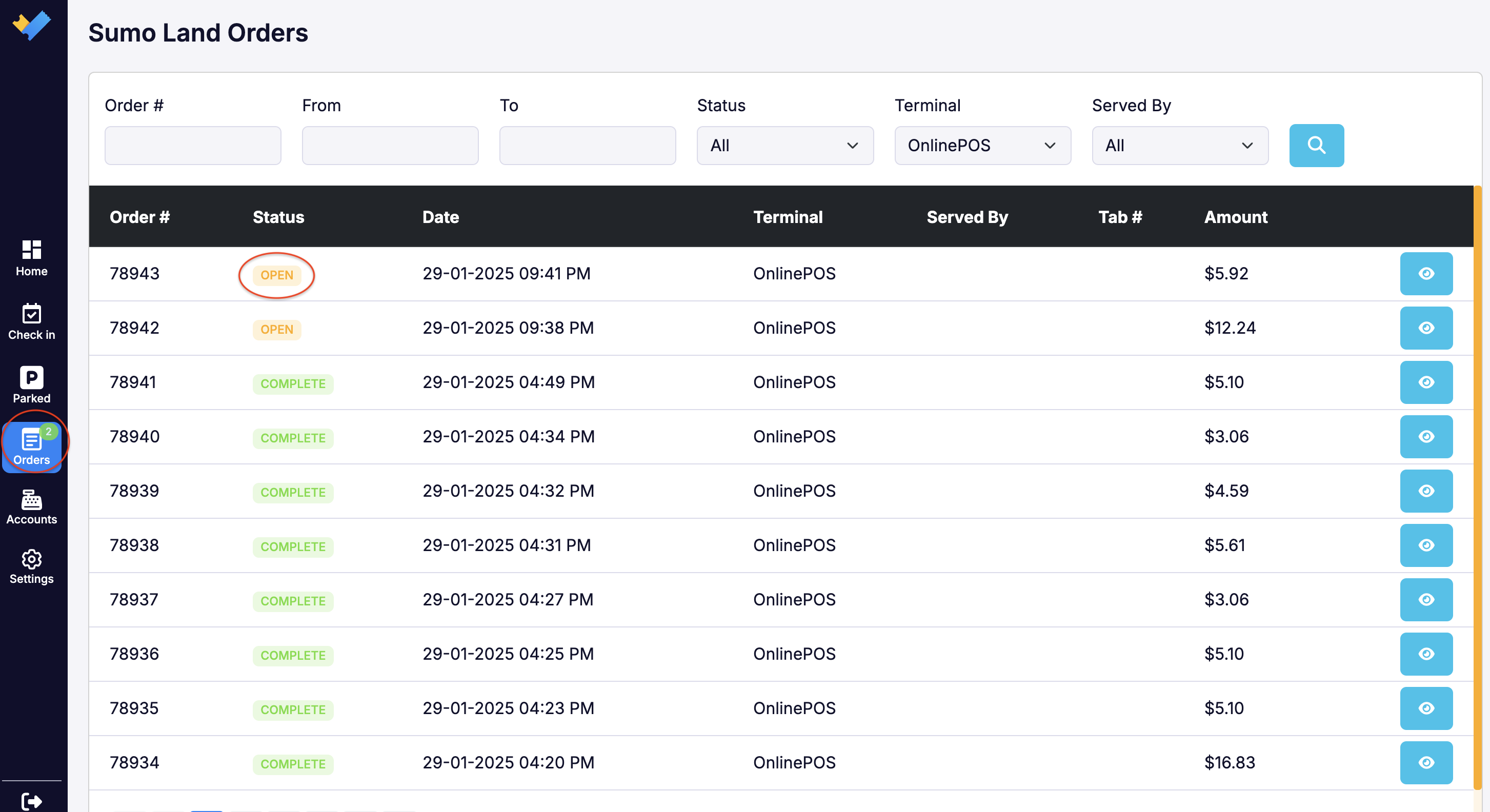
Default Order Status = If set to "Processing" or "Complete," the ORDER tab on the left side of the POS will not increment with new orders, and any set chimes will not sound.
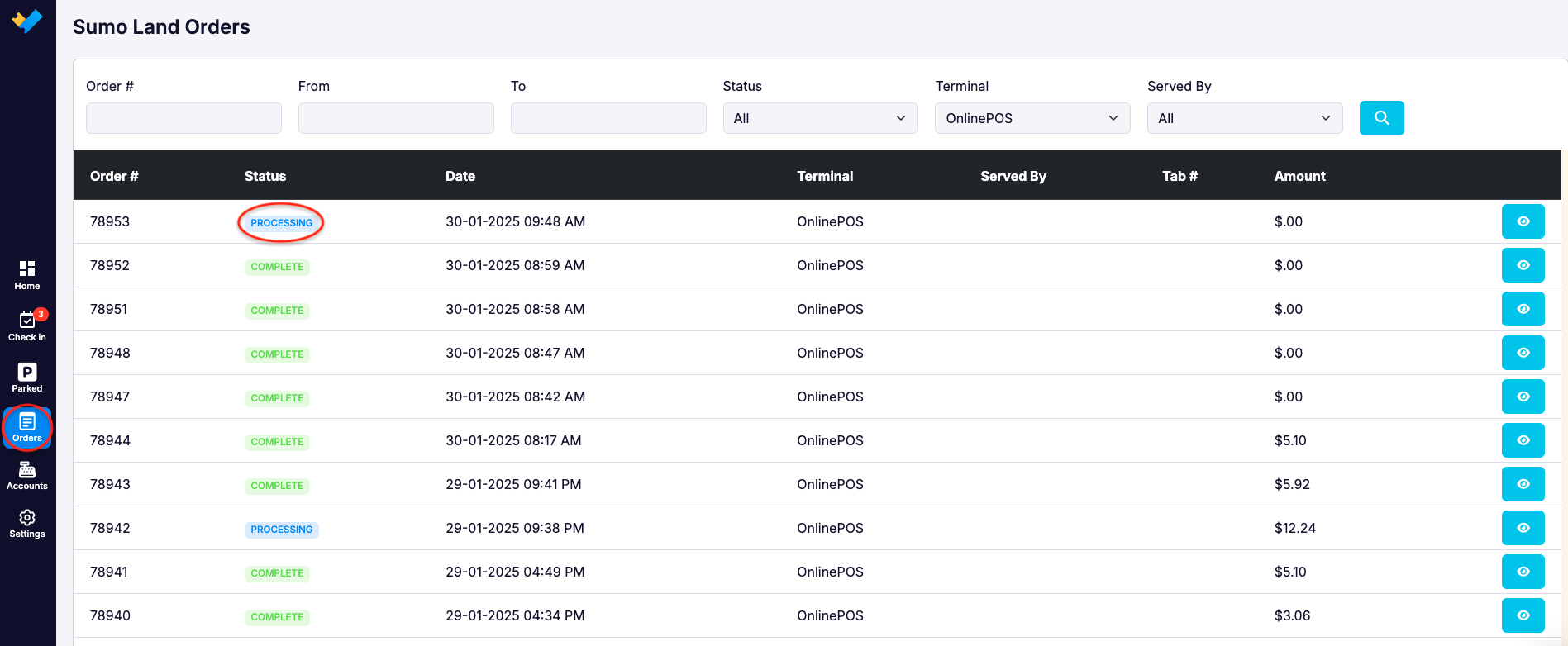
Chime for New Orders = When a new order arrives, the POS chimes, and the ORDERS tab shows a flashing, incrementing number. Once an order is marked "Complete" or "Processing," the number decreases or disappears if there are no outstanding orders.
Description = If you have multiple cafes in your venue, the description can inform customers which cafe they are ordering from:
The POS Facility "Pure Bite" description

The POS Facility "Pure Brew" description

Will display online:
