Processing and Fulfilling Online Table Orders
Last updated: May 10, 2026
After a customer completes an online table order, the system assigns a status (Open, Processing, Complete), staff can be alerted by a chime and manage orders accordingly, and notifications (SMS, or emails) keep customers informed.
Step 1: Configure Default Order Status in POS Facility Settings
- Navigate to Operations -> POS Facilities and click on the POS Facility that has been set up for online table ordering:

Scroll down to the Online Ordering Section:

- Select your Default Order Status:
| Open |
|
| Processing |
|
| Complete |
|
Important Notes:
- All orders processed through this POS Facility will inherit this selected status
- The Email and SMS communications are optional, but you can still use the status changes to help manage and action items in the POS effectively
- To use SMS messaging, you'll need to subscribe to an SMS service. Currently, you can choose between SMS Global or Sinch Message Media
Step 2: Set up Audible Alerts for Open Online Orders
Set up a single audible alert for new orders with the following settings:
Default Order Status = Open
Chime for New Orders = Yes
Any POS Device using this POS Facility will emit a single audible notification to alert staff immediately when a new order is placed through online table ordering.

Set up periodic audible alerts for open orders with the following settings:
Default Order Status = Open
Set Chime for Open Orders = Yes
Chime Interval = 5
Any POS Device using this POS Facility will emit an audible notification every 5 seconds for orders with a status of Open. This will continue until the order status is changed to either Processing or Complete. If you prefer less frequent alerts, you can adjust the Chime Interval setting.

Step 3: View the Orders on your POS Device
Online orders will be shown on the POS Device that is using the POS Facility:

- Click on the EYE icon to:
- View the details of the order
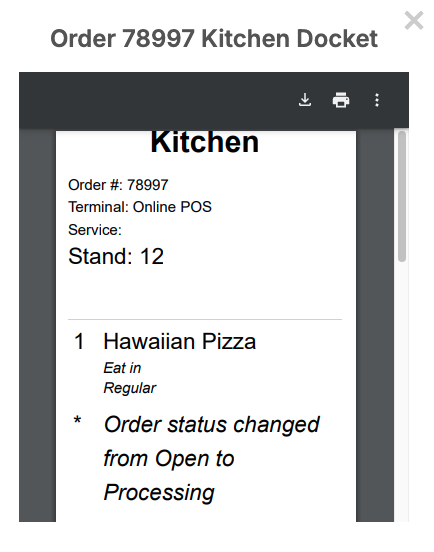
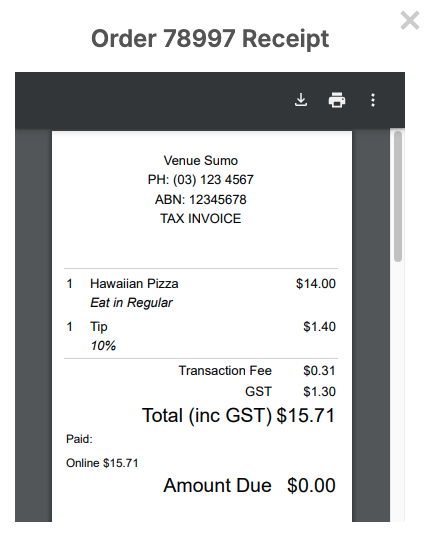
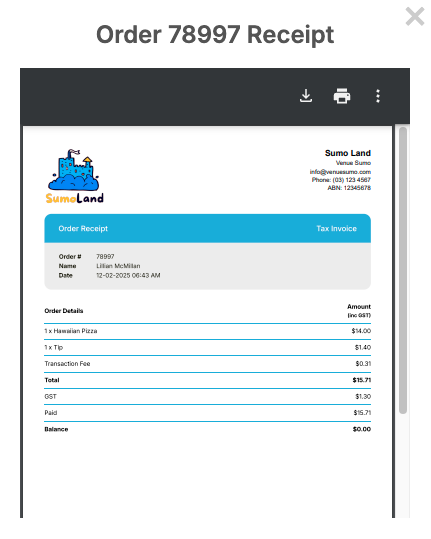
- Print the Receipt or the Kitchen Docket
- Change the status of the order
View the Thermal Receipt:
View the A4 Receipt:
View the Kitchen Docket: