How to pair Tenerum / Newbook Pay payment terminals to VenueSumo
Last updated: July 14, 2026
If you have ordered payment terminals from Tenerum /Newbook Pay /VS Pay you will have received pre-configured terminals at your venue. The details for your Payment Terminals will have already been added into VenueSumo. To view them, go to Settings > Location > [YOUR LOCATION] > Payment Terminals.
To get your payment terminal's integrated with Venue Sumo POS you will need to:
Identify which Payment Terminal you have;
Update the Payment Terminal in the Venue Sumo POS Login so it is integrated;
Pair the Payment Terminal (Optional);
Test a POS transaction lights up the payment terminal when you use the Card payment method.
1.Identify which Payment Terminal you have
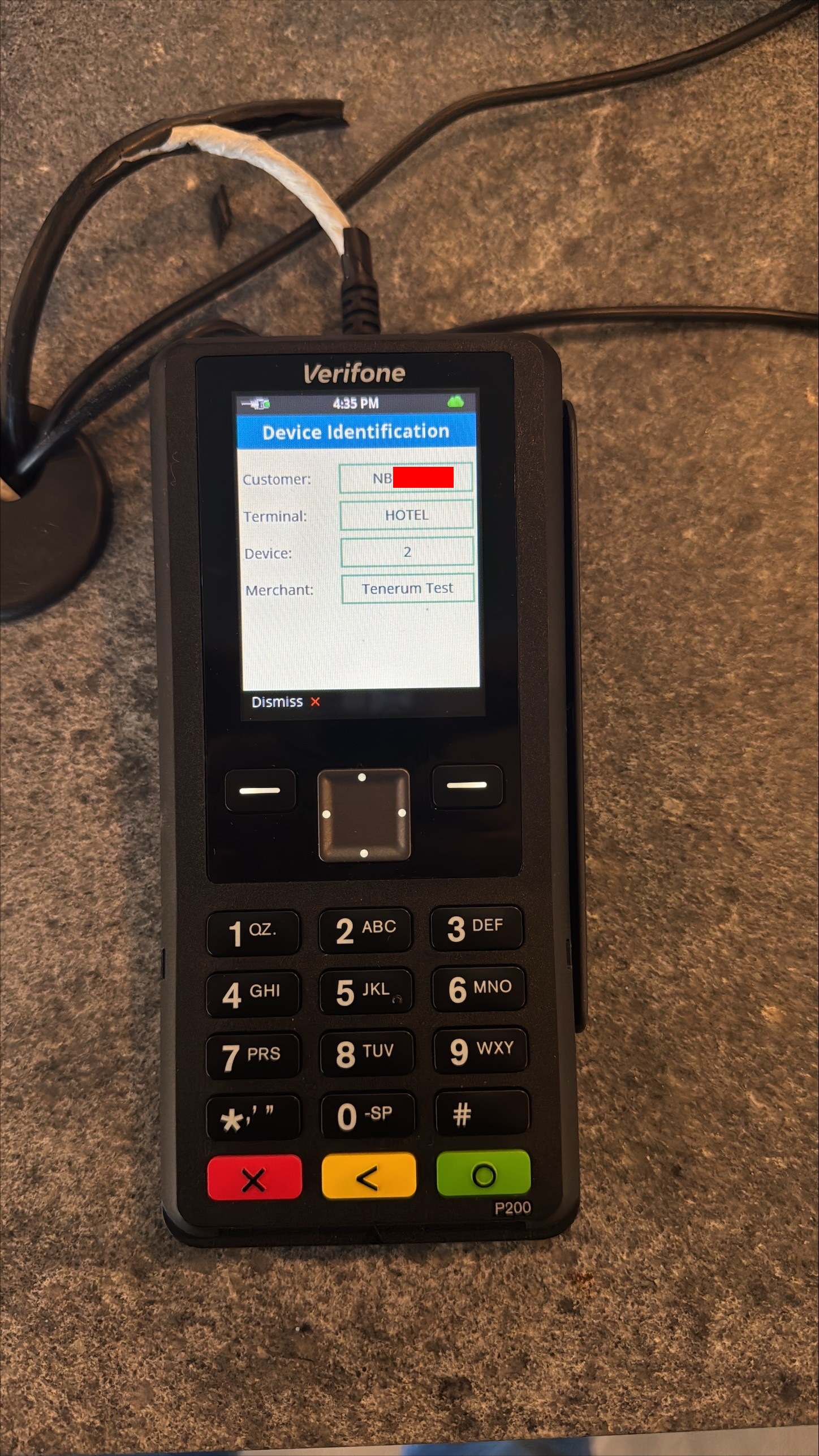
To understand the External Reference of the payment terminal you want to integrate with Venue Sumo POS you need to run the following comand on the PIN pad:
Type 111
Press the "Green" button
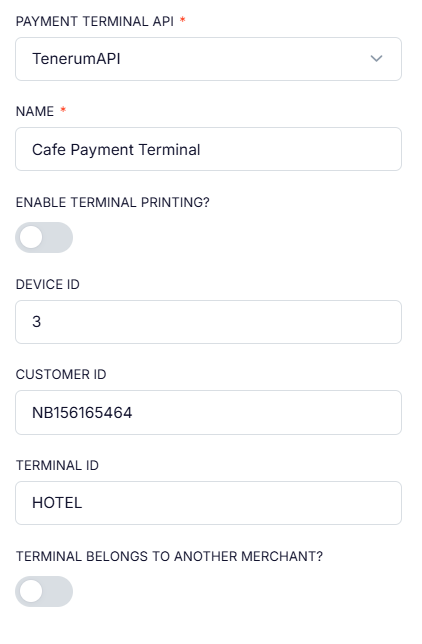
This will display the Customer ID, Terminal ID and Device ID which you should be able to find in your Venue Sumo backoffice by viewing: Settings > Location > [YOUR LOCATION] > Payment Terminals
Venue Sumo backoffice edit screen of a Payment Terminal. We recommend you change the "NAME" label in VenueSumo to match the location of your Payment Terminal. It also helps to physically label the payment terminal so you don't swap or confuse hardware in-store.
2.Update the Payment Terminal in the Venue Sumo POS Login to integrate.
To connect a Payment Terminal to a POS Login in Venue Sumo, you must allocate the payment terminal in the POS Login settings .
We recommend assigning one Payment Terminal per POS Login for optimal performance. However, you can link two POS Logins to a single Payment Terminal—but be aware that attempting to use both simultaneously will result in an error.
In Venue Sumo backoffice go to: Settings > Logins > filter by TYPE to "POS Terminal". This will display a list of your POS Logins.
Choose the POS Login you want to link to the terminal, then update the "Payment Terminal" field with the terminal's name. The payment terminal is now connected to the POS Login.
3.Pair the Payment Terminal (Optional)
Go to Settings > Location > [YOUR LOCATION] > Payment Terminals.

Click on the icon with the 3-dots and click "Pair Terminal".
This will trigger the Payment Terminal to light up and ask you to present a card. No payment will be taken, but a success message will be sent back to VenueSumo. We have noticed this test only works on debit cards or when you swipe the card.
