How to configure a POS Category for Table Ordering
Last updated: May 10, 2026
You can configure any existing product category for table ordering without affecting your current POS setup.
Navigate to Operations > Product Categories and select the category you want to configure.
Fill in the fields that relate to table ordering:
| For POS & Online Orders | If set to NO:
If set to YES:
|
| Is Sub Category | If set to NO:
If set to YES:
Note: This variable will only appear if For POS & Online Orders is set to YES |
| Show Online | If set to NO:
If set to YES:
Note: This variable will only appear if For POS & Online Orders is set to YES |
| URL | For main categories
For sub-categories
Note: This variable will only appear if For POS & Online Orders is set to YES |
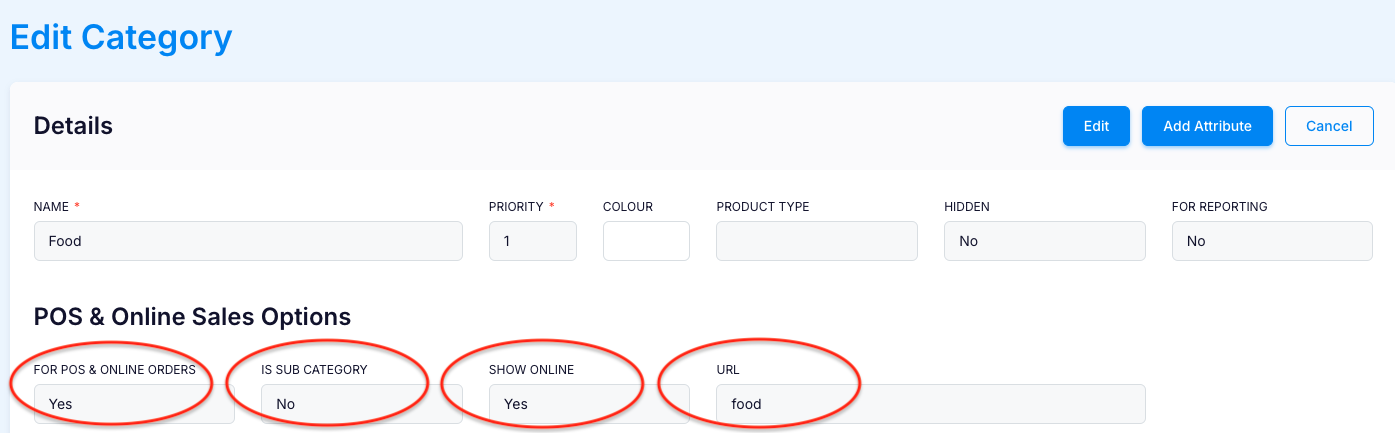
Update the Attributes
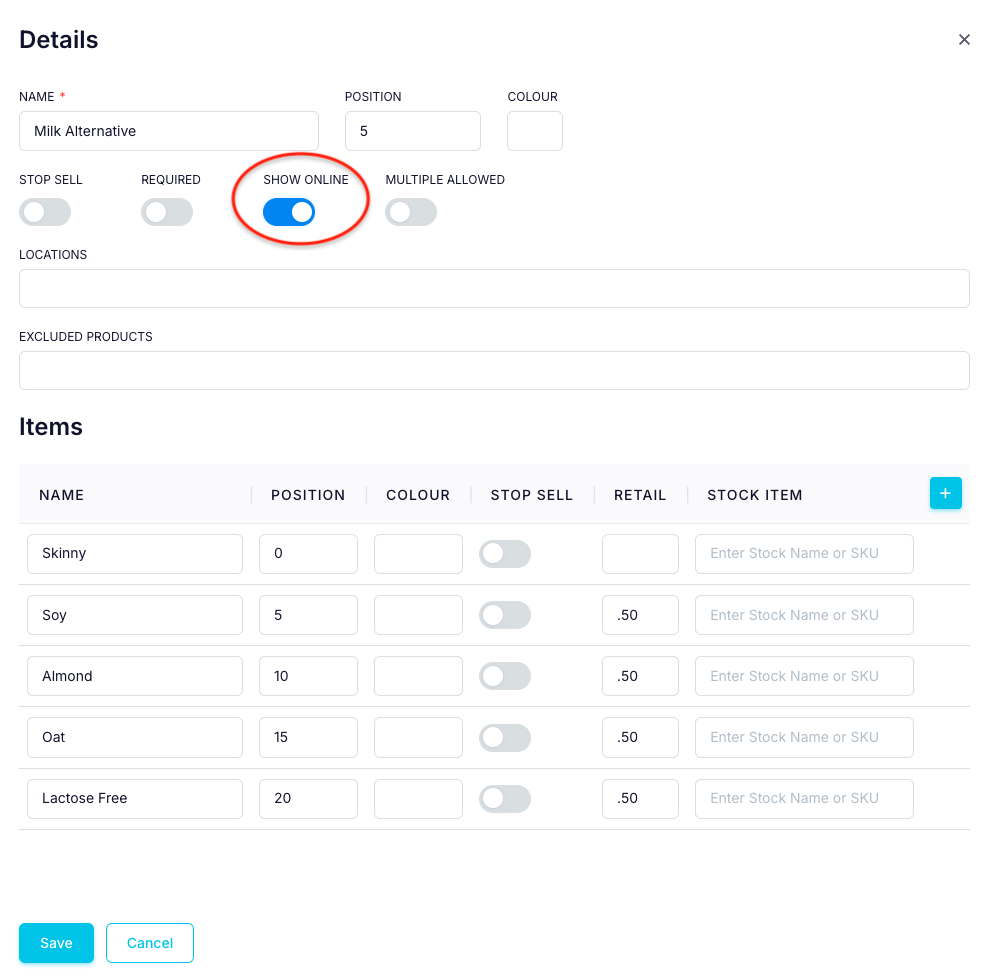
If the category has attributes you want available for table ordering, edit each attribute by clicking the hamburger icon and setting "SHOW ONLINE" to "YES.":

Within each attribute, set "SHOW ONLINE" to yes and click SAVE
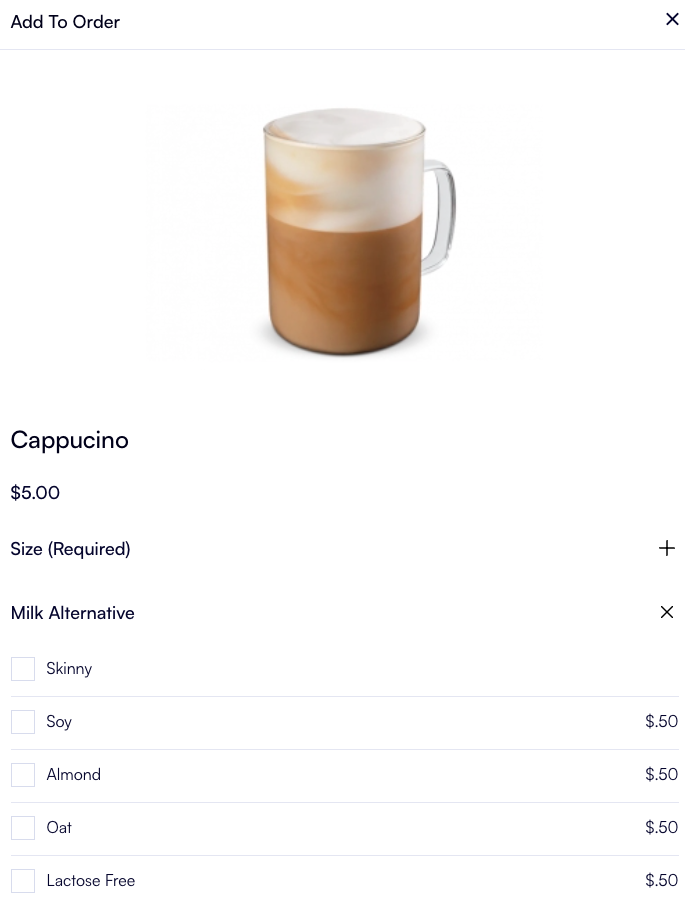
Attributes will now automatically show when a product within that category is selected:
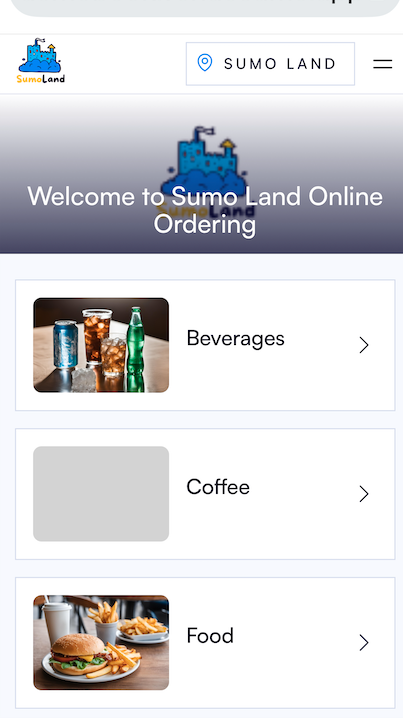
Upload an Image
Adding an image to a category for online table ordering will enhance the visual appeal.
Without a category image for coffee:
To add an image, scroll down to Images and click on the upload symbol next the Large image:

Click on Drop Your Image Here:
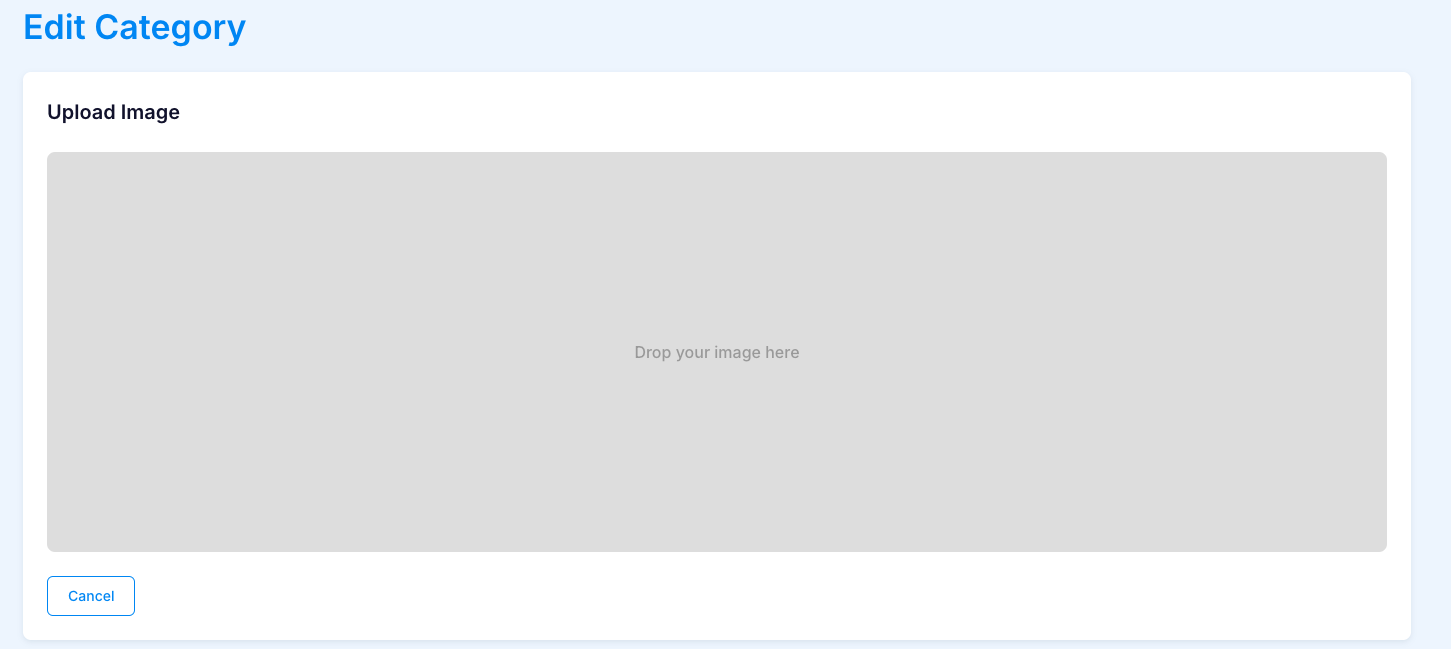
Upload your image with recommend dimensions of 320x240 px and click CONFIRM

The category image will now be displayed:
