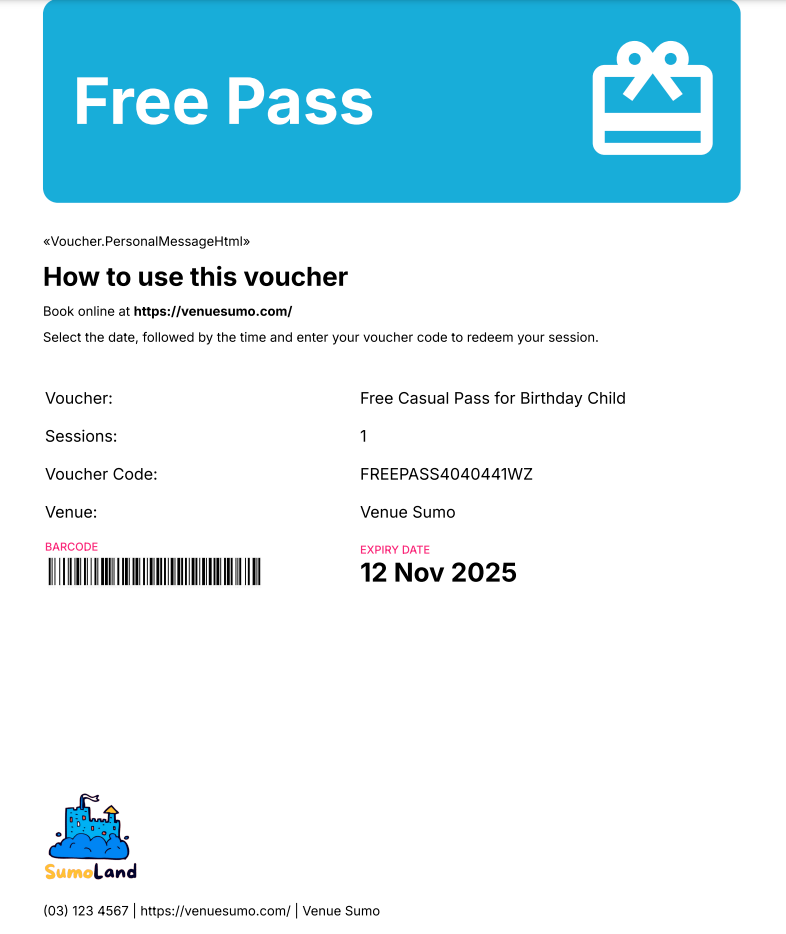
How to create a free pass or session voucher
Last updated: May 9, 2026
Issuing a free pass or session voucher can boost loyalty, attract new customers, and encourage repeat visits.
Navigate to Operations > Session Vouchers and click on + New Session Voucher Product
Fill in the relevant fields:
Mandatory Fields include:
Name = Choose a clear and descriptive name (e.g., Free Casual Pass for Birthday Child)
Categories = Select a category that aligns with the session voucher’s purpose (e.g., FREE PASS)
Stop Sell = No
Admin Only = Yes
Unlimited Sessions = No
Session QTY = 1
Use all Sessions = Yes
Cost = 0
Min and Max Duration = Define the time range for the free pass based on your availability interval. To cover exactly 2 hours, set both Min and Max Duration to 120—this counts as one session. For more flexibility, set Min Duration to 60 and Max Duration to 120. This allows clients to book a 1-hour session with the voucher, while a 2-hour session will require two vouchers or payment for the second hour. If both fields are left blank, the system defaults to the session length of your interval, with longer sessions requiring additional vouchers.
Other Fields include:
Expiry Type = Choose between No Expiry, Months, or Fixed Date, then click Save. Once saved, you can specify either the number of months until expiration or the fixed expiration date, depending on your selection.
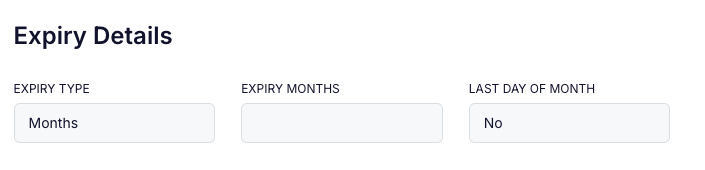
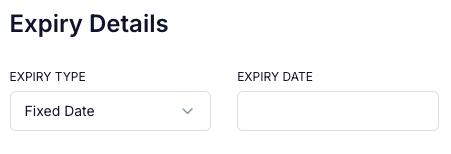
Once all the required fields are filled, click Save again.
To link the facilities where the voucher can be redeemed, click the hamburger icon and select Add Facilities. Choose the relevant facilities, then click Save to finalise.
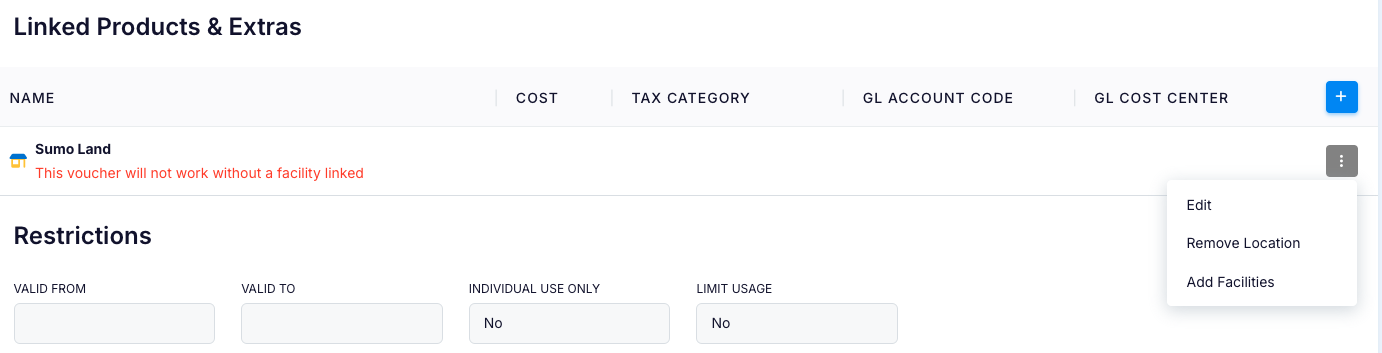
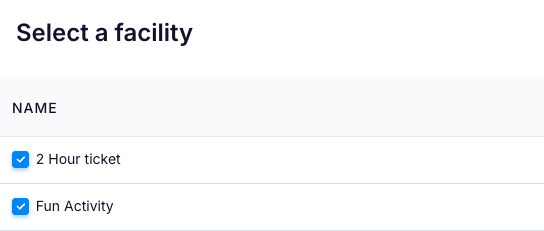
After adding the facilities, access each one to specify the products where the session voucher can be redeemed. Click the hamburger icon, select Add Products and Extras, and choose all applicable products and extras for the voucher, then click SAVE to finalise.
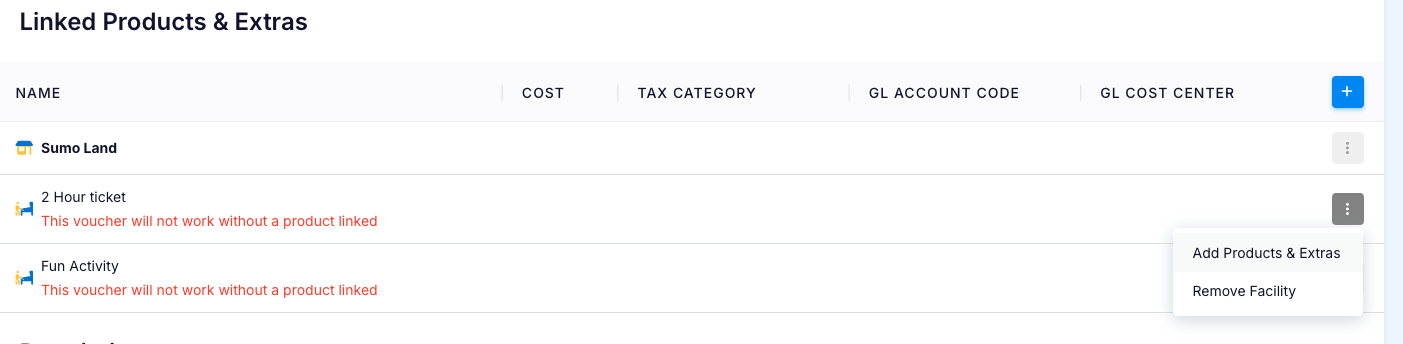
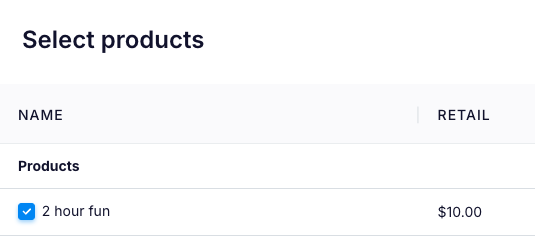
3. Issue the free pass as required:
Navigate to Orders > Create New Order and choose type Session Pass
The session voucher will be easy to find as it will be placed in the appropriately named category.
Add to cart and enter the customers details as required.
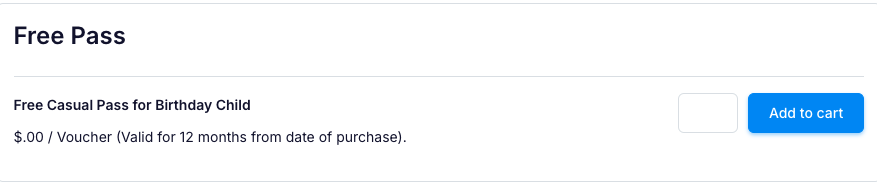
If you have a physical card that with a barcode on it, you can enter the barcode at checkout:

4. The customer will receive an email with the voucher