How to configure a POS Product for Table Ordering
Last updated: May 10, 2026
All POS Products include an "ADMIN/POS ONLY" setting, which defaults to "NO." This means the product will be available for Table Ordering unless the setting is changed to "YES," restricting it to admin or POS use only.
Navigate to Operations > Pos Products and select the product you want to configure.
Fill in the fields that relate to table ordering:
- Admin/POS Only = NO
- Description = If required, you can enter a short description of the product which wIll show on the booking site.
- Extra Info = If required, you can enter some extra information. This will only show if the product is selected.
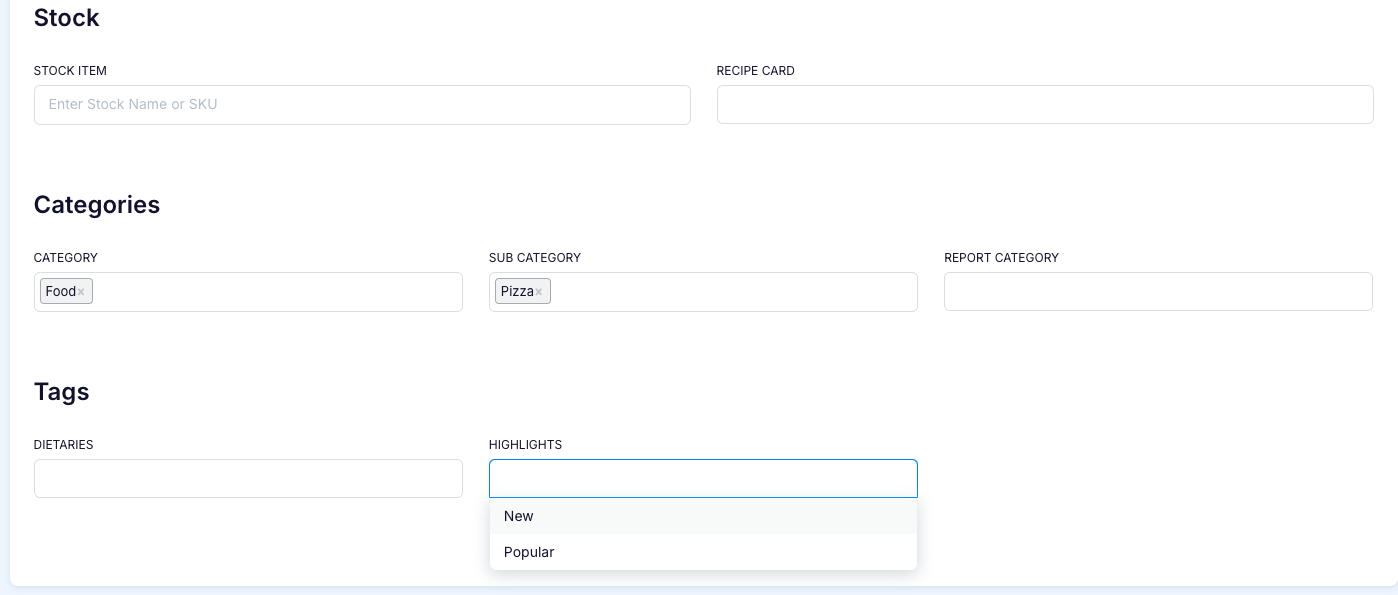
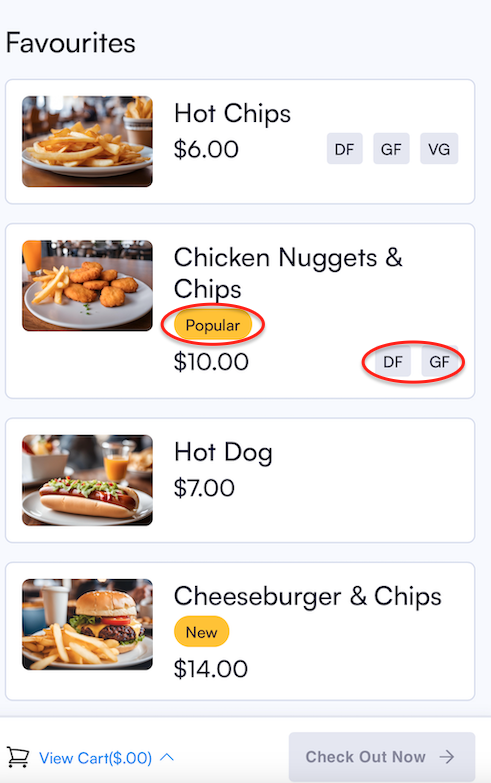
Product Tags = There are 2 types of product tags:
Dietaries (Tags that indicate specific dietary needs or restrictions, such as Gluten-Free, Vegan, or Nut-Free. These help customers identify products suitable for their dietary requirements) and Highlight (Tags used to showcase special features or promotions, such as Best Seller, New Item, or Limited Time. These draw attention to key products)
Product tags are created and maintained in Settings—>Product Tags
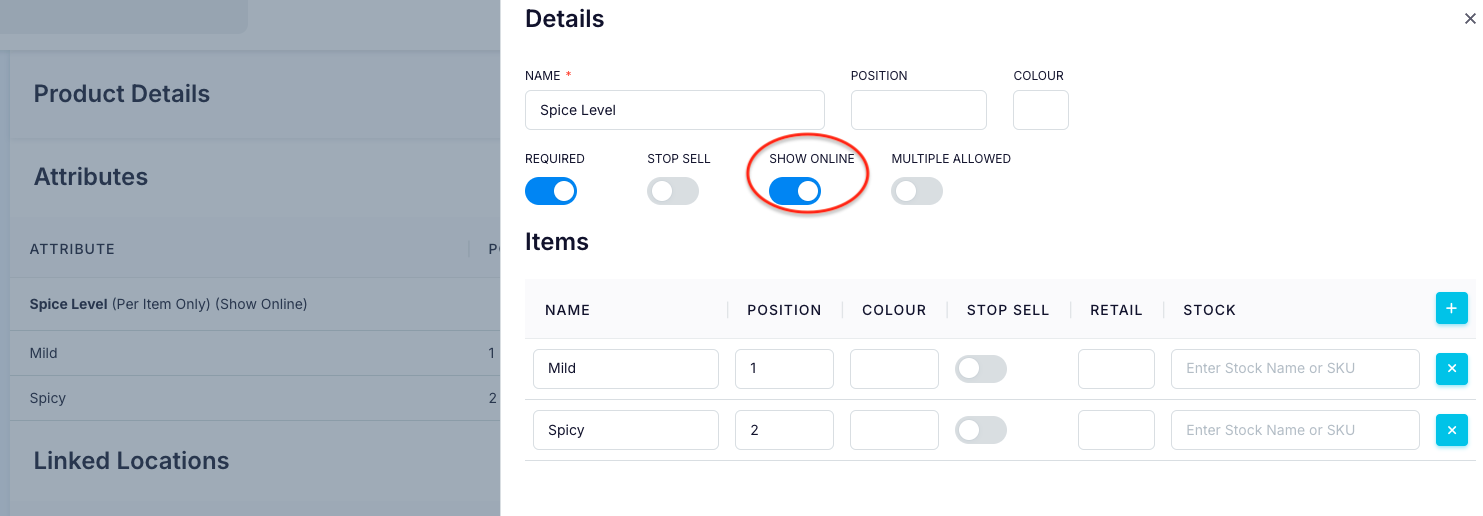
Product Attributes
By default, attributes are hidden online. To display, click the hamburger icon, edit, and set SHOW ONLINE to YES
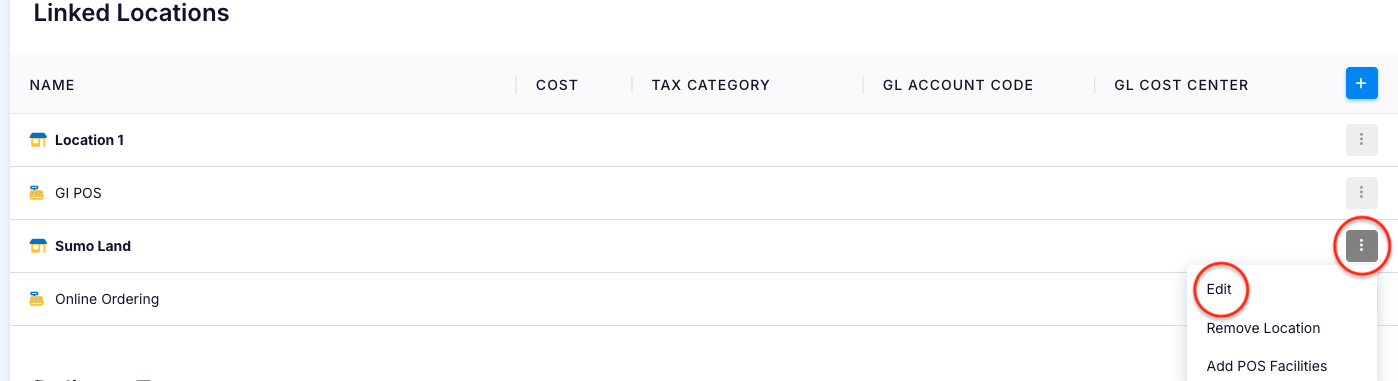
Cost, Tax Category, GL Account Code and GL Account Centre = For businesses with multiple locations, these values apply universally. To set location-specific values, click the hamburger icon next to the desired location in the Linked Locations section, select "Edit," and make the necessary changes.



How will it look?
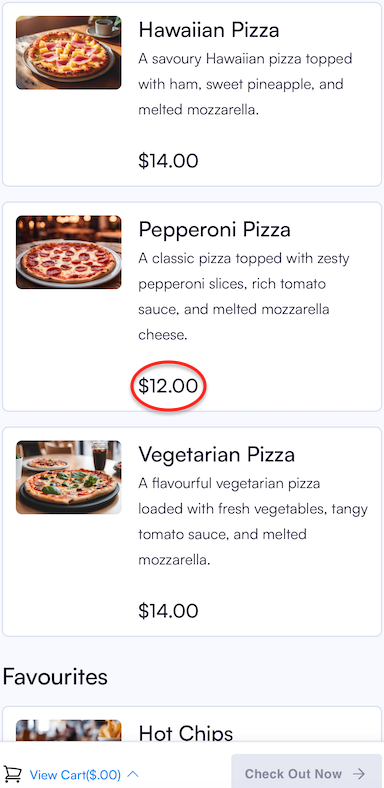
- The Description will show on the Booking Site:
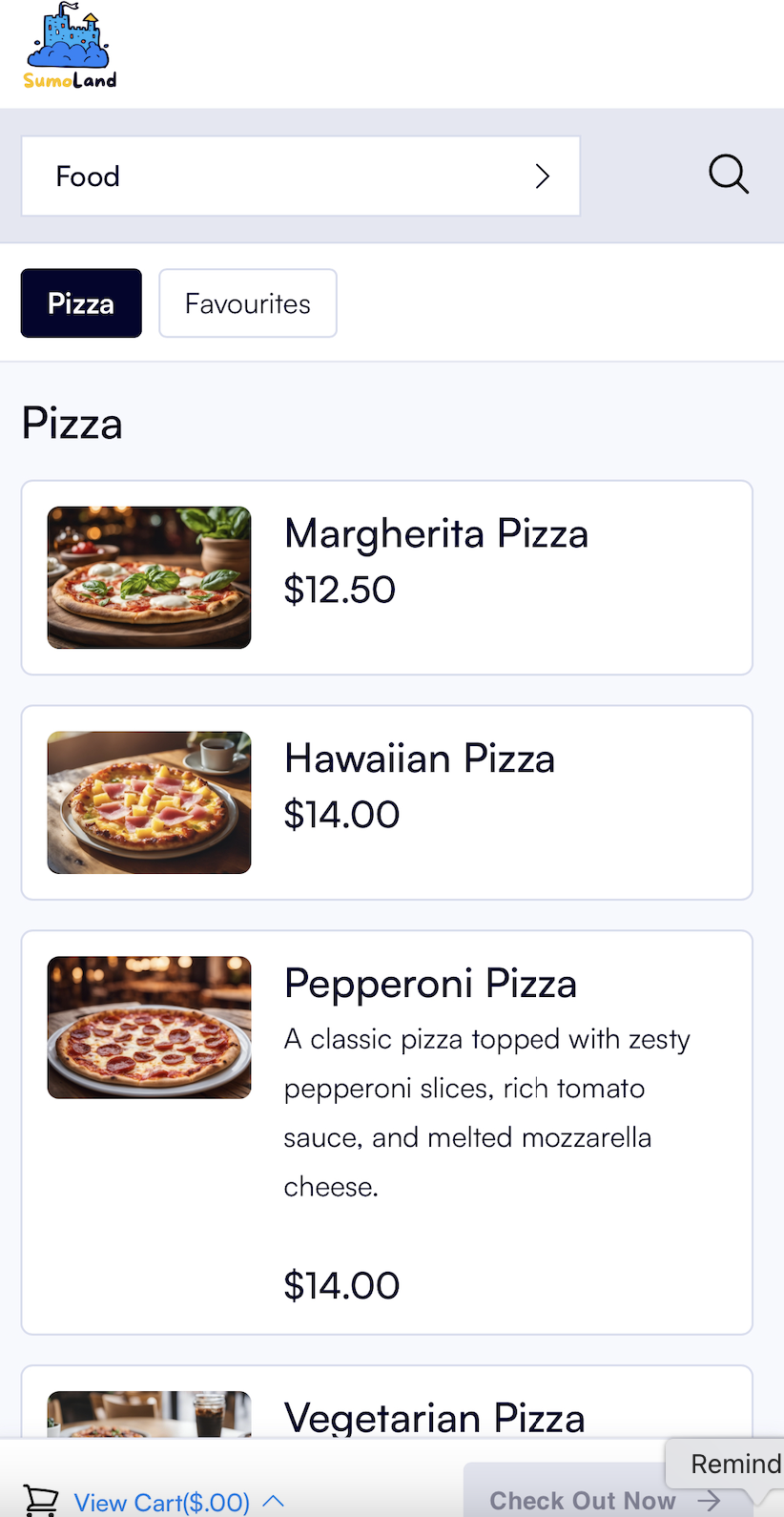
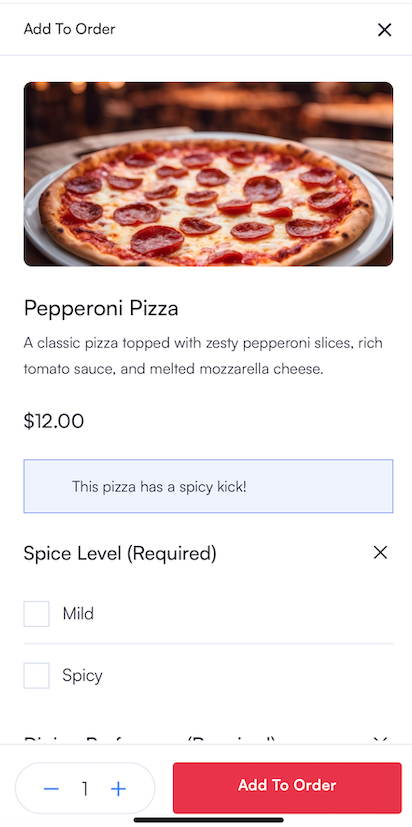
- The Extra Info will show if the product is selected:

Multiple Product Tags can be added:
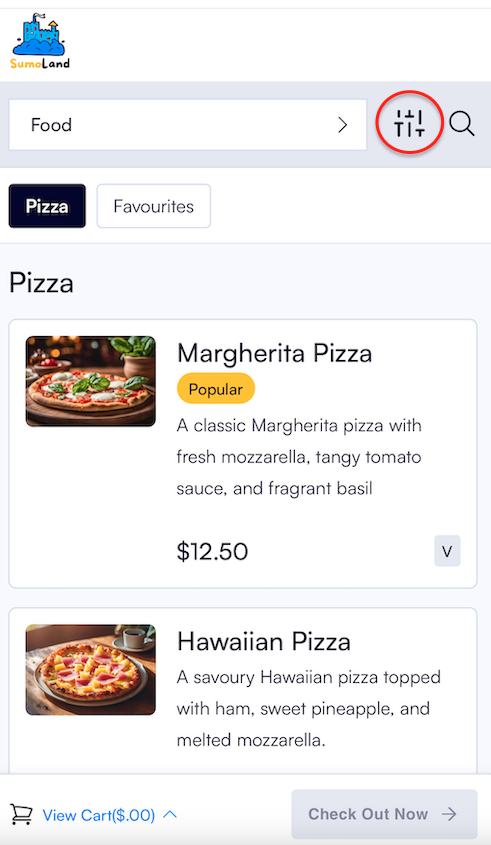
Click the FILTER icon to view products based on your selected dietary requirements:
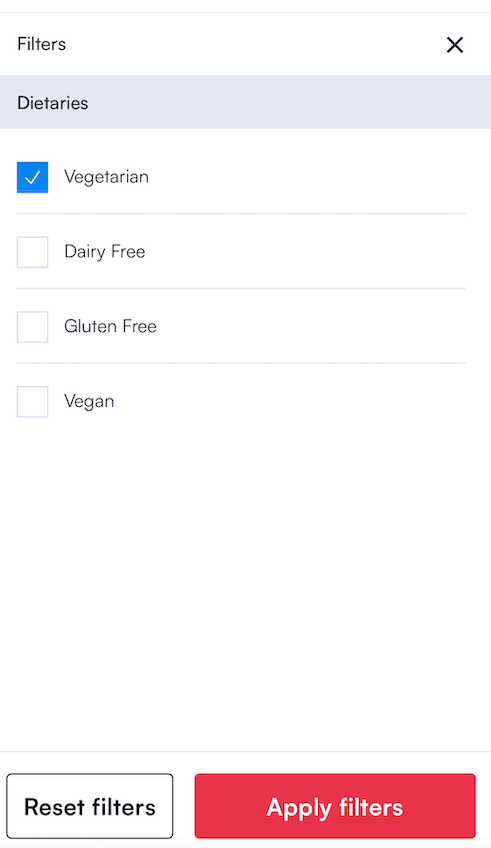
Specify your dietary requirements and click Apply Filters:
Only products with your specified dietary requirement will be displayed:
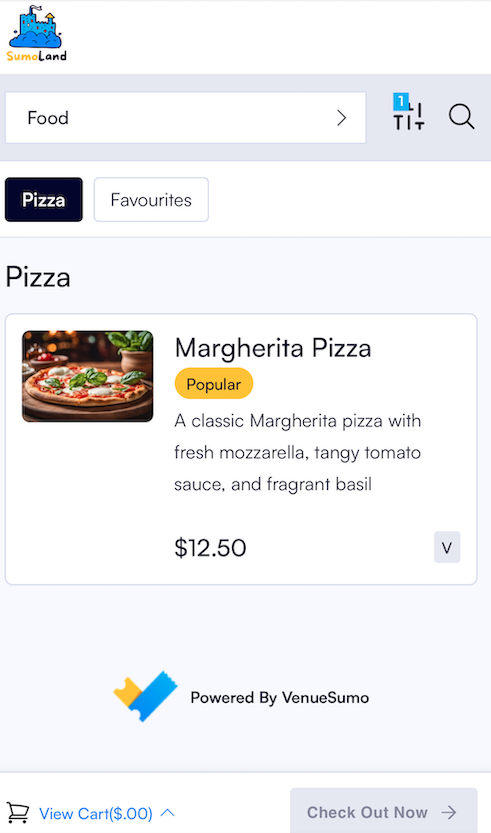
If the product has Attributes, they will be available for selection when the product is selected:
If a location-specific cost is set, it will be the cost displayed on the booking site: