How to generate multiple unique discount codes
Last updated: May 9, 2026
Navigate to Operations > Discounts and click on the + New Discount button and populate as follows:
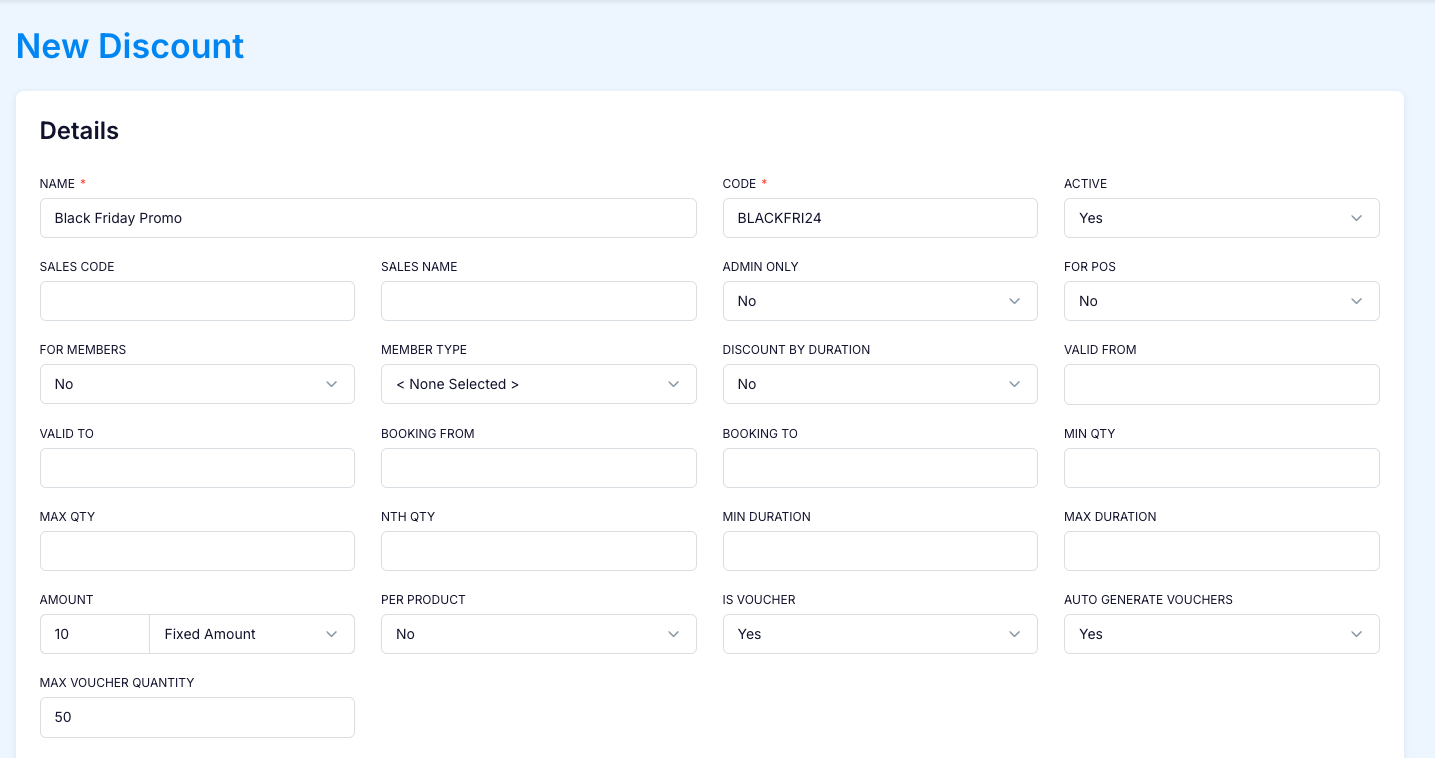
Press SAVE and then click on Add Location
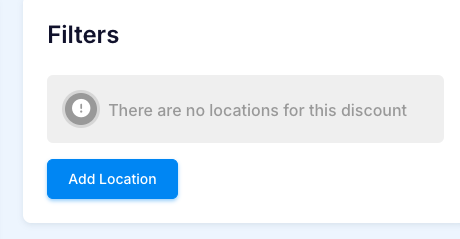
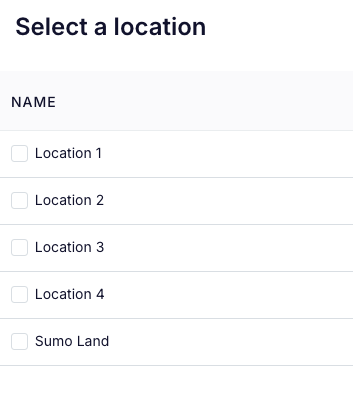
Select your location
Add the facilities against which this discount can be redeemed


And then add the products and extras
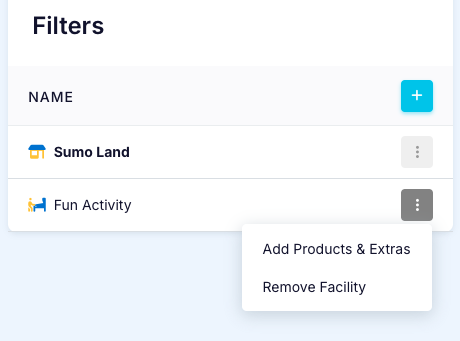
When you press CLOSE, the discount vouchers will automatically be generated.
To see the list of vouchers, navigate to Operations > Discount Vouchers
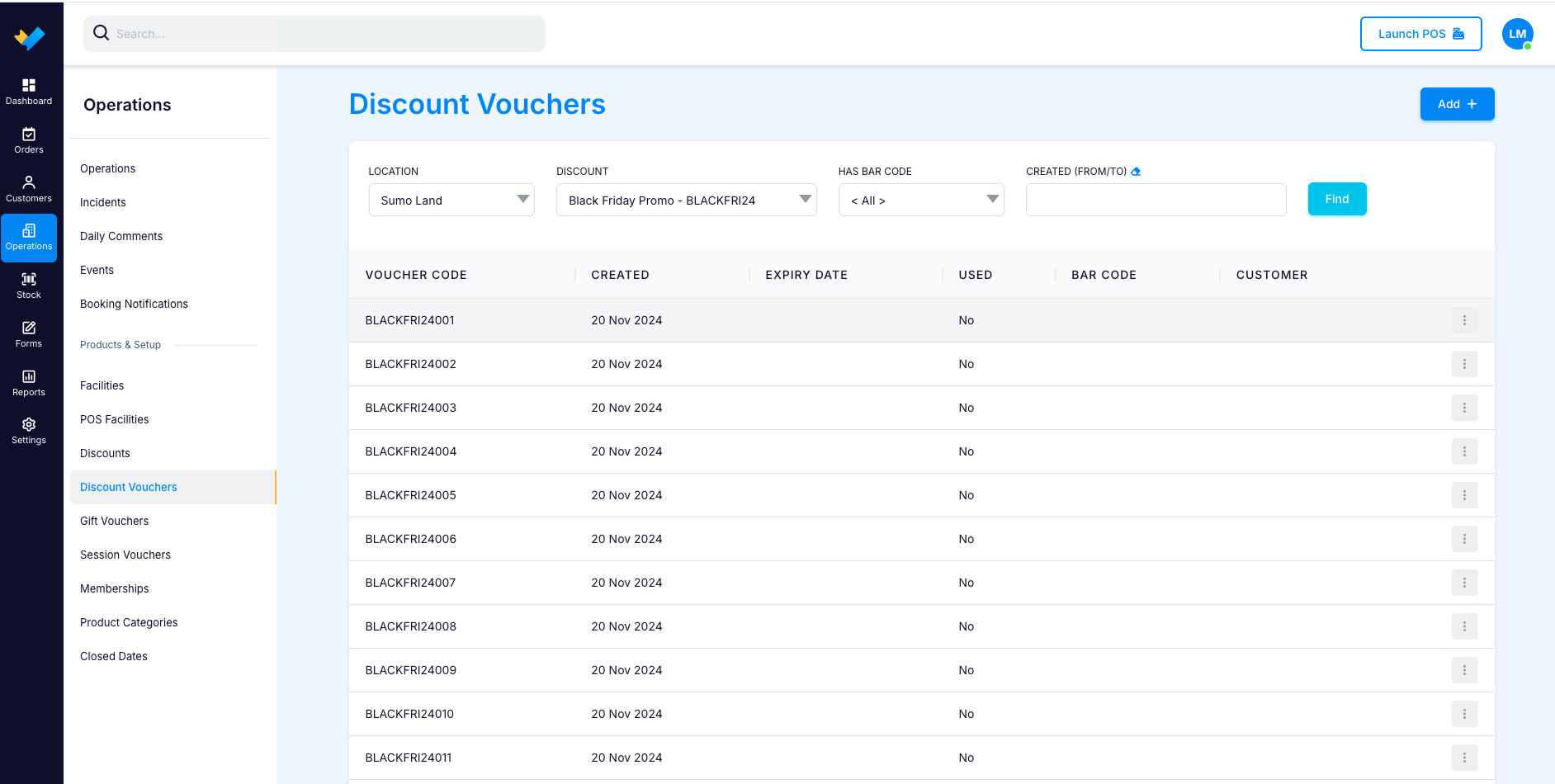
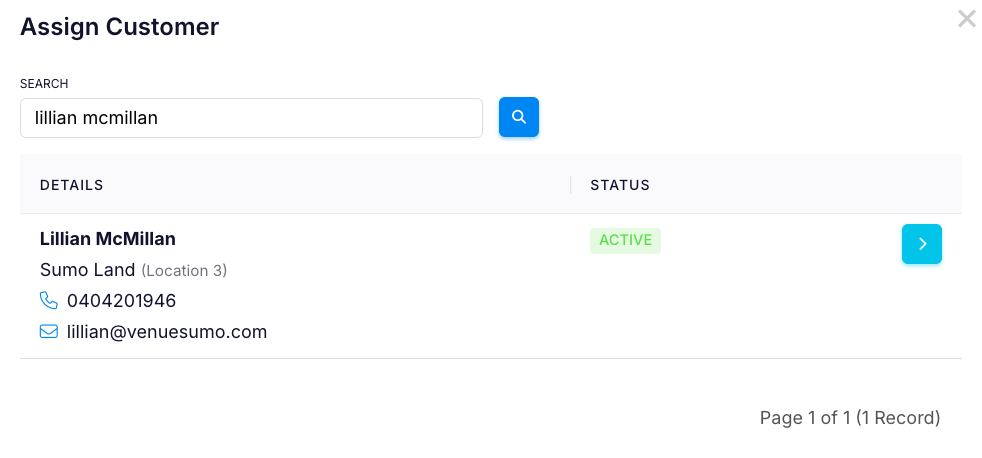
These can be allocated to a customer by clicking on the hamburger icon on the right, searching for a customer and then pressing the arrow button.
It is not mandatory to assign them to a customer, anyone who has the code can use it and apply it at checkout.
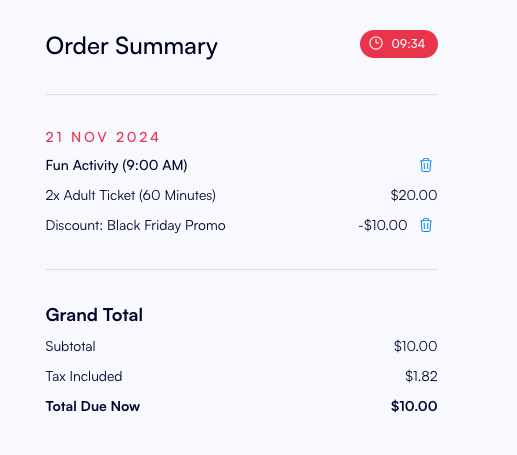
Once the discount has been redeemed, it will show as USED = Yes on the report
