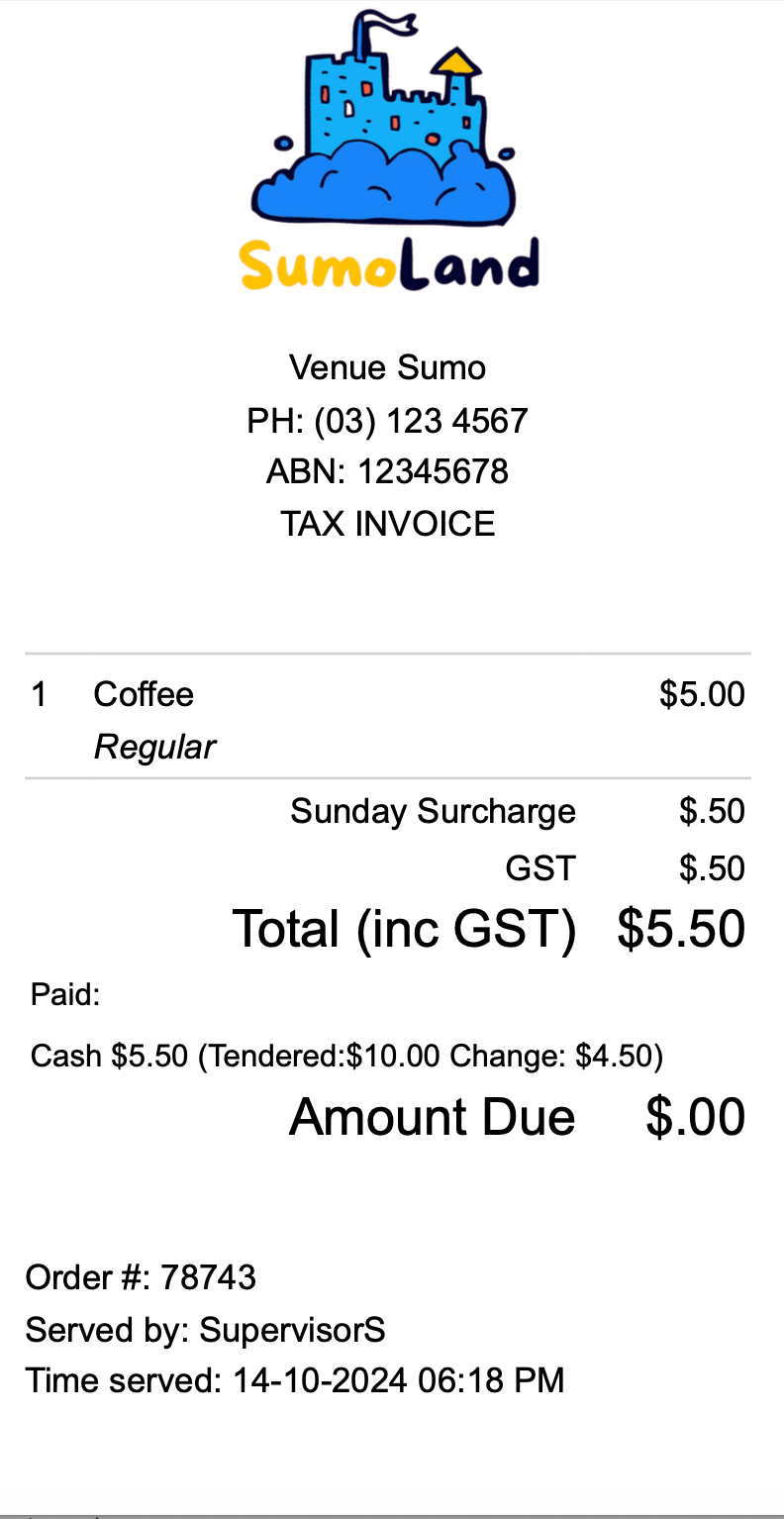
How to create a surcharge on Sundays for POS Products
Last updated: May 10, 2026
Navigate to SETTINGS -> FEES

Select the location that requires the fee
Click on the New Fee button and fill in the boxes as follows:
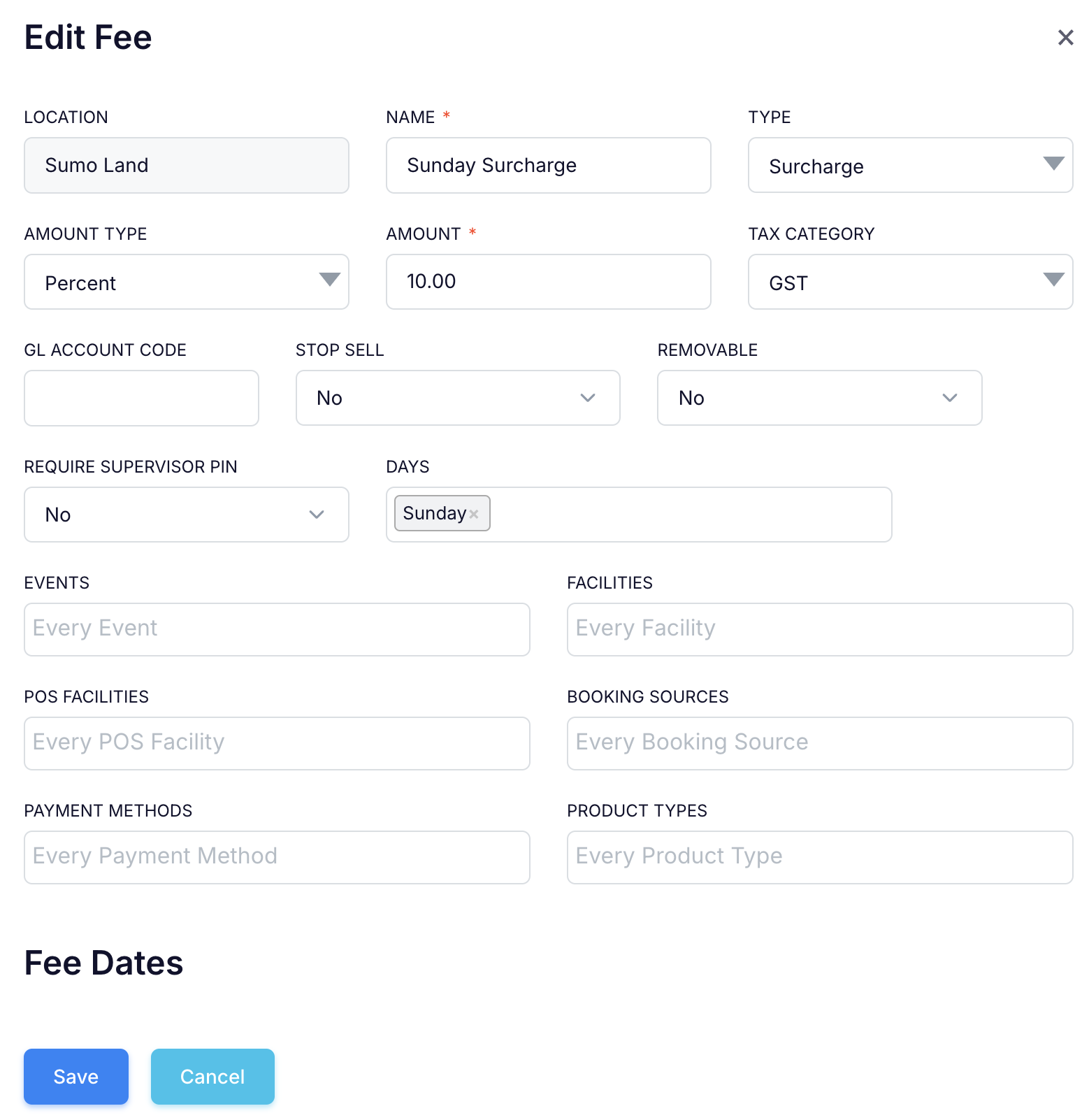
Set NAME to "Sunday Surcharge" or another relevant name, as it will appear on the receipt if requested by the customer
Set TYPE to Surcharge (surcharge will only apply to POS Products sold at a POS Facility)
Set AMOUNT TYPE to Percent
Set AMOUNT to the surcharge percentage
Set your TAX CATEGORY to GST or GST Exempt as required
Set GL ACCOUNT CODE if required
Set STOP SELL to No, change it to Yes if you want to disable the Sunday Surcharge
Set REMOVABLE to No (If REMOVABLE is changed to YES, the POS Operator will be able to remove the surcharge)
Set REQUIRE SUPERVISOR PIN to No. This setting has no effect unless REMOVABLE is set to Yes. At that point, change it to Yes to require a supervisor's approval for removing the surcharge from the transaction
Set DAYS to Sunday to apply the surcharge exclusively on Sundays
Leave EVENTS, FACILITIES, POS FACILITIES, BOOKING SOURCES, PAYMENT METHODS and PRODUCT TYPES blank
Leave FEE DATES blank
Press the Save button
The Sunday Surcharge is now activated and will automatically apply at POS
How will the surcharge be shown in POS?
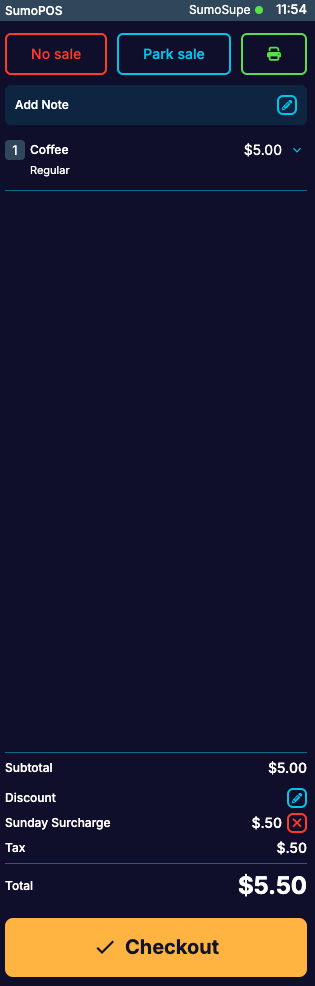
What will the customer see?