Set Membership Pause Restrictions
Last updated: May 10, 2026
You can control how often and for how long a membership can be paused using settings within the membership product. When a pause is created, the system will validate it against these rules and ensure there are no overlapping pauses.
Go To:
Operations > Memberships
Select the Membership Product you wish to maintain.
Scroll down to:
Pause Restrictions
Populate Variables:
Limit the Number of Pauses Allowed Within a Timeframe
This helps prevent members from pausing too often while still offering flexibility
- First number: How many pauses are allowed
- Second number: The length of the time period
- Dropdown: Choose whether the time period is in days, weeks, or months
If you enter "2", "6", and select "Month", members will only be allowed to pause their membership 2 times every 6 months.The Minimum and Maximum Duration Allowed for a Pause
This ensures pauses stay within a reasonable time frame.
- First number: The minimum length a pause must be
- Second number: The maximum length a pause can be
- Dropdown: Choose whether the duration is in days, weeks, or months
If you enter "1", "4", and select "Week", each pause must be at least 1 week long and cannot be longer than 4 weeks.Apply a fee each time a membership is paused
This fee will be applied each time a membership is paused and will be charged on the next billing cycle following the start of the pause.
- Dropdown: Fees created with a type of "Pause Membership" can be linked here
How will it look?
These settings:

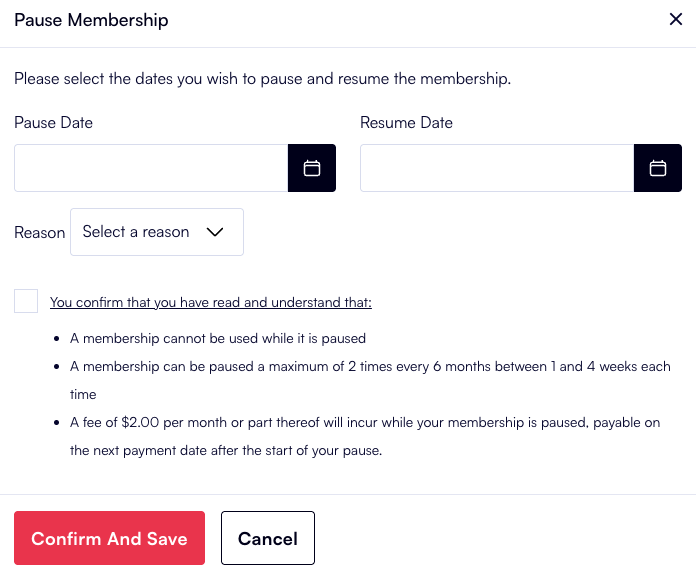
Will display like this in the Back Office:
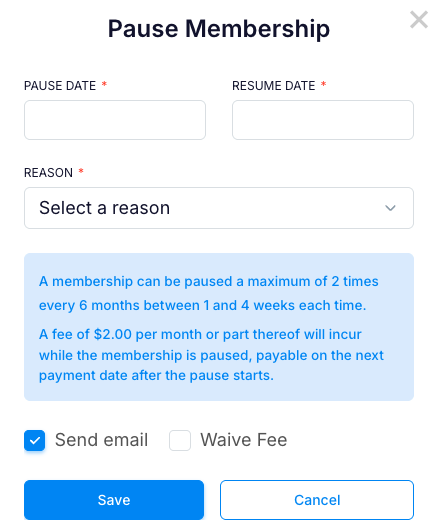
And like this in the Customer Portal: