Roles & Customized Permissions
Last updated: May 10, 2026
Functionality Overview
The "Roles" feature enables users to have customized access levels across various sections of the back office.
Users can customize roles to accommodate individual permissions, providing them with over 190 functions within the system which can be allocated to different roles and logins.
Please note – users cannot create additional login types or roles (with the exception of report roles).
How to access “Roles”
- You can access “Roles” in the “Settings” menu.
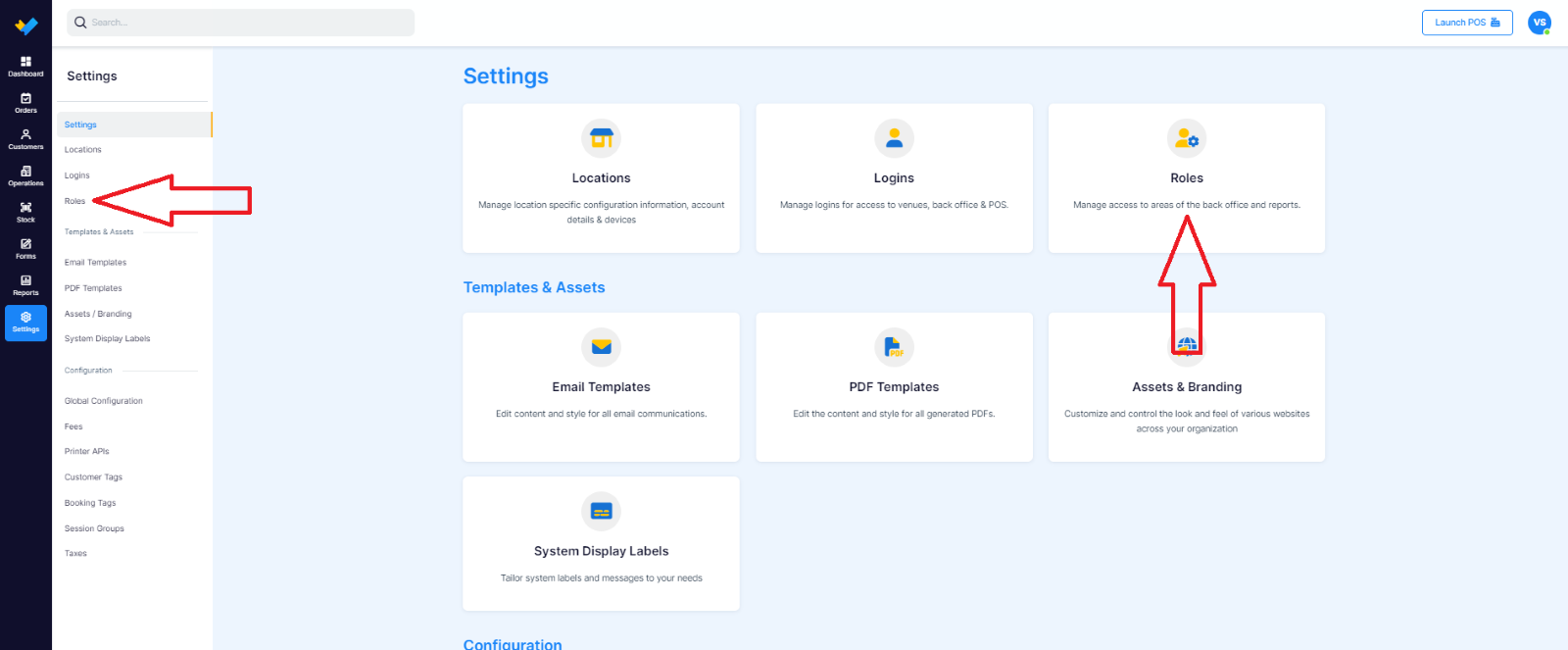
Viewing Roles
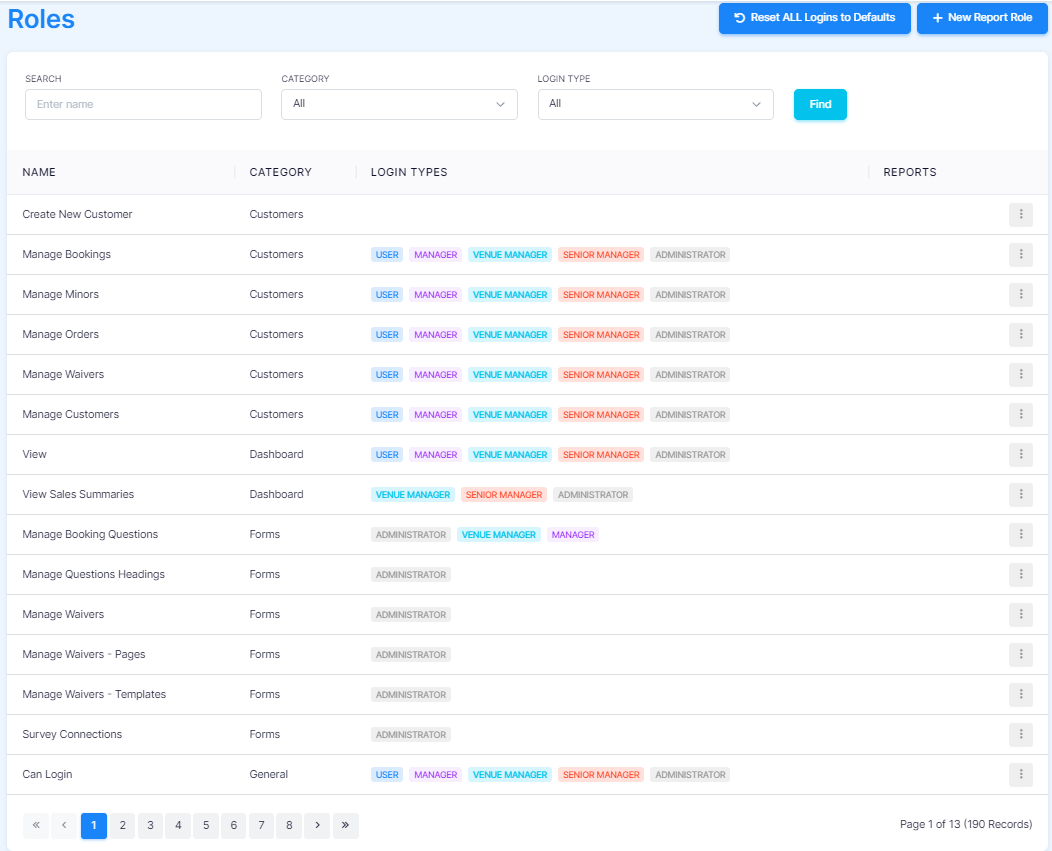
On the roles page, you'll find a list of all roles along with the corresponding login types that are granted access to each role.
Users have the ability to search for roles by name, category, or login type.
Additionally, users can navigate through the list of roles using the pagination buttons provided for ease of access.
Editing Roles
There might be situations where you need to restrict user access to certain sections of the back office, or conversely, you may wish to extend their access to more areas within the back office.
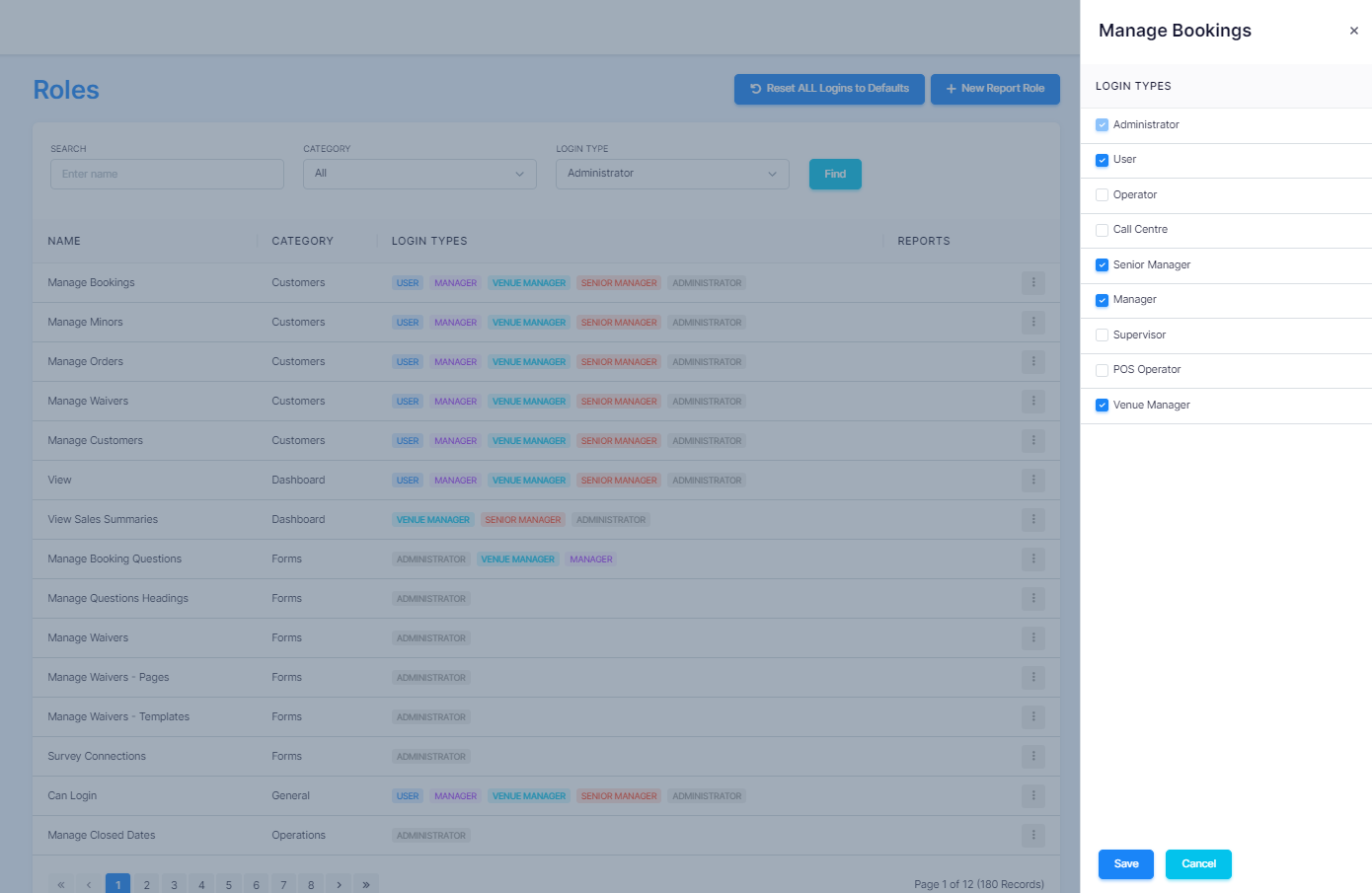
When you click on a row, a flyout will appear, enabling the user to modify the default login types associated with that role.
The Administrator role will always have access to all roles and remains disabled for modifications.
Selecting "Save" will apply the changes made to the login types for that role and refresh the list accordingly.
Clicking "Cancel" will close the flyout without saving any alterations.
Editing/Adding Report Roles
When modifying a report role, users can change the role's name, adjust the associated login types, and designate which reports are accessible.
Users also have the option to filter reports by category.
Upon clicking "Save," changes to the role name, login types, and associated reports will be applied, and the list will be refreshed accordingly.
Selecting "Cancel" will close the flyout without saving any modifications.
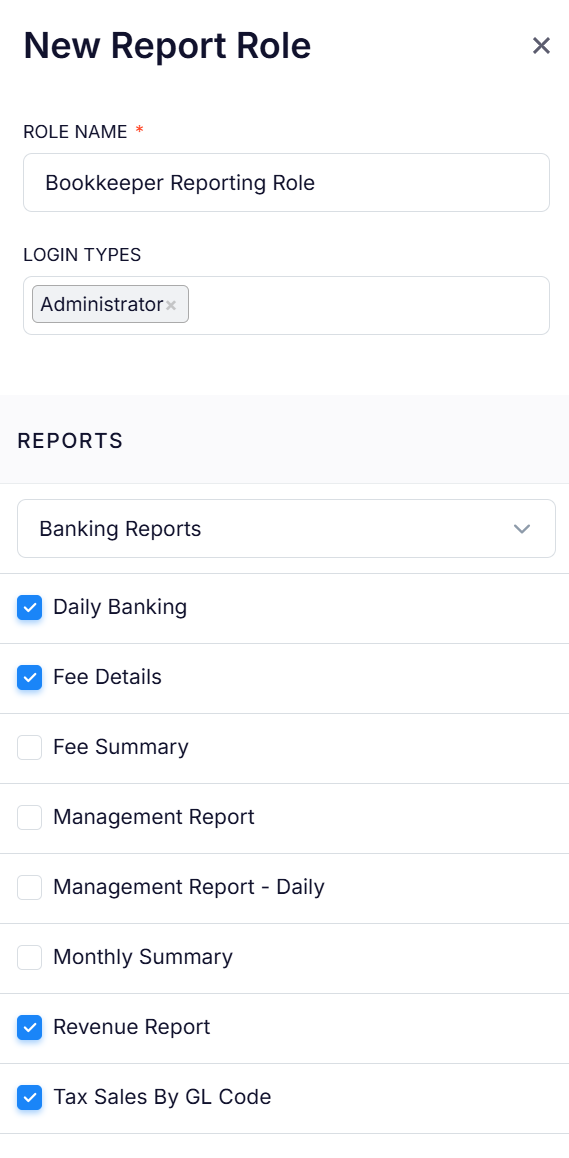
Users can also create their own report roles by clicking on the “New Report Role” button in the top right-hand corner.

Updating Roles for Individual Logins
When creating or editing a login, the default roles will automatically be chosen according to the selected login type. You can modify individual login permissions by selecting “Override Default Roles” when selecting a login.
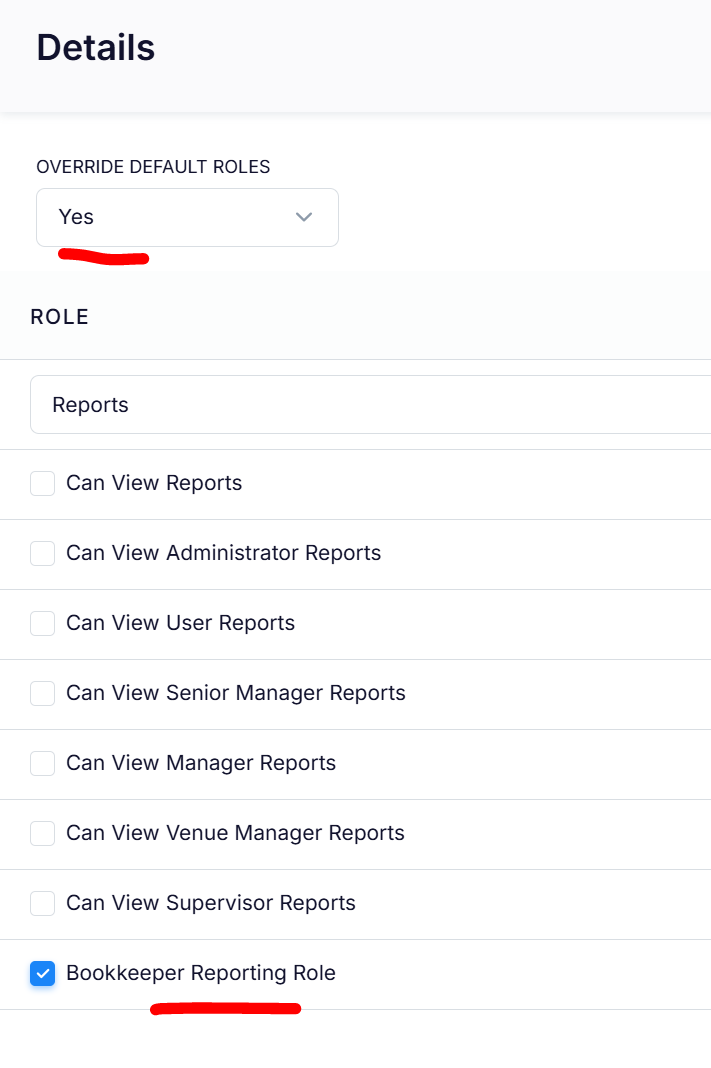
You can toggle through the different roles via the drop-down list “Login Type”, which will then allow you to manage access in those specific role categories, including:
- Customers
- Dashboard
- Forms
- General
- Operations
- Orders
- Reports
- Settings
- Stock
If you select “No” for override manual roles and save, this will then reset the login back to its default permission settings.