How to Enable Tipping for Table Ordering
Last updated: May 10, 2026
Enable tipping to give customers a convenient way to show appreciation for service, increasing staff earnings and overall satisfaction.
Set the Pos Facility to Enable Tips Online:
- Navigate to Operations → POS Facilities and select the POS Facility you have set up for Online Ordering.
Click on the Edit button and then scroll down to the Tipping section, and set Show Tips Online to Yes:

- Click on the Save button
Change the Tip Heading:
- Navigate to Settings → System Display Labels and select the type Heading:

- Scroll down to the very bottom of the screen and press the Edit button:
After pressing Edit, scroll back up to the Label TipHeading and click on the current text, "Tip Heading:

Change the heading to your preferred text. Some suggestions include "Tip Selection" or "Would you like to leave a Tip?" Choose whatever aligns best with your business:

After you have changed the heading, scroll back down to the bottom of the screen and press Save
How will it look?
When the customer presses Continue to Checkout, a prompt to leave a tip will appear:

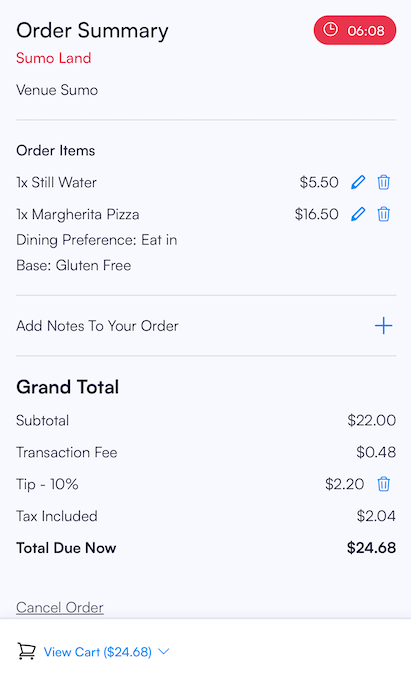
The tip will be calculated and shown in the shopping cart:
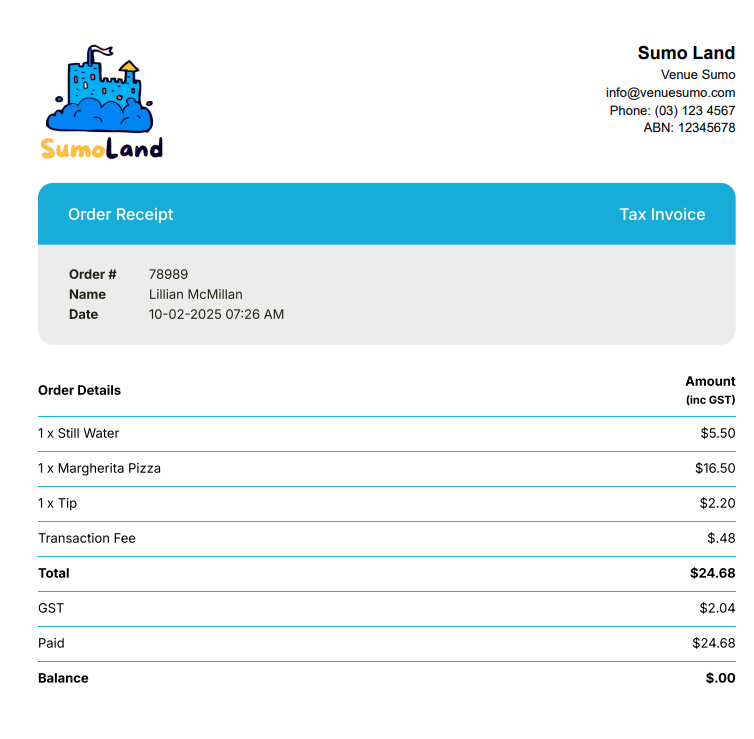
The tip will be clearly marked on the Receipt:
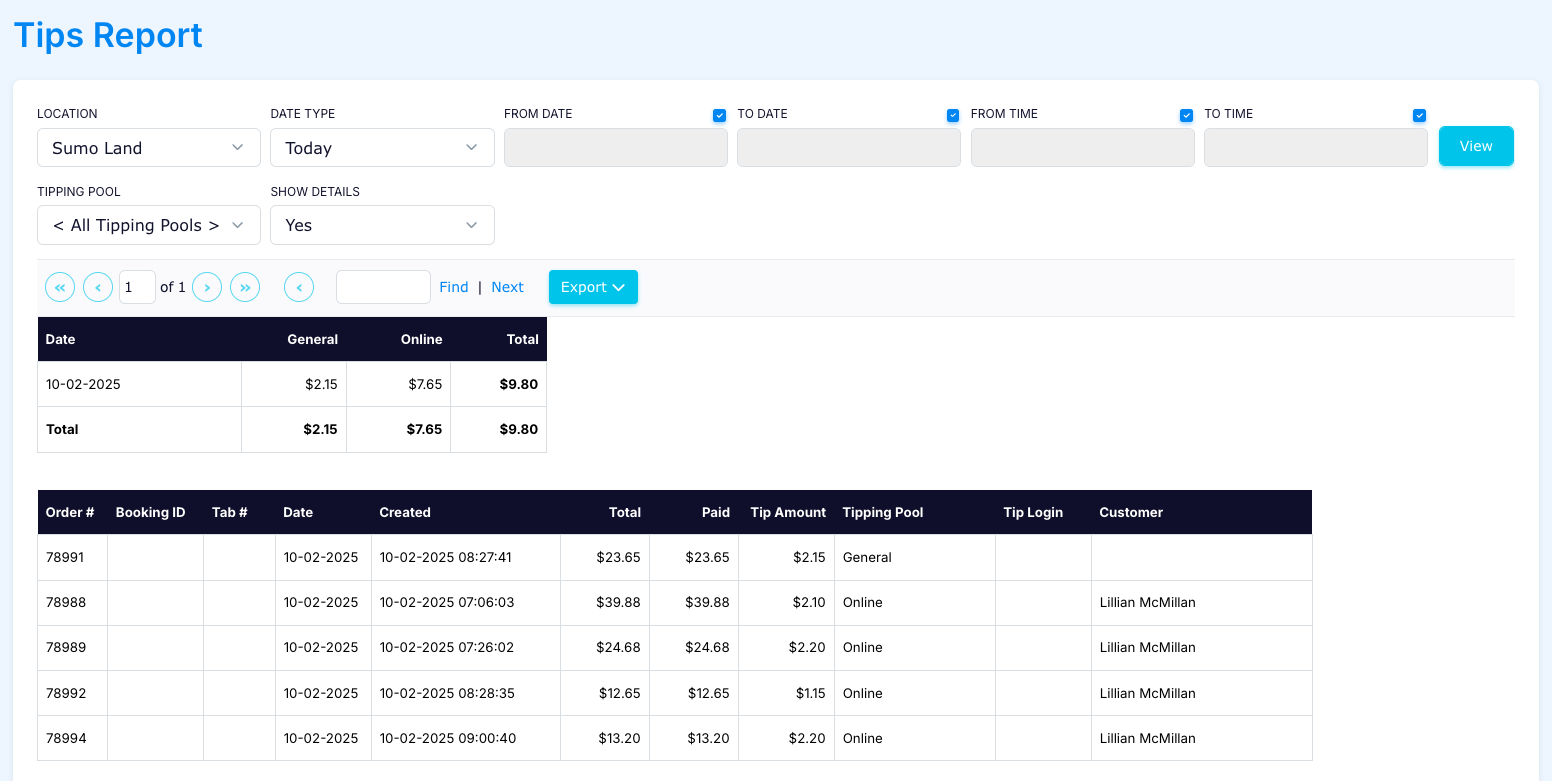
Tips can be monitored in Reports - POS Reports - Tips Report