How to create a one-time session in a Fixed Time Availability Pool
Last updated: May 10, 2026
If your business uses fixed scheduling, it can be helpful to occasionally open an additional session for a specific day.
Navigate to Settings > Locations
- Select the location where you'd like to add a one-time session.
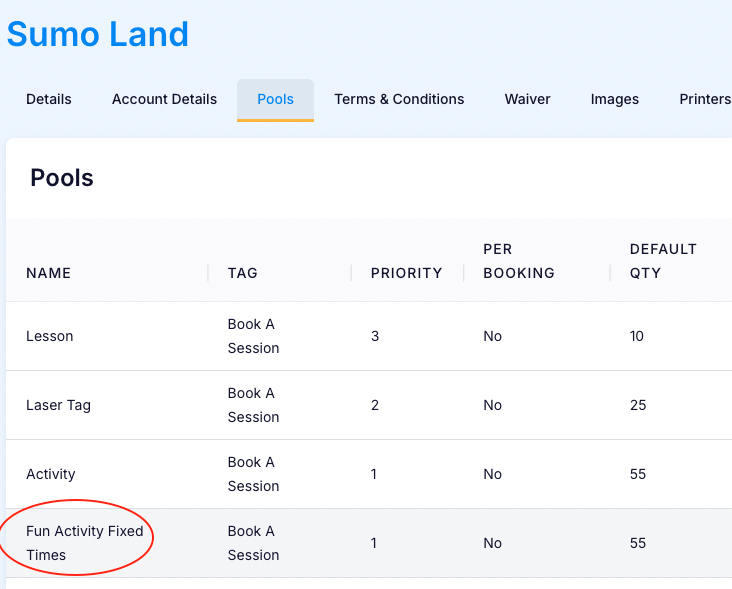
- Go to the "Pool" tab and select the availability pool where you want to add the session—it will usually have "Fixed Times" in the pool name.
- Scroll down to the bottom of the screen and click on the blue EDIT button
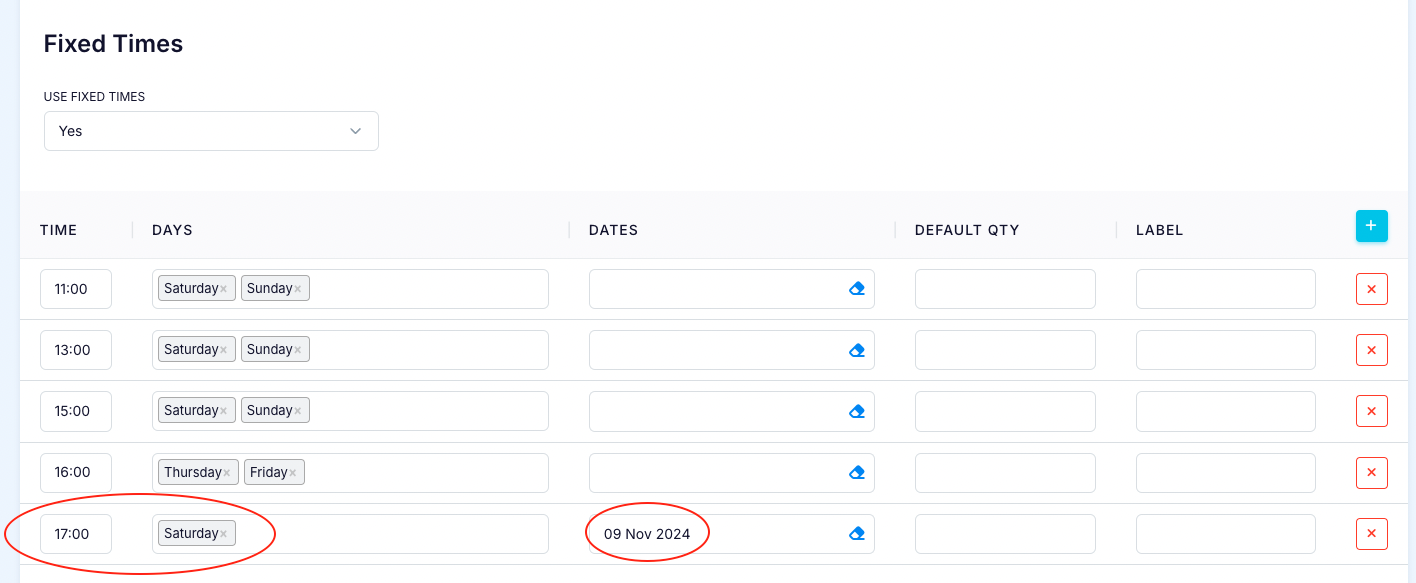
- Click on the blue plus sign button to add a one-off date
- Enter the desired time for the one-off session and select the date. For a single-day session, click the date twice; for a session spanning multiple days, select the start and end dates
- Click SAVE
Before:

After:
