How to set Operating Hours for Online Ordering
Last updated: May 10, 2026
Online ordering inherits the location's operating hours found in Settings > Locations under the DAYS and DATES tab. You can customise different operating hours for the POS Facility.
To do this, navigate to Operations > POS Facilities and select the POS Facility designated for Online Ordering.
Within the POS Facility, there are two tabs:
- DAYS: Set the open hours for online ordering for each day of the week.
- DATES: Adjust the open hours for a specific date or time period.
If online ordering should always be available (e.g., for merchandise sales), set "Is Always Online" in the Online Ordering Section of the POS Facility to YES. This will override any POS Facility or location-specific DAYS and DATES settings.
Examples of how you might adjust the operating hours:
To make the café available for online ordering half an hour after opening and an hour before closing:
Click on the Days tab and then click on Set Adjustments
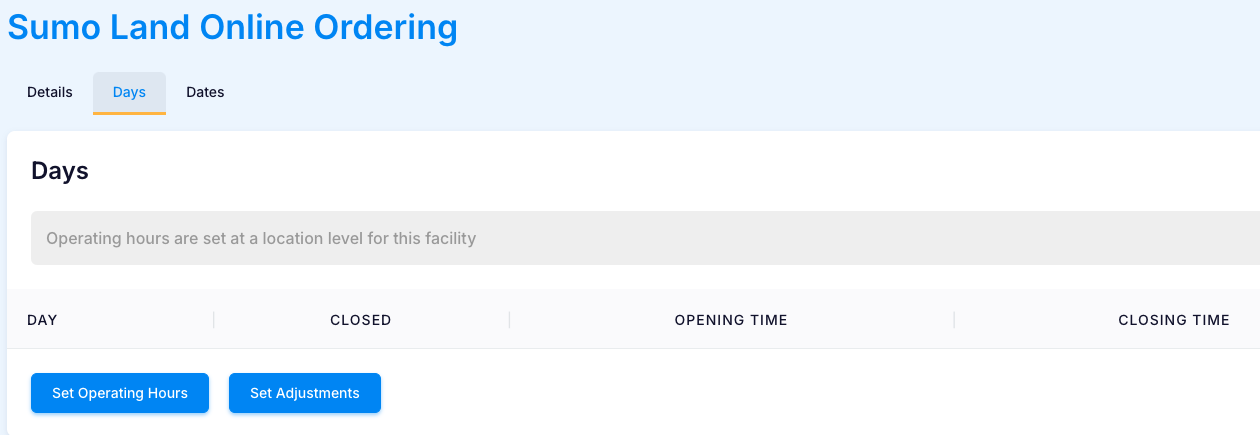
Click on Yes to set adjustments and then click on Edit
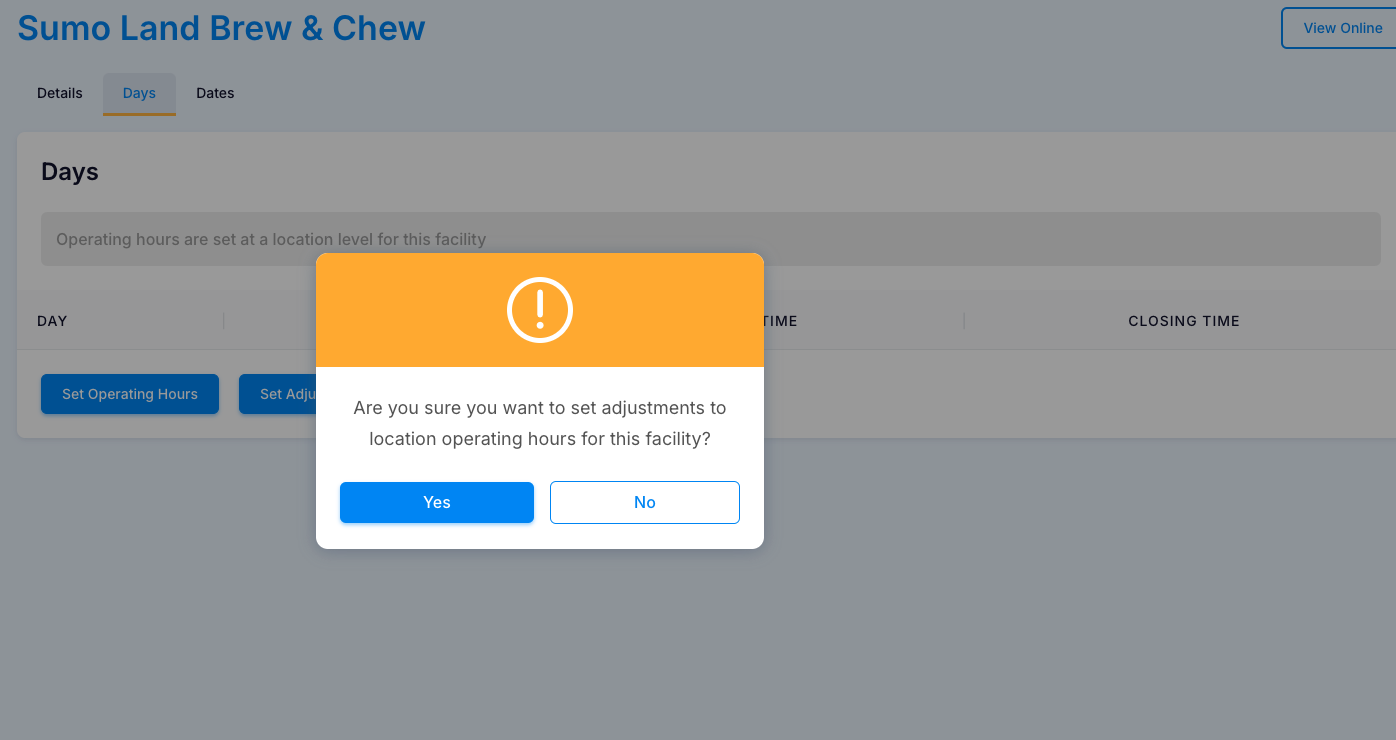
Enter the required time adjustments: For example, to make the café available for online ordering half an hour after opening, set Adjust Opening Time to 30. To restrict online ordering to one hour before closing, set Adjust Closing Time to -60. Press Save.

To make the cafe available for online ordering with it's own specific operating hours that are unrelated to the location operating hours:
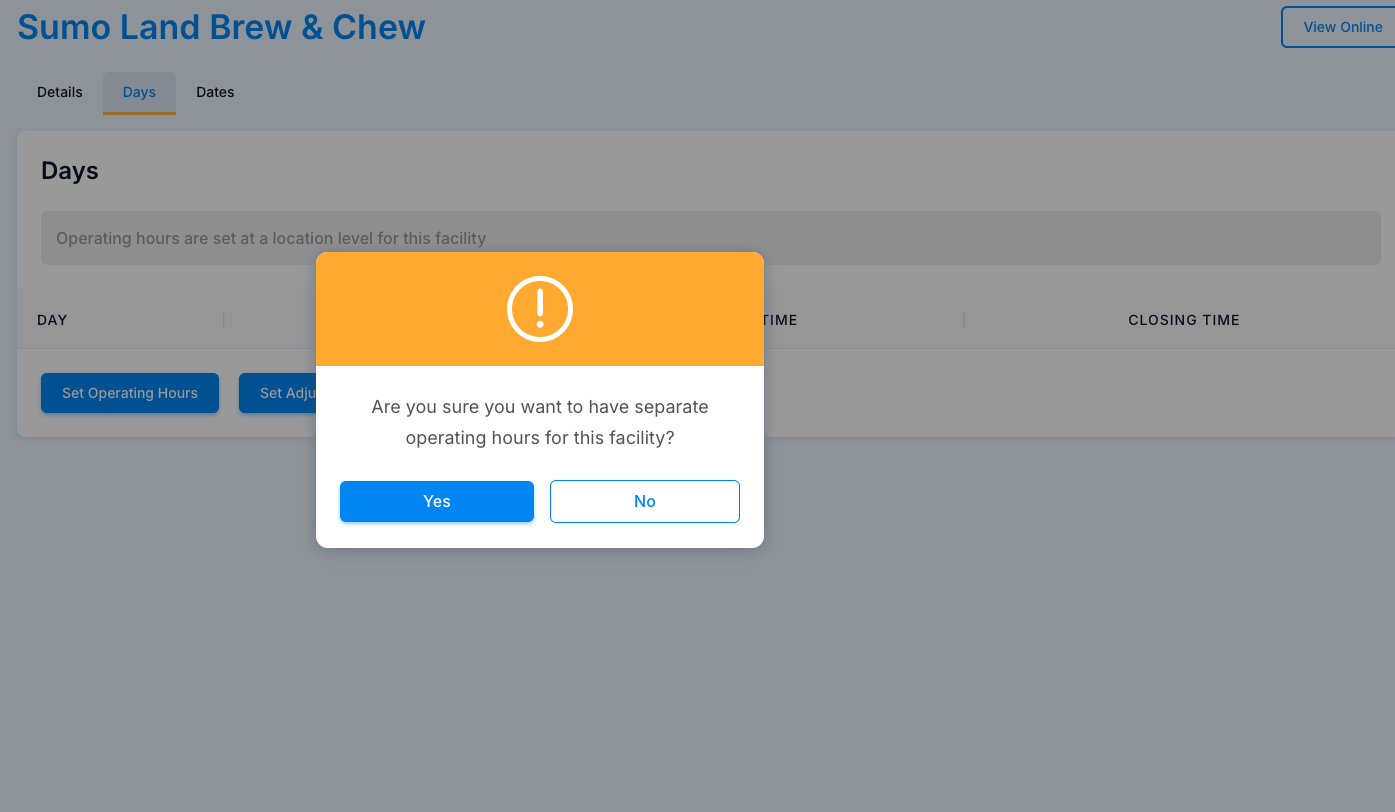
Click on the Days tab and then click on Set Operating Hours
Click on YES to have separate operating hours, enter the operating hours and press SAVE
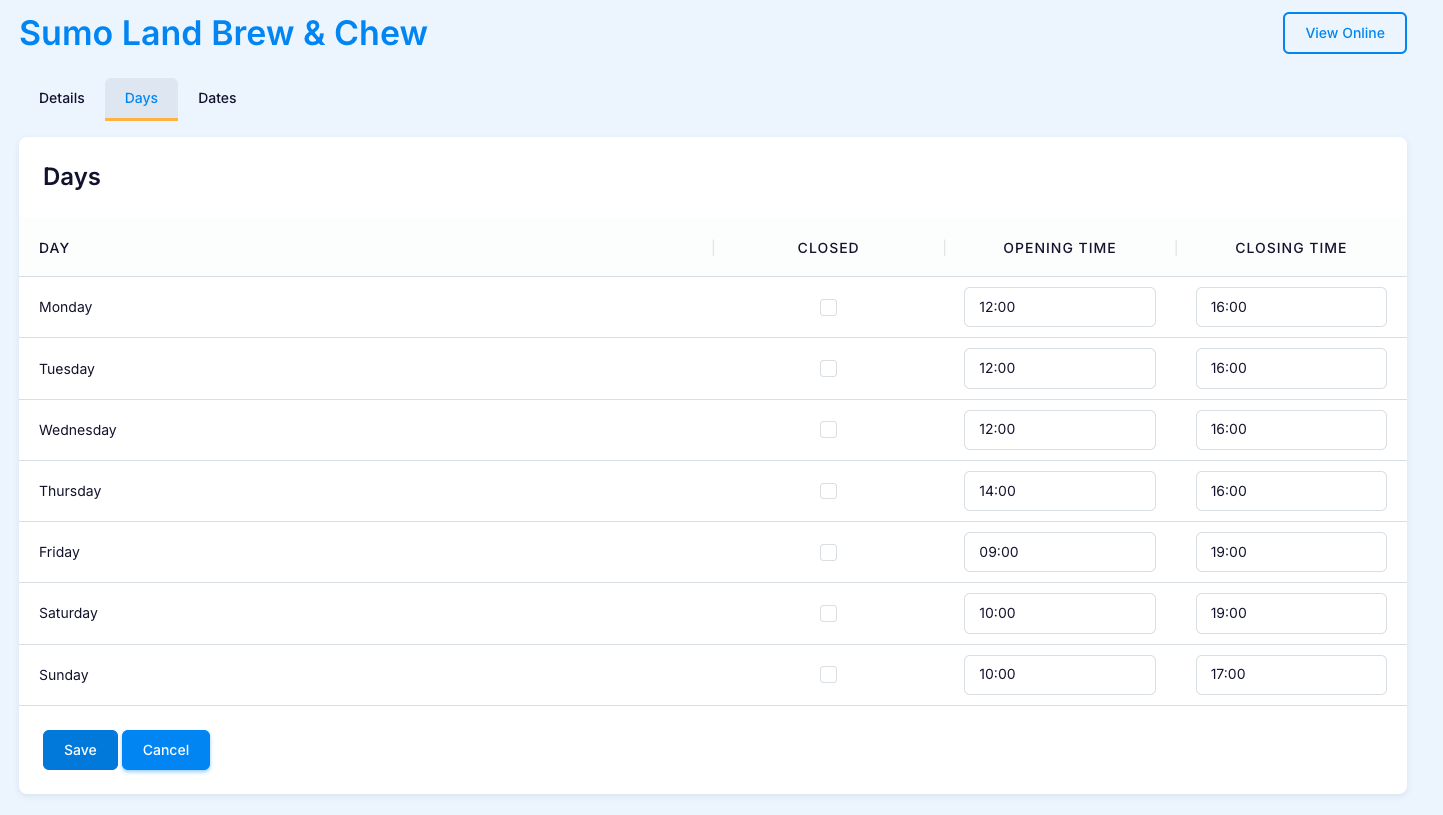
To change online ordering open hours on a specific date or within a date range
Click on the DATES tab then click Add Date, enter the date or time-period and altered open hours:
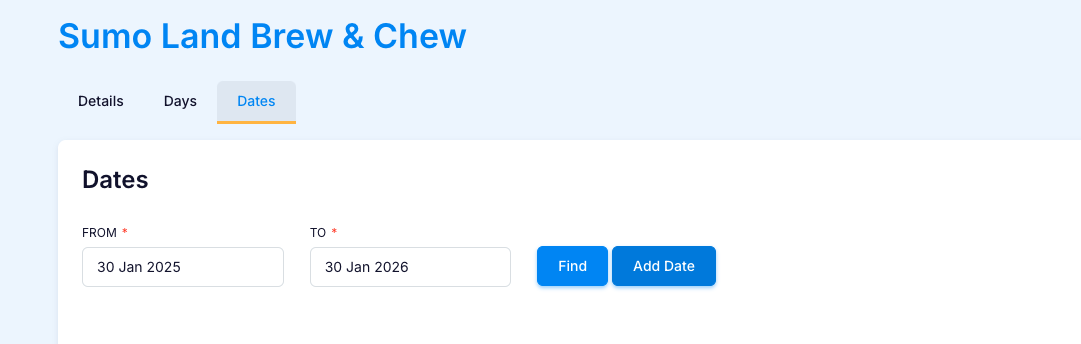
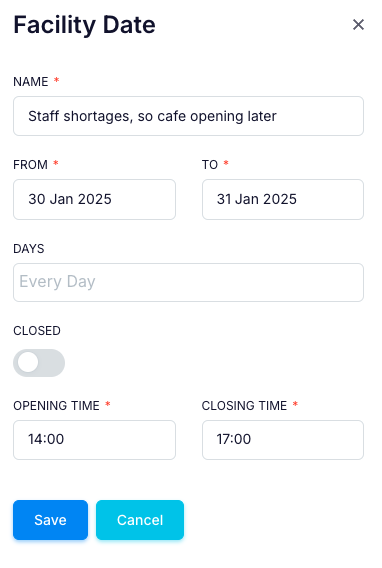
Use the CLOSED switch to close on certain DAYS:
Click on the Days tab and then click on Set Operating Hours
Click on YES to have separate operating hours and then press Edit
Click on the CLOSED box to stop online ordering on any day that the box is ticked

Use the CLOSED switch to close on certain DATES:
Click on the DATES tab then click Add Date, enter the date or time-period that your cafe will be closed and set it to CLOSED:

To ensure online ordering is always available:
Scroll down to the Online Ordering section and set Is Always Online to YES:

How will it look?
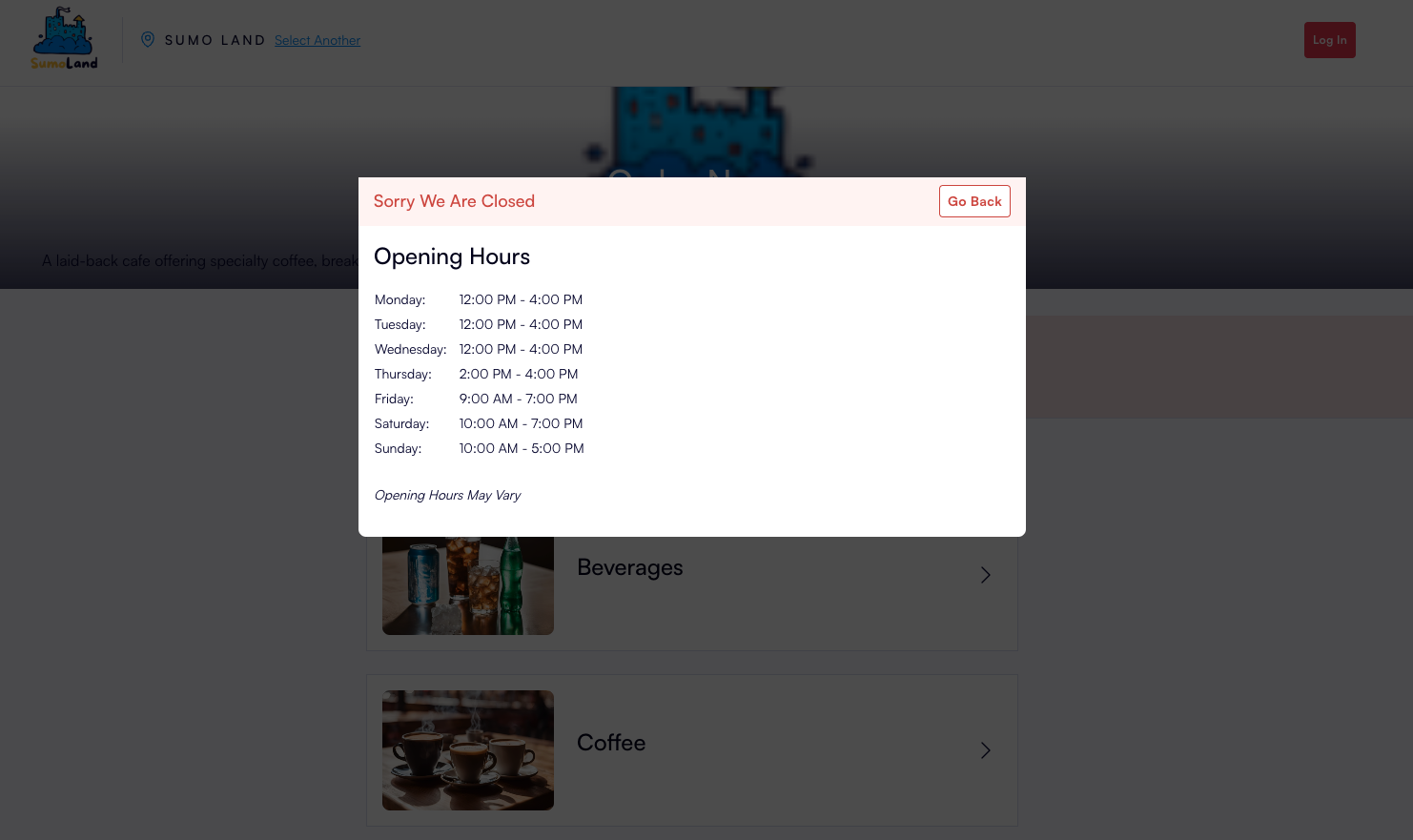
If a customer attempts to access ONLINE ORDERING outside the operating hours, they will see the following "Sorry We Are Closed" message:

If they click on 'View Opening Hours,' the hours displayed will be the location open hours:
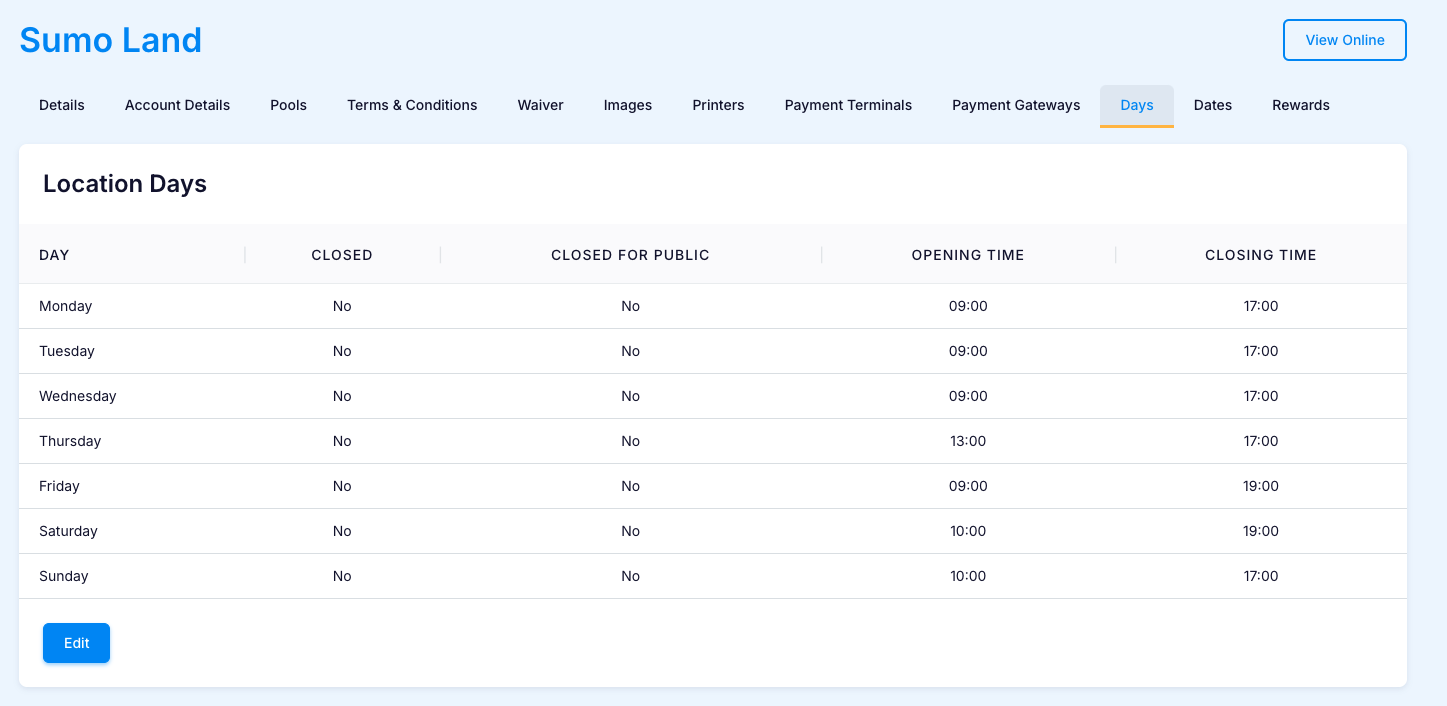
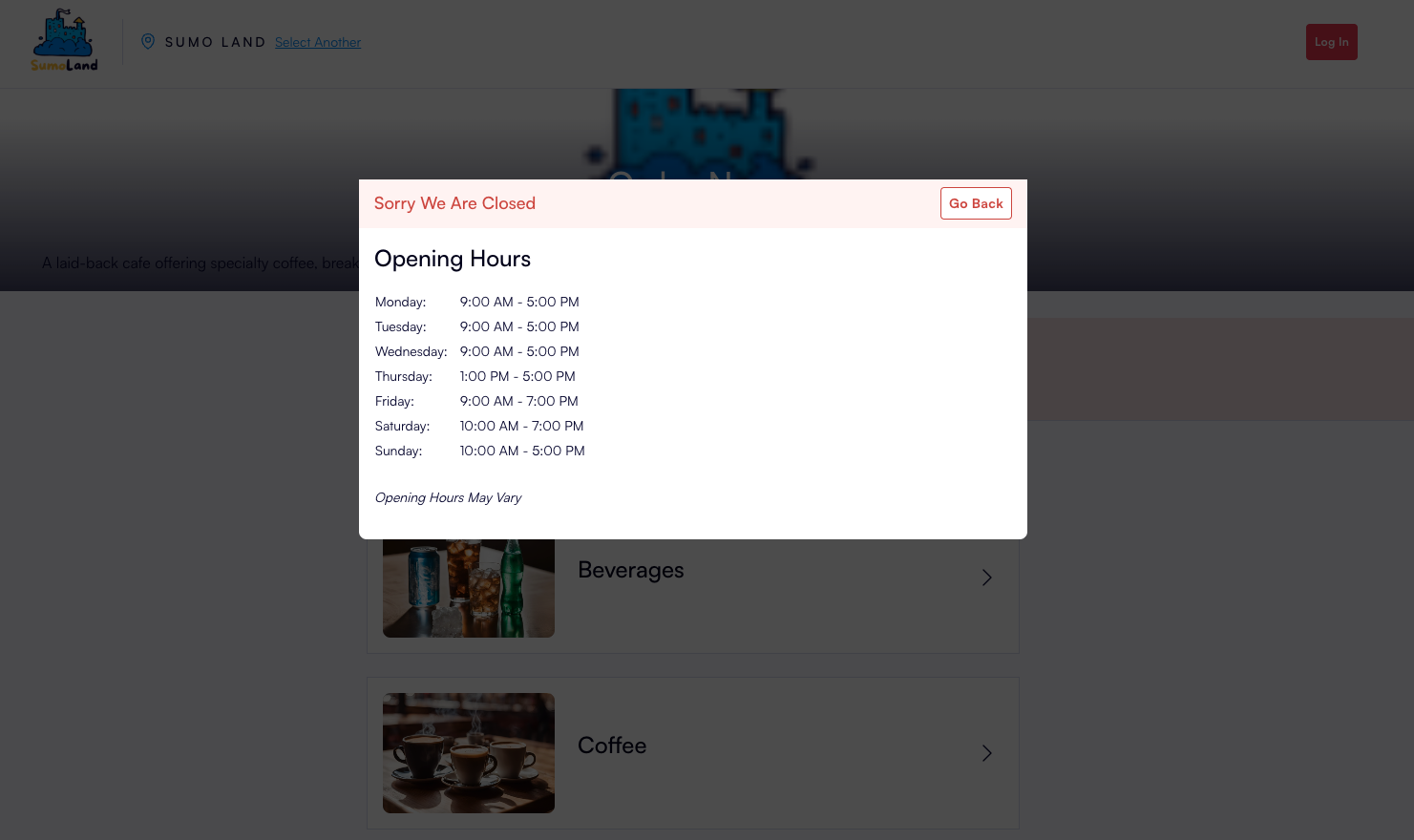
If the Open Hours have been customised within the POS Facility DAYS tab, these hours will be displayed: