Return an Item to Stock on Hand on the POS
Last updated: November 6, 2026
This article explains how to process a stock return in the point of sale (POS) when an item needs to go back into available inventory. It covers both refund and no-refund scenarios, so you can restore stock quickly after a sale or a cancelled order.
Watch the video walkthrough: https://loom.com/share/6e53f2f2762848b3880b2e9005a4fb45
Before you start
Use this process when an item with stock attached was sold or reserved and now needs to be reversed back into inventory. Before you begin, confirm the item currently has available stock so you have a baseline to compare against later.
Steps
1. Identify the item. Open the POS and find the item that has stock attached. Confirm its current stock level, then select the item you need to return.
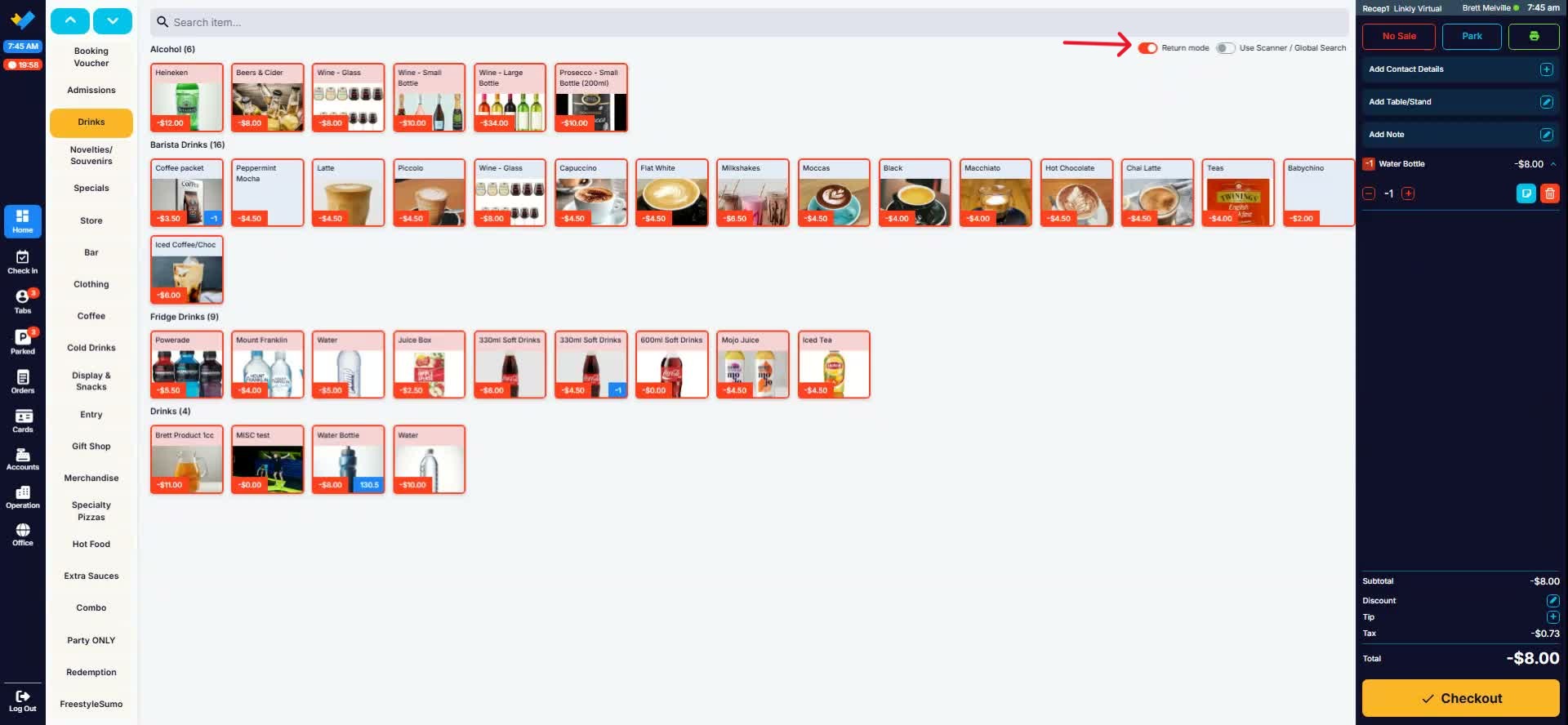
2. Switch to return mode. When the customer no longer wants the item, click the Return Mode button at the top of the screen. Select the same item you want to return to stock. The system adds a negative quantity to the cart to indicate a return.
3. Choose the return outcome and complete checkout. Proceed to checkout with the return in the cart. Then either:
Choose one of the refund methods available at your site, or
Process the return with no refund if you only need to restore stock on hand.
Complete the transaction to finalise the return.
4. Verify the stock. Log back in after the return is processed, reopen the item record or stock view, and confirm the stock on hand has increased to the expected quantity.
Things to be aware of
Card refunds are not be available for returns. A return transaction has no original order to link the refund to, so card refund options are unavailable.
Refund options depend on your site’s payment methods. What you see in checkout will vary depending on which payment methods are enabled.
Select the correct item before processing. Choosing the wrong item adjusts the wrong stock record.
Only use no refund when your goal is to restore inventory without returning money. Don’t use it if the customer still needs to be refunded.
Tips
Keep the item record or stock screen open in another window so you can check stock levels before and after the return.
Enter return mode straight after identifying the item to reduce the chance of processing the transaction incorrectly.
If the customer has already been refunded elsewhere, choose the no-refund option to avoid issuing a duplicate refund.
Always check the item’s stock count after completing the return to confirm it was processed.