Sending SMS Messages and Viewing SMS Logs
Last updated: May 10, 2026
SMS Messages can be sent from Bookings, Orders or from the Customer record.
BOOKINGS
In a Booking:
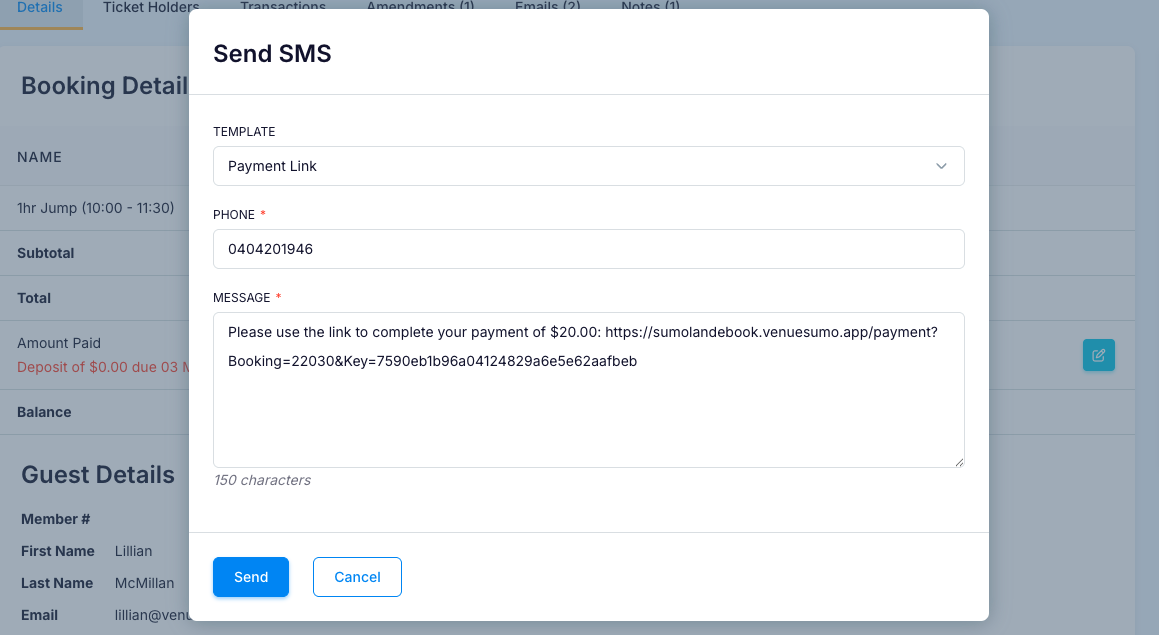
Click Send > SMS Message

A popup appears with the customer's phone number pre-filled

Select a SMS Template from the dropdown (only BOOKING type SMS Templates will be displayed)
The booking data will be automatically populated
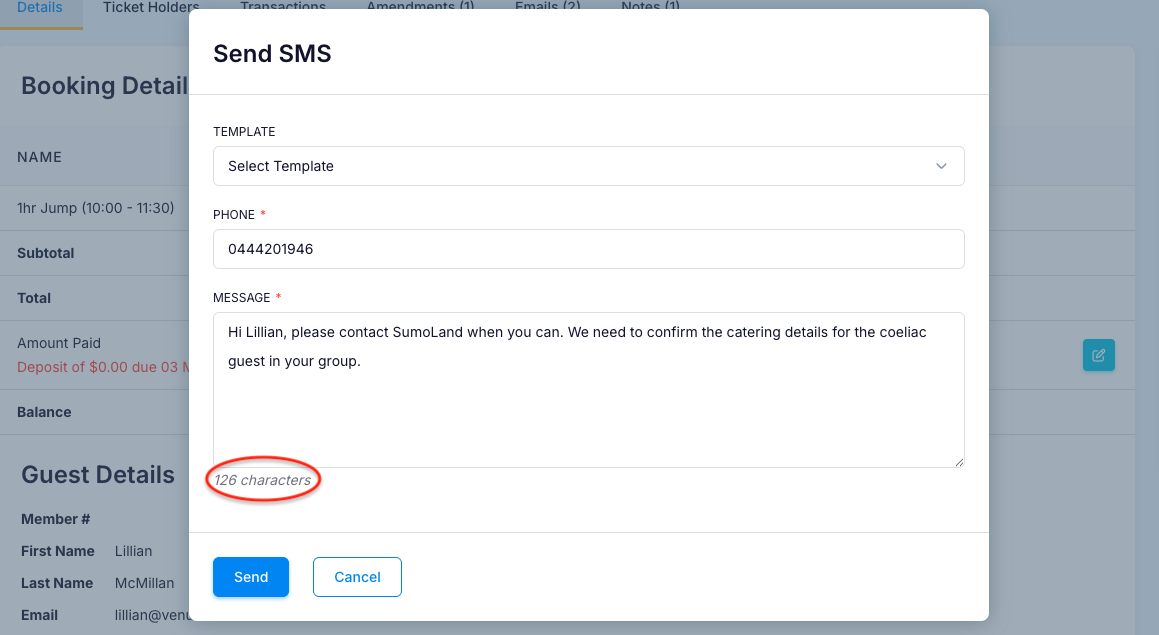
Or Enter your own unique message (the character count updates as you type (to assist with 160-character limits):
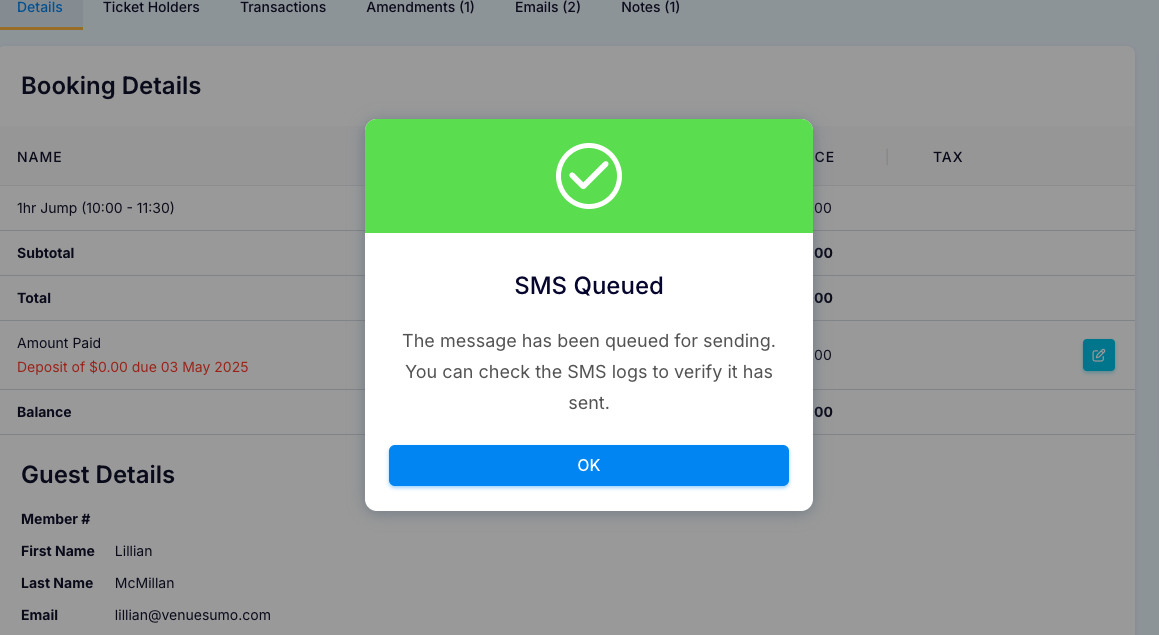
SMS Notification (you will be notified that the SMS has been added to the sending queue):
View:
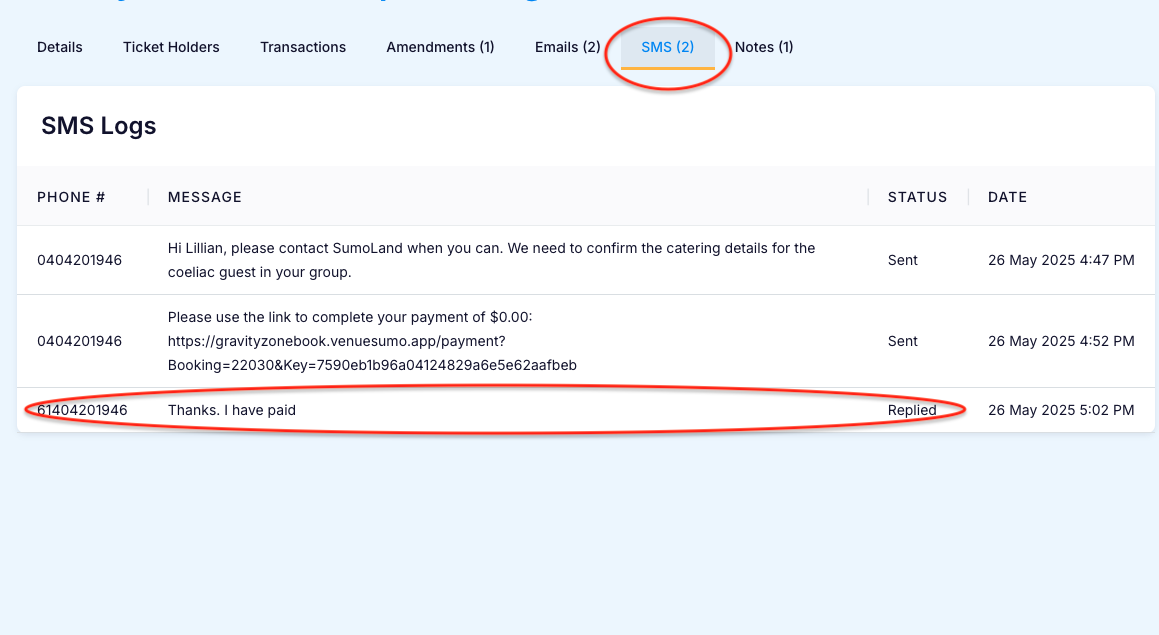
SMS Logs can be viewed in the SMS tab of the booking, including any replies from the customer. Once an SMS is sent, the status will be updated to “Sent” with a date and time.
ORDERS
In an Order:
Click Actions > SMS Message

The same SMS popup used for bookings will appear, but it will only show templates relevant to orders.
View:
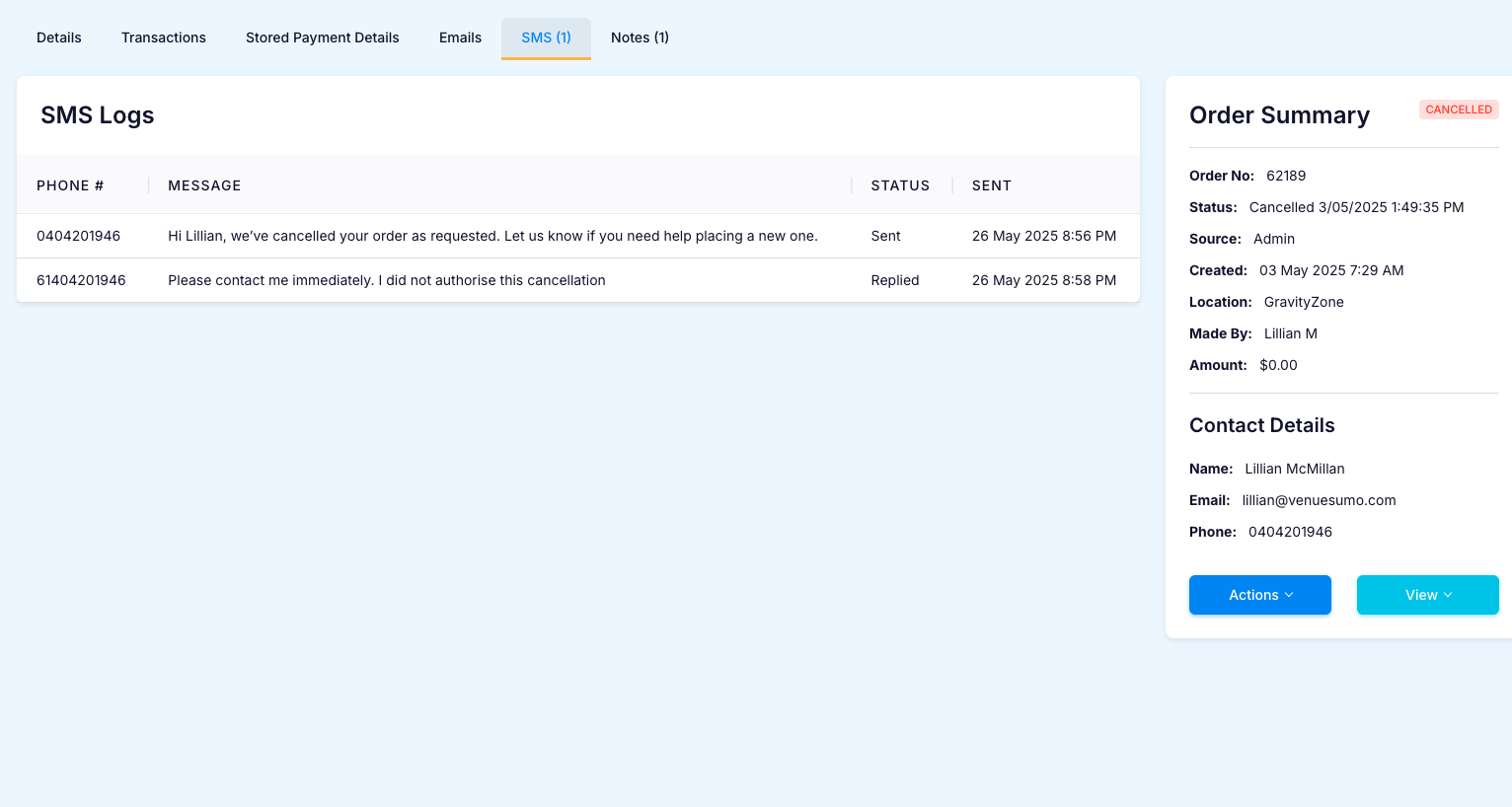
A log of all SMS messages sent and received are stored in the SMS tab of the Order:
CUSTOMERS
When viewing customer details, click the SMS button (visible only if a phone number is saved).
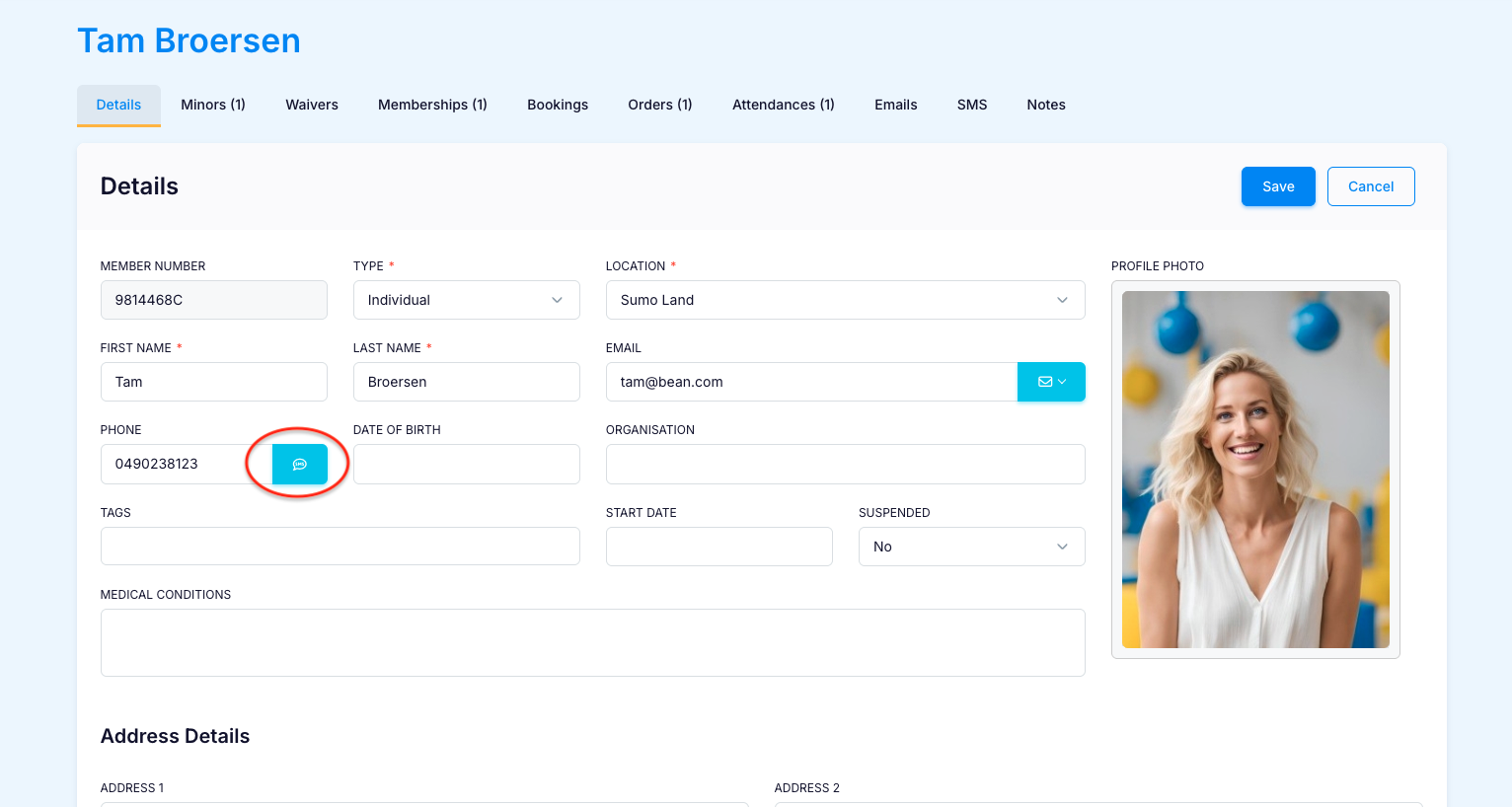
The same SMS popup used for bookings will appear, filtered to customer-related templates.
View:
A log of all SMS messages sent and received are stored in the SMS tab of the Customer Record:
