How to add images to POS products
Last updated: May 9, 2026
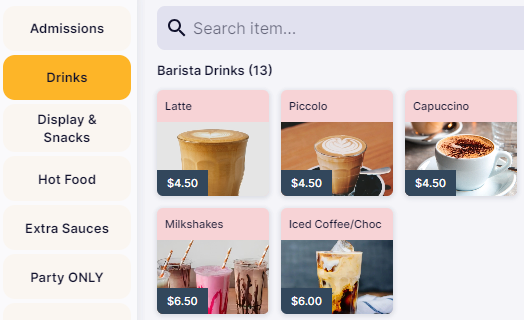
You can add images within your POS products to make it easier for staff to quickly identify items, enhancing the overall efficiency of the checkout process and improving the customer experience.
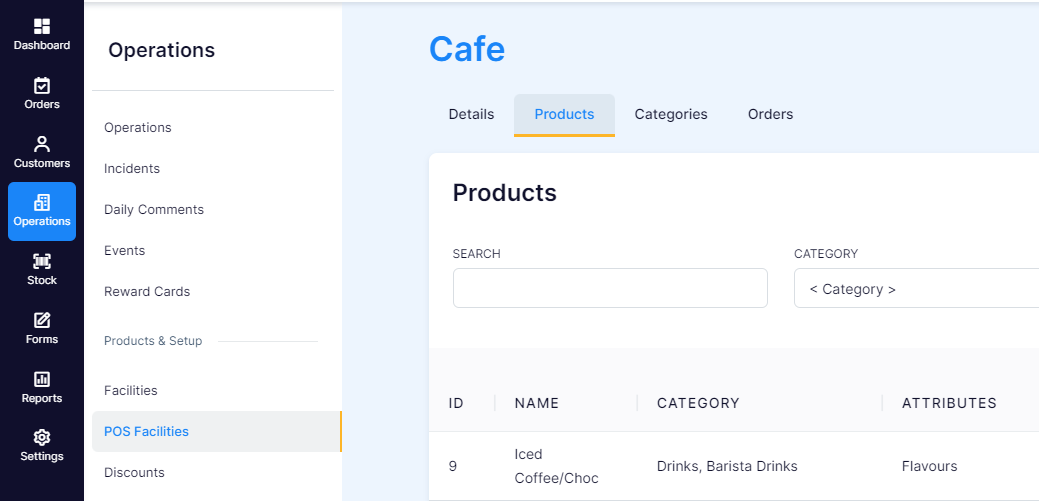
In VenueSumo Backoffice, find the POS Product you want to add an image to by going to:
Operations > POS Facilities and choose the POS Facility that contains the Product you want to change.
Select the "Products" tab and click on the POS Product you wish to add an image to.
Once in the POS Product, scroll down to the "Image" section and click "Upload Image". Select an image from your computer.
This will change the POS Product image, login in to your POS terminal to check it is displaying the way you want it to.
Note - Image dimensions must be 320 x 240 px
