Recipe Cards: How to Setup and Use Recipe Cards
Last updated: May 10, 2026
Recipe Cards in Venue Sumo help to streamline inventory management by defining ingredients for products based on stock items.
Why Set Up and Use Recipe Cards?
Recipe Cards automate stock deductions when products are sold, ensuring accurate inventory levels for stock item ingredients used within products.
How to Set Up Recipe Cards
1. Access the Recipe Card Setup
Navigate to the Stock> Recipe Cards section in the Backoffice.
2. Create a New Recipe Card
- Click on + New Recipe Card.
- Enter the following details:
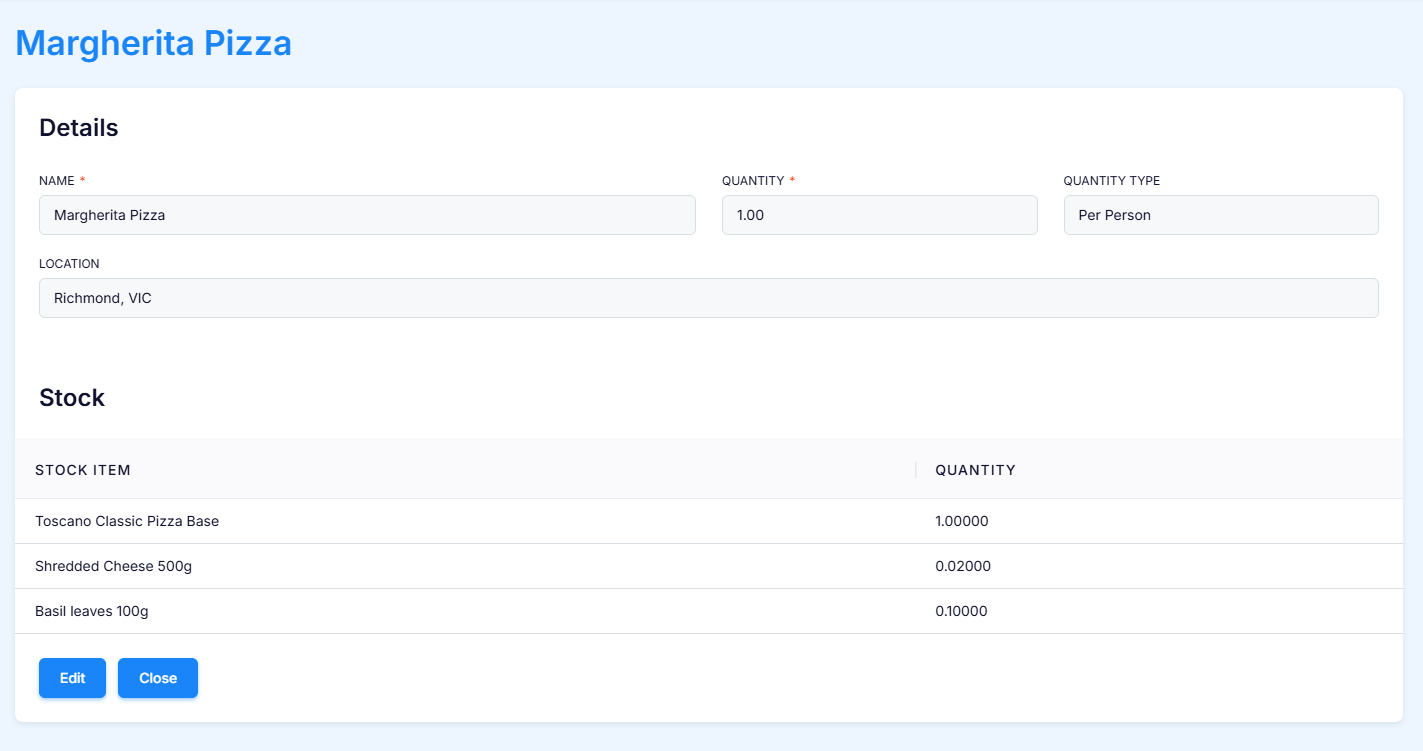
- Name: Provide a descriptive name for the Recipe Card (e.g., "Margheritta Pizza").
Quantity: Specify the quantity (with decimals if needed) per person or per group.
Quantity Type: Choose between:
- Per Person: Use this for individual bookings.
- Per Group: Use this for group bookings such as birthday parties.
Location: Specify the location where this recipe card can be used. Recipe cards are global and can be used across multiple locations.

3. Add Stock Items
- Add one or more stock items that are used in this Recipe Card.
- Stock Item: Select the item from the inventory list (e.g., Pizza Base, Cheese portion, Pizza sauce, Pizza herb mix).
- Quantity: Specify the quantity of the stock item that will be used (e.g., 1 x Pizza Bases per person).
- Repeat the above step for all relevant stock items.
4. Link Recipe Card to POS or Facility Products
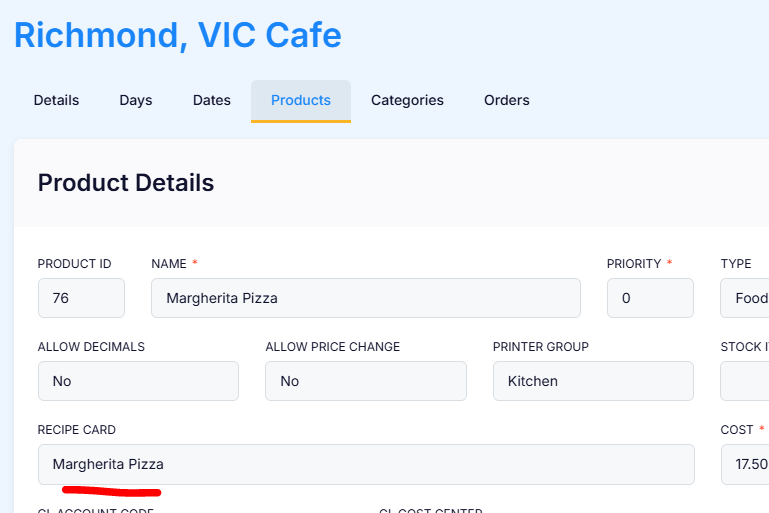
- Go to the Operations > POS Facilities > Products section in the Backoffice.
- Select the relevant POS product (e.g., "Birthday Party Package") or Facility Product.
- Link the Recipe Card to the product.
- Save your changes.