How to take a payment or add extras to a party booking in POS
Last updated: November 26, 2026
Use the POS to take the full or partial balance on a party booking, or to add guests or extras before you charge. This works for upcoming parties and on the day of the party.
Before you start
Have the party's booking number ready.
For card payments, make sure the card payment terminal is connected.
Find the booking
Open the POS.

Select Check in.
Turn off the Use Scanner toggle.
Enter the booking number and select the magnifying glass. The booking details open.

Add guests or extras (optional)
On the booking, select Add Items.
Choose the guests or extras to add.
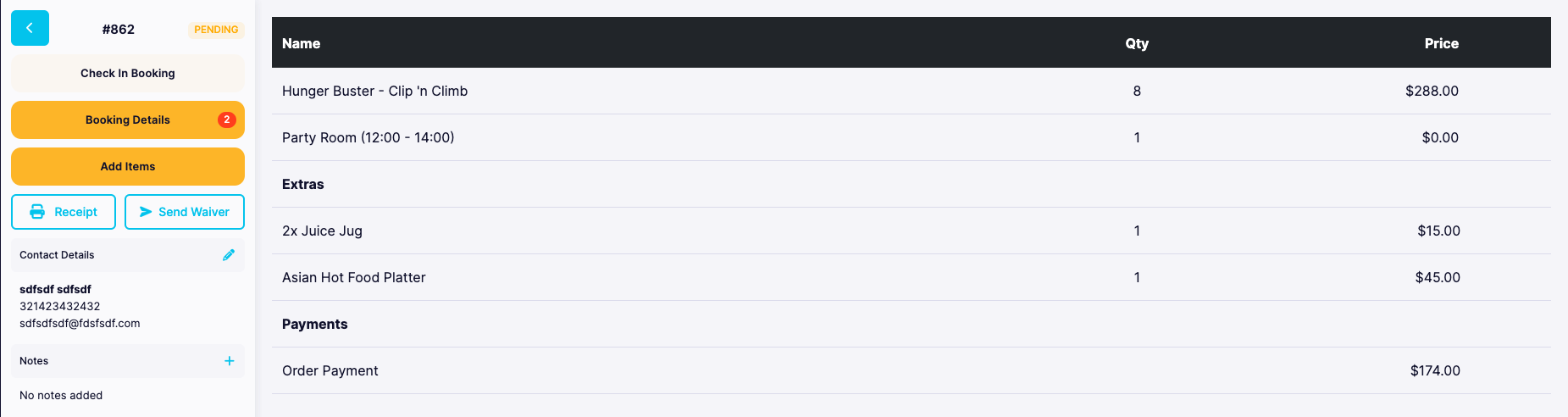
For more detail, see How to add extras to a booking during Check In.
Take a payment
Select the party booking, then select Charge. The total amount due appears.
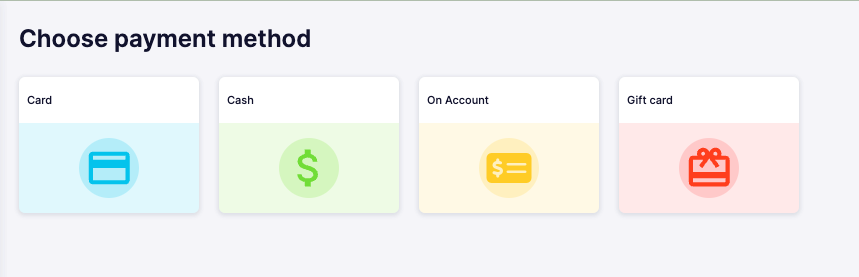
Choose the payment method, such as cash or card.
To take the full balance, select Pay in Full and complete the prompts.
To take part of the balance, follow the card or cash steps below.
Take a partial card payment
Select C to clear the Pay Now amount.
Enter the amount to charge, for example
100.00. The yellow button changes from Pay in Full to Save Split Payment.Select Save Split Payment ($100.00).
Complete the payment on the card payment terminal.
Take a partial cash payment
Select Pay Now, then select C to clear the amount.
Enter the partial amount, for example
100.00.In Tendered, enter the same amount. Change updates to $0.00.
Select Save Split Payment ($100.00).
Collect the cash from your customer.
What happens next
The Payments section of the booking screen shows the new payment. Any remaining balance stays on the booking so you can take it later.