How to Create a New Order Without Taking Payment in the Back Office
Last updated: October 16, 2026
This guide shows you how to create an order in the back office without taking payment now. The order is still completed, the customer receives their confirmation, the space is reserved, and the booking appears in your reports with the balance outstanding.
When to use this
Use Change Amount when you only want to hold the booking and the product has no invoice terms set up. If the product has deposit or final payment terms configured, use On Invoice instead, so the customer automatically receives an invoice and a payment link. See 📄 Choosing the right payment option when creating an order in the back office
If you're not sure how to create an order in the back office, review this article first: 📄 Create a new order in Backoffice
Steps
When you reach the fourth step of the process (Payment), click the Change Amount button in the order summary.
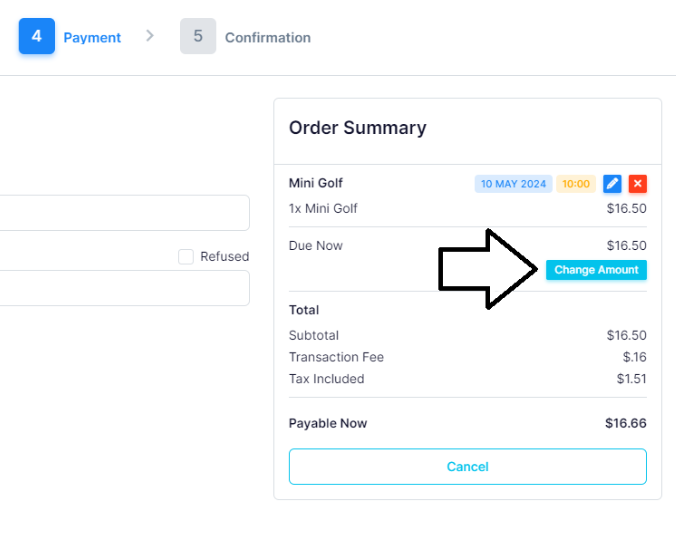
Change the amount to 0.00 and click Save.

Check the order summary. The amount payable now should show $0.00, and the total amount due should still show as outstanding.

Click Create Order to complete the order.
Collecting payment later
To email the customer a link to pay, see 📄 How to send a payment link for a booking or a whole order (Multiple Bookings)
If the customer pays outside VenueSumo (for example by cash or bank transfer), see 📄 How to record a manual payment (bank transfer, cash or cheque) against a booking