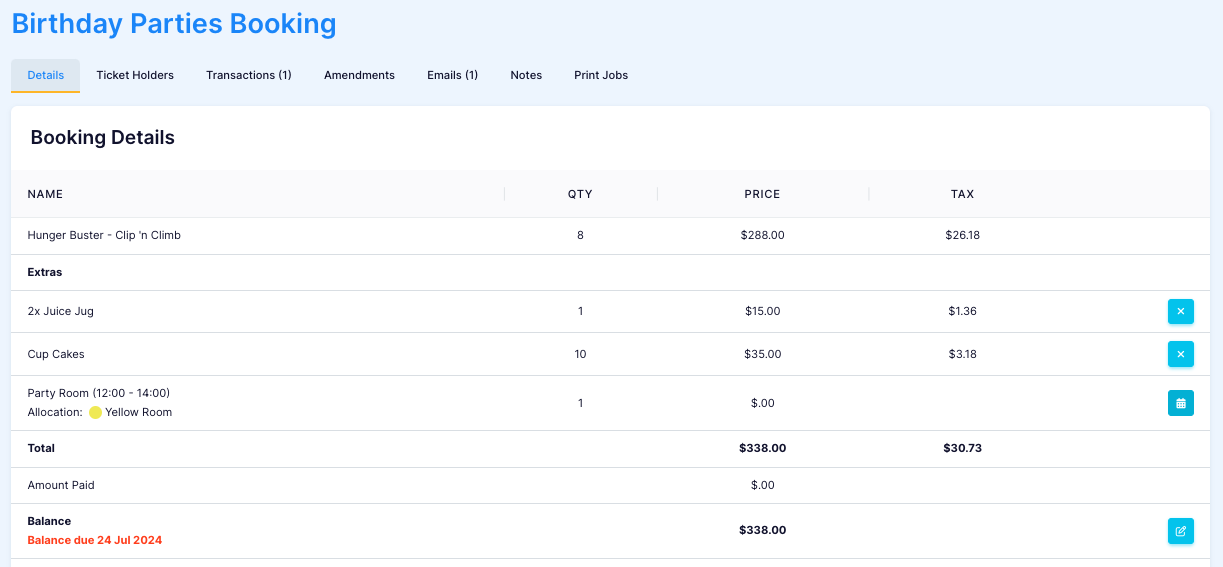
How to use Booking Questions and Admin Allocations to populate report fields
Last updated: September 22, 2026
Setting up booking questions within your booking flow serves two key purposes: collecting essential information from your customers and streamlining the group booking administration process.
Below are step-by-step instructions for populating specific fields in group related reports to ensure that key information is displayed such as:
Child's Name
Age
Host
Room
These instructions apply to various group reports, including Party Bookings, Booking Brief Report, Party Runsheet, and Booking Label Report.
If you would like instructions on how to set up a custom booking question for your booking flow, see How to add a booking question.
The 'Name' field must match the exact wording in the table below, or the report field will stay blank. The 'Question' field is what the customer sees and can be worded however you like.
Populate the booking question fields
Go to the desired facility and select the 'Questions' tab.

Select 'Add New Question'.

Enter the 'Name' field exactly as shown in the table below. The 'Question' field is customer facing and can be labelled as desired.
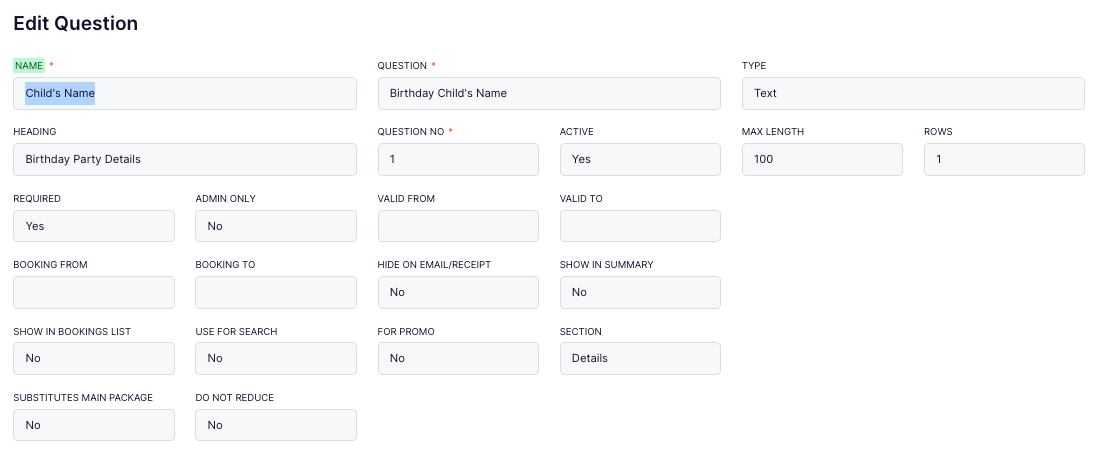
Run the report to check your work.

Use the exact 'Name' value for the report field you want to populate:
Report field | Enter in the 'Name' field | Populates these reports |
|---|---|---|
Child's Name | Child's Name | Party Bookings, Booking Brief Report |
Age | Age | Party Bookings, Booking Brief Report |
Host | Host | Party Bookings, Party Runsheet, Booking Brief Report, Booking Label Report |
How to populate 'Room' on group reporting
This process is applicable to the following reports:
Party Bookings
Party Runsheet
Booking Brief Report
Booking Label report
Go to Operations > Availability Pools > Party Room Pool.
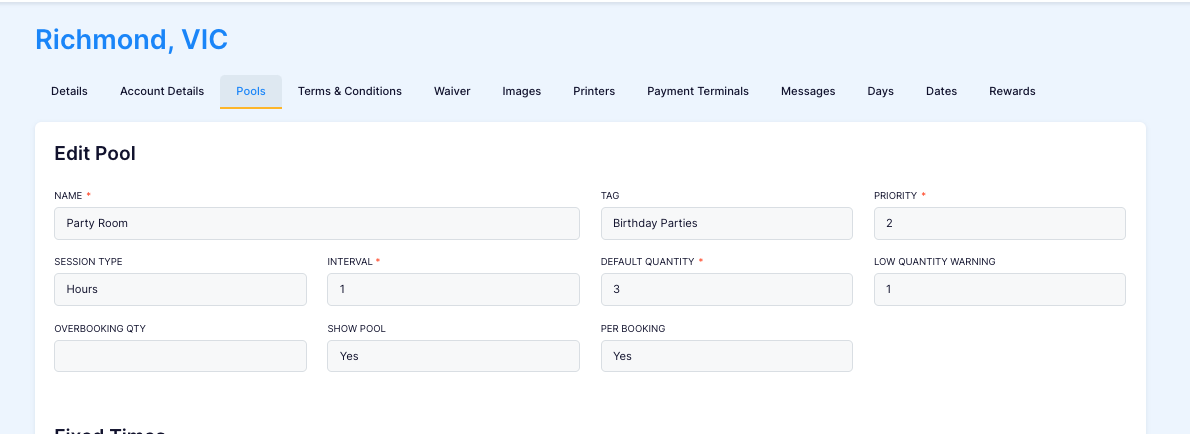
Change 'Allocation' to 'Admin'.
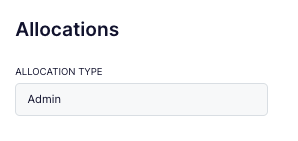
Add the names of your rooms and a colour.

Assign an allocation to a party booking of choice by selecting the 'Calendar' on the booking details page.

Check your work!