How to Create Reporting-Only Product Categories for POS Products, Facility Products, Facility Extras, Events and Session Vouchers
Last updated: May 10, 2026
This article walks you through the process of creating reporting-only product categories in your POS and online booking software.
These categories help you organize and tag products for better reporting on dashboards, accounting uploads or other analytics tools.
Step 1: Access Product Categories
Navigate to Operations in the main menu.
Select Product Categories from the dropdown menu.
Step 2: Add a New Product Category
In the Product Categories section, click the Add New button.
Enter a name for your new category. Ensure the name is descriptive enough for future reference (e.g., "Food & Beverage Reporting" or "Facility Maintenance").
To make this category reporting-only, configure the following fields:
Toggle the For Reporting field to Yes. This marks the category as being used for reporting purposes only.
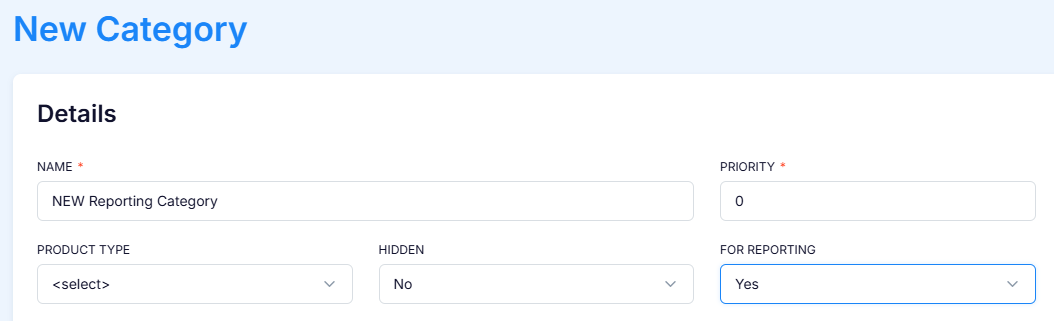
Step 4: Save the Category
Once you have configured the settings, click the Save button.
Your new reporting-only category will now appear in the list of product categories.
Step 5: Tag Products to Your Reporting Category
After creating the reporting-only category, you can start tagging it to relevant products:
POS Products: Assign the category to POS products by editing the product details and selecting the new reporting category in the "Report Category" field.

Facility Products: Assign the reporting category to facility products by editing the product settings.
Facility Extras: Tag the reporting category to facility extras by editing their details.
Event Products & Extras: Tag the reporting category to facility extras by editing their details.
Session Vouchers: Tag the reporting category to facility extras by editing their details.
Reporting Benefits
Once your products are categorized, you can leverage the following reporting features:
Dashboards: View category-specific metrics and analytics.
Reports: Filter and organize data by these categories for accounting or performance tracking.
Accounting Uploads: Simplify your financial processes by tagging transactions with reporting categories.
Tips and Best Practices
Use clear and consistent naming conventions for categories to avoid confusion.
Regularly review your categories to ensure they align with your reporting needs.
Collaborate with your accounting team to determine the best structure for your categories to match reporting requirements.
By following these steps, you can create well-structured reporting-only product categories that streamline your data analysis and reporting processes.