How to add permanent discount buttons to the POS
Last updated: September 24, 2026
This document explains how to create a discount that is always available for use in POS
Navigate to Operations > Discounts > '+ New Discount' in the top right
Fill in the relevant fields
Key fields include:
Name = Descriptive name of what the discount is
Active = Yes
For POS Sales Only = Yes
Product Types = Select the items that this discount will be valid for
For Members = No
Amount = enter the number for the percentage, or the flat value to discount
Per Product - Yes means this discount can apply one time per product (5 candy bars), No means the discount can apply one time per order (once on an order of 5 candy bars)
Everything else may be left blank
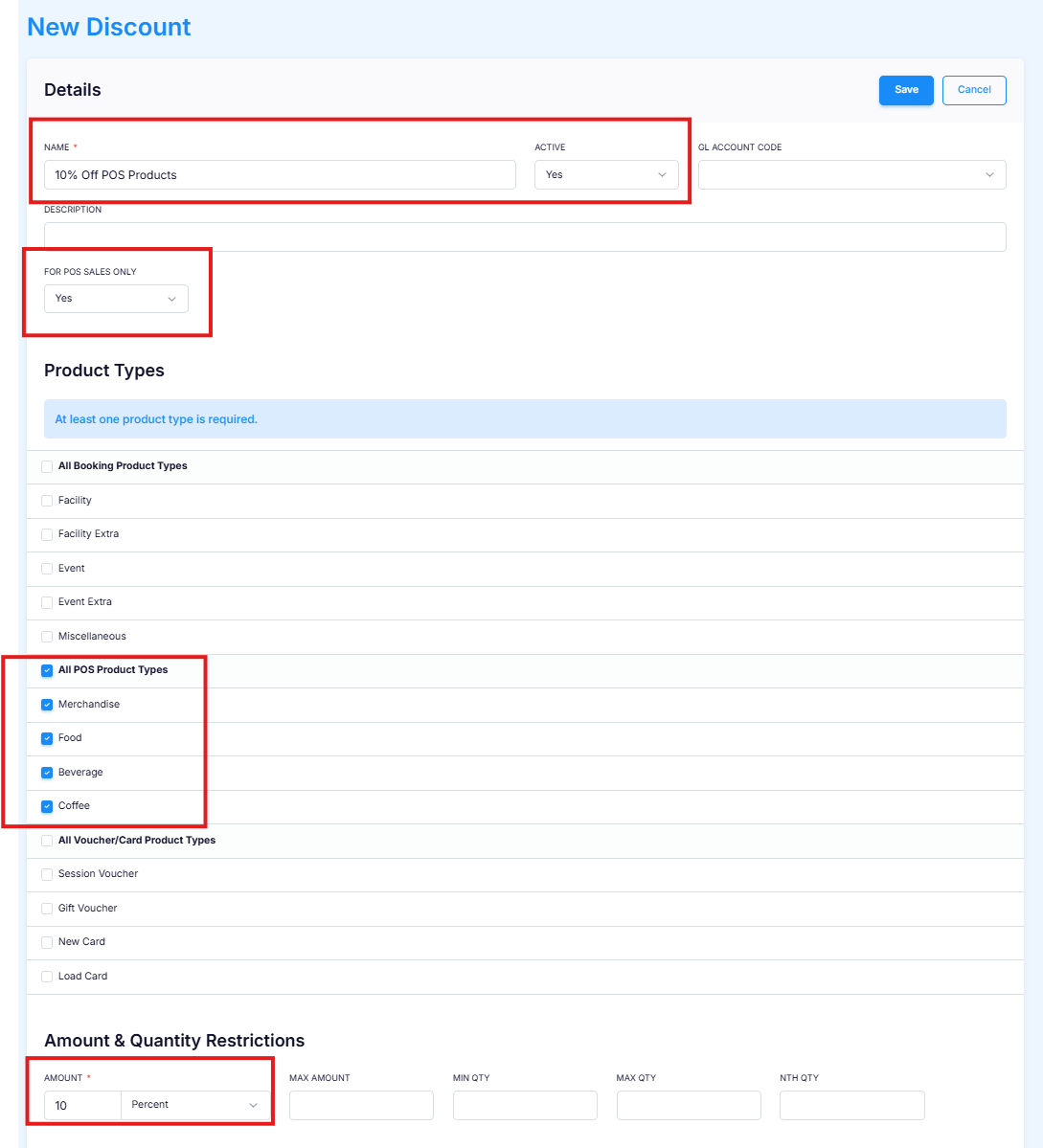
Click the SAVE button
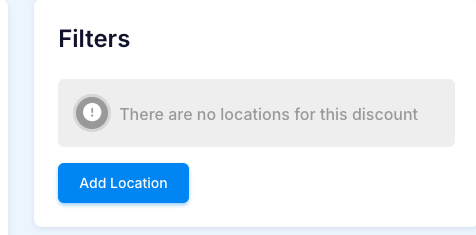
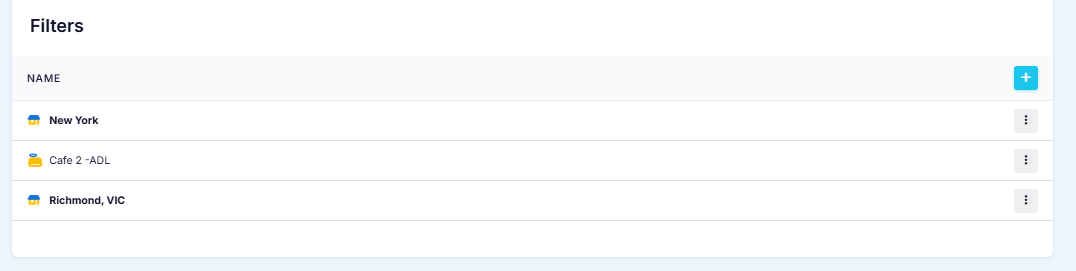
After clicking 'Save,' a section to add filters will appear. Click Add Location
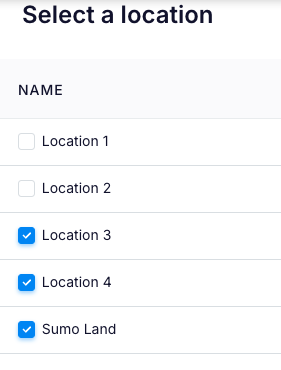
If you have multiple venues, select each one where the discount will be available
Press SAVE and the discount will be available immediately
You may also add specific POS facilities where this discount is available, if no specific POS facility is attached, it will apply to all POS facilities at that location
Example below: The discount is only available at the Cafe 2 POS in New York, but is available on all POS's in Richmond.
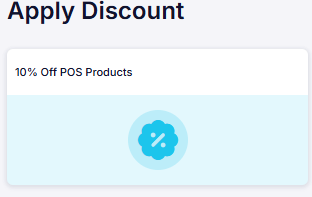
See guide How to apply a discount for instructions on how the discount can be used in POS