How to change the display order of the POS categories and sub-categories
Last updated: May 10, 2026
You may want to change the display order of categories and sub-categories in the POS to make it easier for your staff to find popular categories of products.
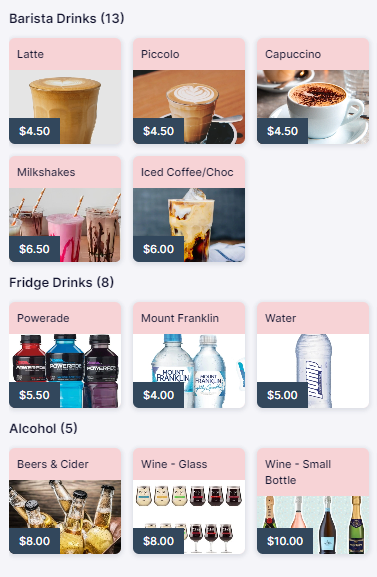
e.g. The following "Drinks" category contains the sub-categories"
- Barista Drinks
- Fridge Drinks
- Alchohol
Go to Operations > POS Facilities. Select the POS Facility that contains the sub-categories you want to change the order of.
Currently the "Priority" are set as:
- Barista Drinks = 2
- Fridge Drinks = 3
- Alcohol = 6
- Drinks = 1
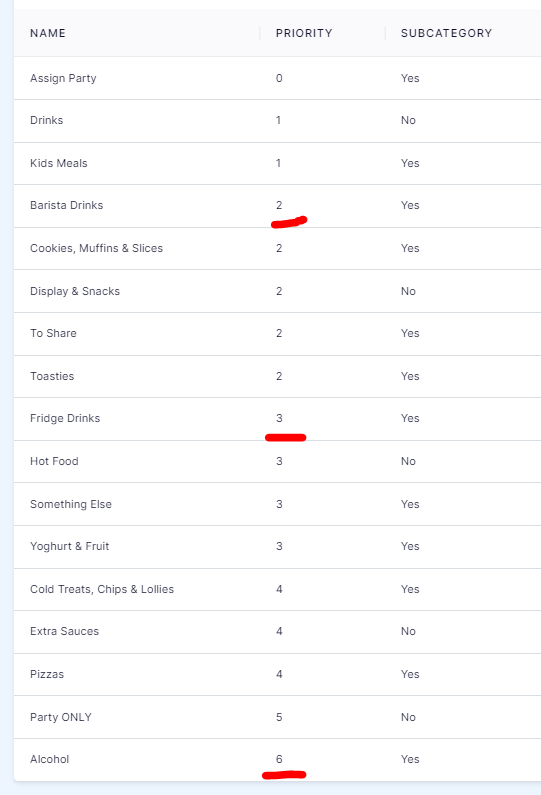
To change the order, edit the priority, the lowest number will display first.
Below I've changed the Priority of Alcohol to "1".
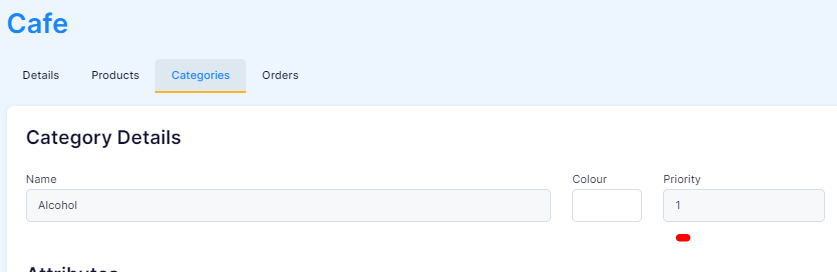
Our display order how has "Alcohol" sub-category first.
