How to edit your public booking site descriptions
Last updated: May 9, 2026
In this article we will teach you how to edit your Public booking site descriptions in your admin account.
There are 3 main areas to put your description;
- Settings (messages)
- Facility level
- Product level
Settings (Messages)
What its used for:
- Advertising a sale
- Delivering information urgent to your customers
- Keeping customers up to date with new releases
Where to find this setting:
Settings> Locations> [Location Name]> Messages
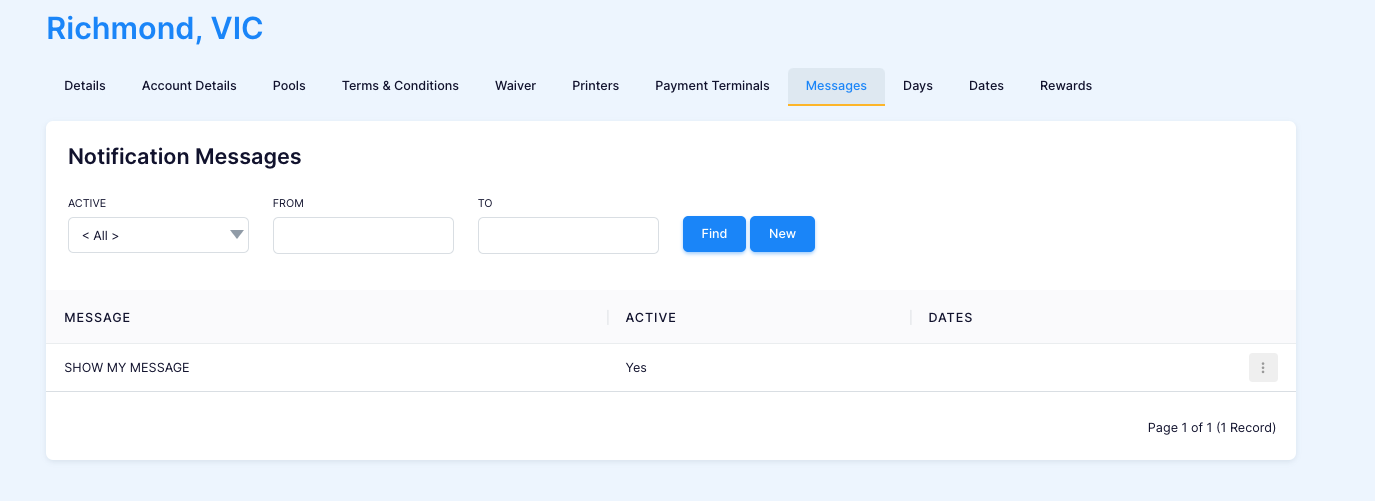
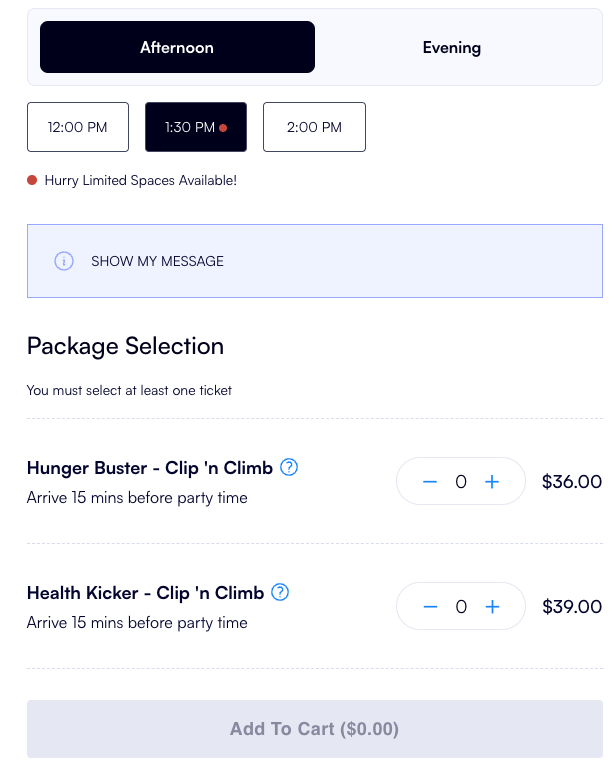
Where is will display on your booking site:
After selecting a product. You can choose which facilities to display this message via the 'Edit' button in the Back Office.
Facility level
What its used for:
- Describing the facility
- Mapping out basic rules of the product
- Must read information before purchase
Where to find this setting:
Operations> Facility> [Facility Name]> Details
Booking Content:
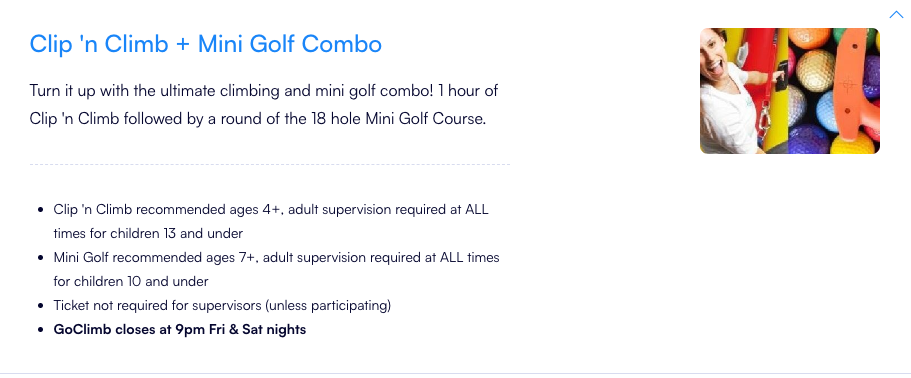
Usually used for a short catchy description of the facility.


Availibility Page Content:
Usually used to go more depth with the facility rules. The descrip expands once the customer has clicked on the Facility.

Product level
What its used for:
- Describing the specific product
- Describing what is included in a specific products
Where to find this setting:
Operations> Facility> [Facility Name]> Products> [Product Name]
Extra Info:


Description:
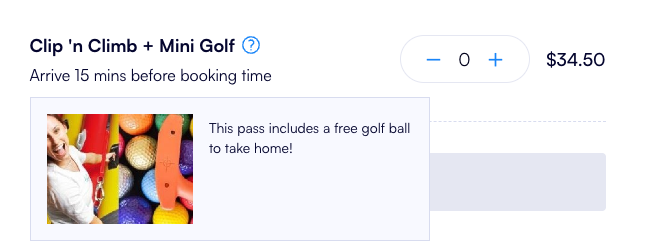
Click on the '?' buttton on the Public site to view this decription.