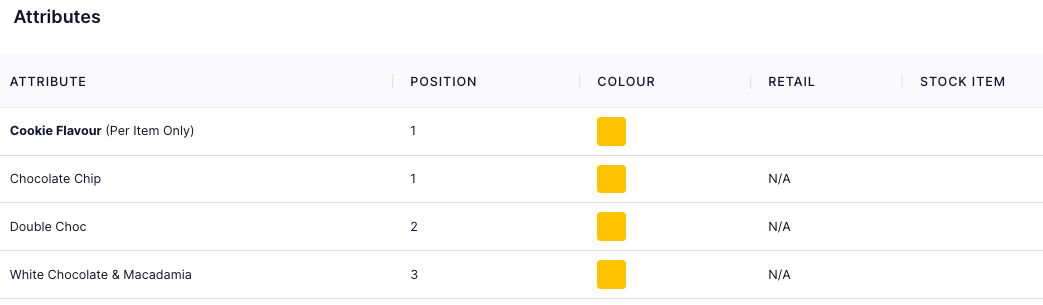
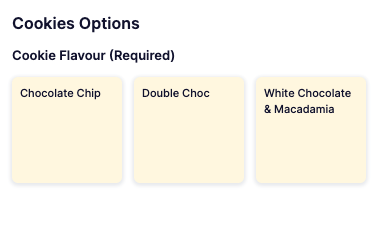
How to add an POS product attribute
Last updated: May 9, 2026
Sometimes products will need different attributes to accomodate modifications. This article goes into how to set those attributes at the product level. This can also be set at the category level for more broad modifications.
To set up a product attribute go to Operations > POS Facilities > Select the facility > select the product that requires an attribute

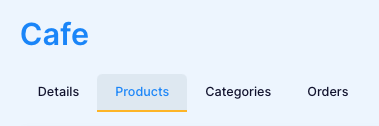
Scroll to the bottom of the page and click "Add Attribute"

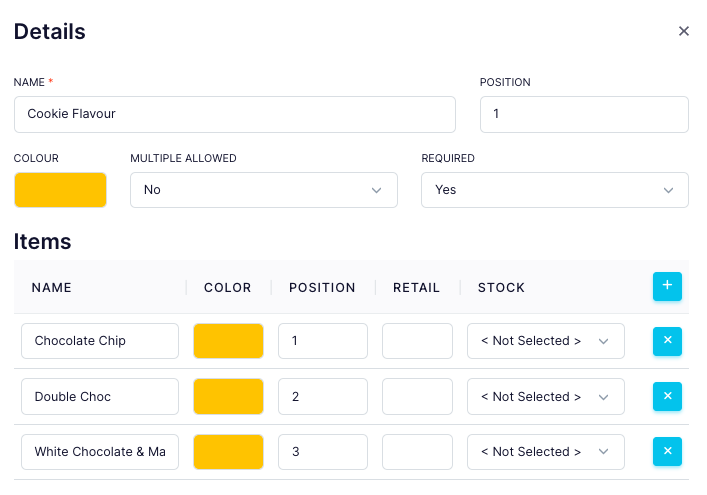
Fill Out the fields
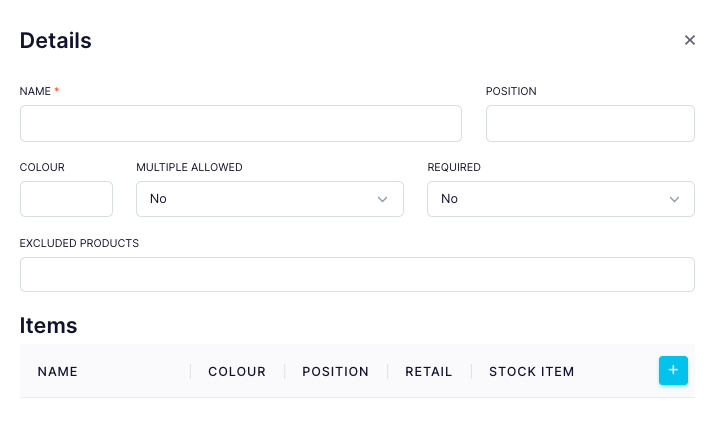
Name = Name of attribute
Colour = What colour you want the attributes in this product to be
Position = Controlls the display order attributes for this product
Multiple allowed (If YES) = allows staff to select multiple of the attributes
Multiple allowed (If NO) = allows staff to select only one of the attributes
Required (If YES) = Will not let the staff member continue the order until an attribute has been selected
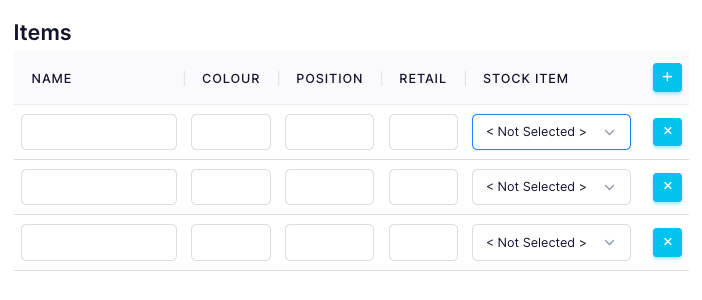
Name = name of type of attribute
Position = Controlls the display order of the types attributes for this product
Retail = If the attribute affects the price of the original product you can add the difference in cost here
Save your changes