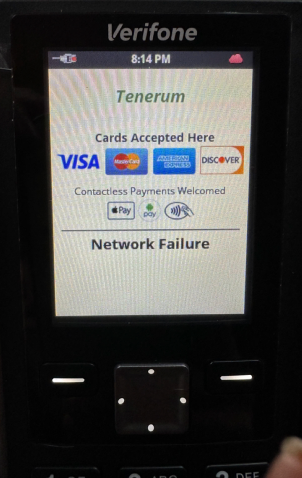
Veriphone payment device - Red Cloud Icon + "Network Failure" Message
Last updated: May 10, 2026
If your Verifone payment terminal displays a red cloud icon and a “Network Failure” message, this indicates a communication issue with the payment network or backend services. Follow the steps below to diagnose and resolve the issue.
Symptoms
Red cloud icon on the terminal screen
Error message: “Network Failure”
Terminal unable to process transactions
Root Causes
No internet connection
Incorrect network settings
Firewall or port blocking
Hardware or cabling issues
Firmware or software errors
Step-by-Step Troubleshooting
1. Check Internet Connectivity
Ethernet: Ensure the cable is securely connected to both the terminal and router or switch.
Wi-Fi: Confirm the terminal is connected to the correct SSID and has a stable signal.
Cellular (if applicable): Verify that the SIM card is properly installed and cellular signal is strong.
2. Restart the Terminal
Hold the power button to turn off the device.
Wait 10 seconds and power it back on.
This resets network modules and may restore connection.
3. Reboot Network Equipment
Restart your router, modem, and/or switch.
Wait 1–2 minutes before reconnecting the terminal.
4. Run a Ping Test (if supported)
Access Settings > Diagnostics > Ping Test.
Test connectivity to a public IP (e.g.,
8.8.8.8).Failed test indicates network outage or block.
5. Verify IP Configuration
Ensure DHCP is enabled (if dynamic IP is used).
For Static IP, confirm:
Correct IP address
Subnet mask
Gateway
DNS servers
6. Check Firewall & Ports
Ensure the following outbound ports are open on your network/firewall:
TCP 443 (HTTPS)
TCP 9001–9010 (Verifone services, if applicable)
Consult your network administrator to confirm no traffic is being blocked.
8. Inspect for Hardware Issues
Examine cables, connectors, and ports for damage.
Try alternate cables or power supply if available.
Check SIM card tray (for cellular models) for correct seating.
9. Contact Chosen Support
If issues persist:
Record the terminal model, serial number, and current software version.
Take a photo or note of the exact error screen.
Provide these details when contacting Chosen Payments Support (support@chosenpayments.com)