VenueSumo Platform Updates — October 2026
Last updated: October 29, 2026
This month, we’re introducing improvements across kitchen operations, online payments, bookings and capacity planning, and memberships, alongside new ecommerce tracking to help you better understand your marketing performance.
Explore the updates below to see what’s new, how it can benefit your venue, and how to get started.
Kitchen Display System (KDS)
New kitchen station and expo screens
Feature Availability: All VenueSumo plans
We’re introducing new Kitchen Display System capabilities to help streamline kitchen operations and improve coordination between kitchen teams and front-of-house staff.
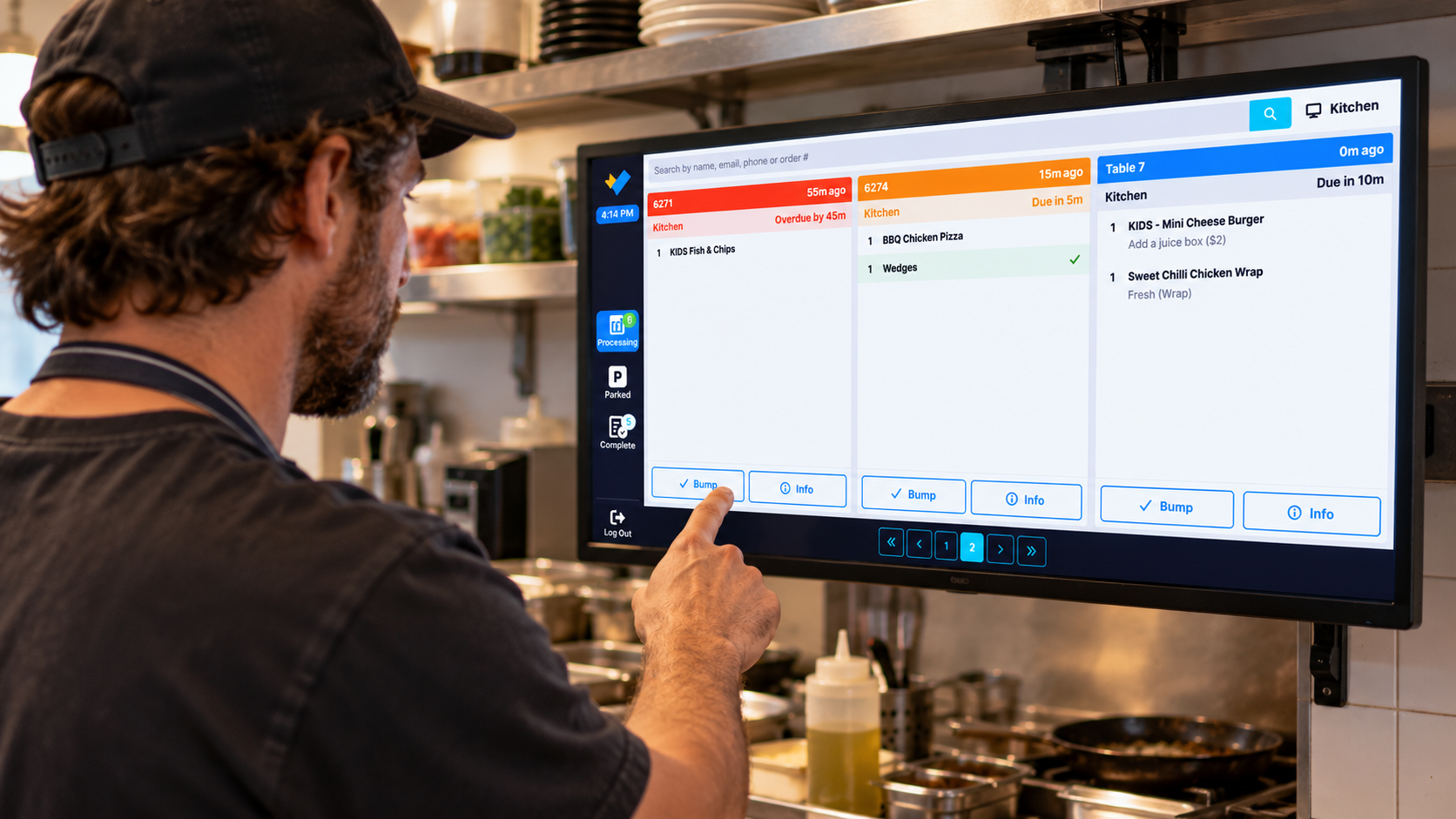
Each preparation area can now be set up as a Station with its own live order queue, while the new Expo screen gives staff the complete order view across every Station. Venues without dedicated Station screens can use Expo on its own as their central order screen. Both screens now work on phones and tablets as well as larger displays.
What’s new
Dedicated Station screens showing a live queue of the items each area needs to prepare.
An Expo view shows the full order, including over-the-counter items, so service staff can see when everything is ready.
Order actions for busy service: mark an order as Rush, park and resume, split quantities and recall recent orders.
Warning and overdue colours so teams can see at a glance which orders need attention.
Responsive layouts for phones, tablets and portrait screens, plus a quick Refresh orders option.
Getting started:
Online Payments
Apple Pay and Google Pay, terminal tipping and payment terms.
Feature Availability: All VenueSumo plans using VenueSumo Payments
We’re making it easier for customers to pay the way they prefer and giving venues more control over how contracts are paid.
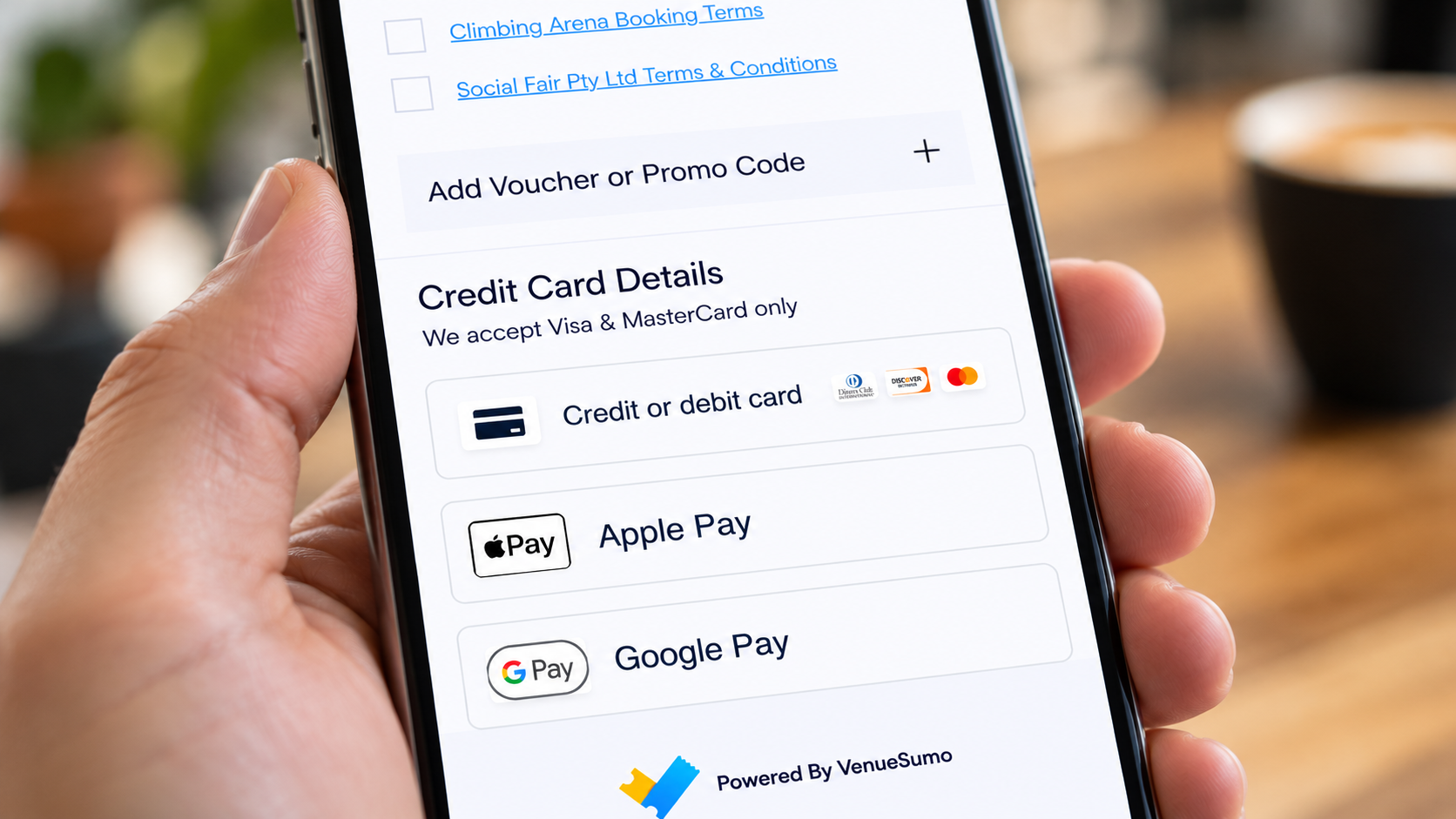
This release expands the Apple Pay and Google Pay options supported across Adyen and Windcave, including on eligible payment links, and improves the reliability of wallet payments and 3D Secure across providers.
What’s new
Expanded Apple Pay and Google Pay support on the Booking Site and eligible payment links.
Optional Ask for tip? prompt on supported payment terminals.
Reusable Payment Terms (for example prepayment or account terms) with a default applied to new contracts.
Smoother checkout: clearer declined-payment messages, no unnecessary 3D Secure challenges on Apple Pay, and surcharged booking payments now settle in full.
Getting started:
In Back Office, open Settings > Locations, select your location and review the Apple Pay and Google Pay options under Payment Gateways.
Enable Ask for tip? under Payment Terminals only where needed, and create any Payment Terms under Finances > Payment Terms.
Bookings and Availability
Finer online booking notice
Feature Availability: All VenueSumo plans
We’re giving venues more control over what they sell and when customers can book it.
Venues can now set their minimum online booking notice in days, hours and minutes, instead of whole days only.
What’s new
Earliest Booking set in days, hours and minutes, so you can stop last-minute online bookings while keeping later sessions on sale.
Match preparation and staffing notice to the way the venue runs.
Fewer last-minute bookings that can’t be prepared in time.
Getting started:
In Back Office, open Operations > Facilities, select the facility and set Earliest Booking. Complete a test booking in Back Office and on the Booking Site before opening the experience for sale. Existing whole-day notice values are converted automatically, so it’s worth reviewing affected facilities after the update.
Capacity Planning
Block capacity directly from the pools calendar
Feature Availability: All VenueSumo plans
We’re making it quicker for staff to hold back capacity when plans change, without leaving the calendar.
Authorised staff can now add, edit and remove blocked capacity directly from the Pools calendar in Back Office or POS, and see sold, blocked and available capacity together in one view.
What’s new
Block lanes, rooms, party spaces or other availability-pool units from the calendar in Back Office or POS.
Enter a time or duration, quantity and internal comment in one step.
Review sold, blocked and available capacity side by side.
Edit or remove single-day blocks when operational plans change.
Adjust the calendar’s time-slot interval to suit how the venue runs.
Getting started:
Assign the Add Blocked Capacity From Calendar permission to the relevant Back Office users and POS logins.
For POS, enable Show Pools Calendar on the POS facility. Then open Orders > Capacity > Pools calendar in Back Office or Operations > Pools Calendar in POS, navigate to the date and select Add Block Capacity.
Multi-day, multi-pool or event-linked blocks continue to use the existing blocked-capacity screens.
Memberships
Printable membership cards and Add to Wallet
Feature Availability: All VenueSumo plans (digital wallet passes require a supported provider)
We’re making it easier to give members a card they can use, whether printed at reception or added to their phone.
Staff can now generate membership card PDFs directly from member and order screens, using the venue’s existing Member Card design. Eligible membership passes can also be added to a supported digital wallet from an order confirmation or member account.
What’s new
Print a card from a member’s details, or for one membership on an order.
Produce a single PDF containing every membership card on an order.
Cards use the existing Member Card template, including its QR code where configured.
Add to Wallet for eligible membership passes.
Declined recurring membership payments are now correctly recorded as failed.
The printable card gives members a physical way to carry their membership details, while the recurring payment improvements address issues with membership billing.
Getting started:
Confirm the Member Card template is active for the venue and assign View Member Cards to the relevant staff. Open a member’s details or an order containing memberships and select Member Card, View Member Card or All Membership Cards. For digital passes, configure the supported provider under Integrations > View All Integrations and test Add to Wallet before promoting it to members.
Website Tracking and Analytics
Google Tag Manager and GA4 ecommerce tracking
Feature Availability: All VenueSumo plans (requires a connected GTM or GA4 setup)
We’re helping venue owners and marketing teams understand how customers move through the Booking Site, from browsing options to completing a purchase.
The Booking Site can now send a consistent set of standard ecommerce events into Google Tag Manager, so your analytics or agency team can report on conversion, revenue and campaign performance in GA4 without custom tracking work. No plain-text contact details are sent.
What’s new
Standard ecommerce events for the full booking journey: viewing options, selecting an item, adding to or removing from the cart, beginning checkout, adding payment and completing a purchase.
Order totals, discounts, coupons, payment type and the VenueSumo order and payment references on each purchase.
Member login and marketing-consent context, with no personal contact details in the data layer.
Getting started:
Ask your analytics owner or agency to open the Booking Site with GTM Preview connected, complete a test journey through to order confirmation and confirm each event appears once and in order.
Check your existing GTM container for older purchase tracking that could create duplicate events, then approve the triggers and GA4 mappings before relying on the data for reporting or campaigns.
Also Released During October
Back Office setup tools
Alongside the headline features, this release includes a set of smaller improvements to help teams configure and run the venue with less effort.
What’s new
Advanced POS product search: find products missing a printer group, image, description, stock, category or accounting details before a menu goes live, from Operations > POS Products > Advanced.
Contextual field guidance: supported Back Office fields can show an explanation beside the setting being edited, without leaving the page. Guidance is activated per venue, page and field, so contact VenueSumo if you’d like it enabled.
Getting started:
These features are available in Back Office now.
Need help getting started?
Our team is here to help you make the most of these updates. Contact VenueSumo Support or your account manager to talk through any of the features above.
View changelog for full breakdown of updates