.png)
How to check the balance on a Gift Card
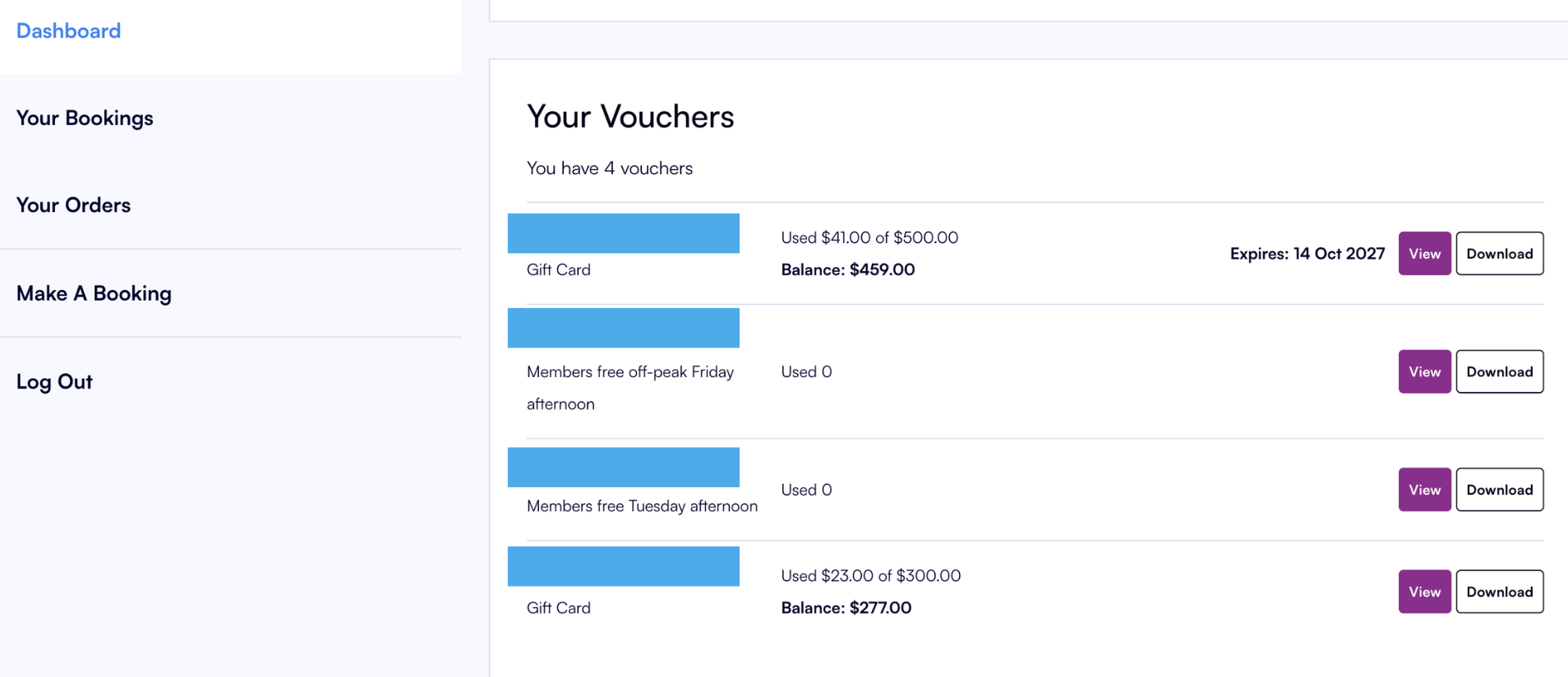
If your venue has the client login portal activated, clients can log in and view the balance on their gift card directly.
If they experience any issues or your venue does not have this feature enabled, the gift card balance can easily be checked in the back office.
To use a gift card in POS, the customer must provide their gift card number. Please note that the POS Operator cannot search for the gift card number within POS; however, this can also be retrieved in the back office if needed.
-
Accessing Gift Card Details in the Back Office
Navigate to Reports > Vouchers and Discounts > Gift Cards Report
Leave the From and To Payment Dates blank and change Show Detail to YES and click View
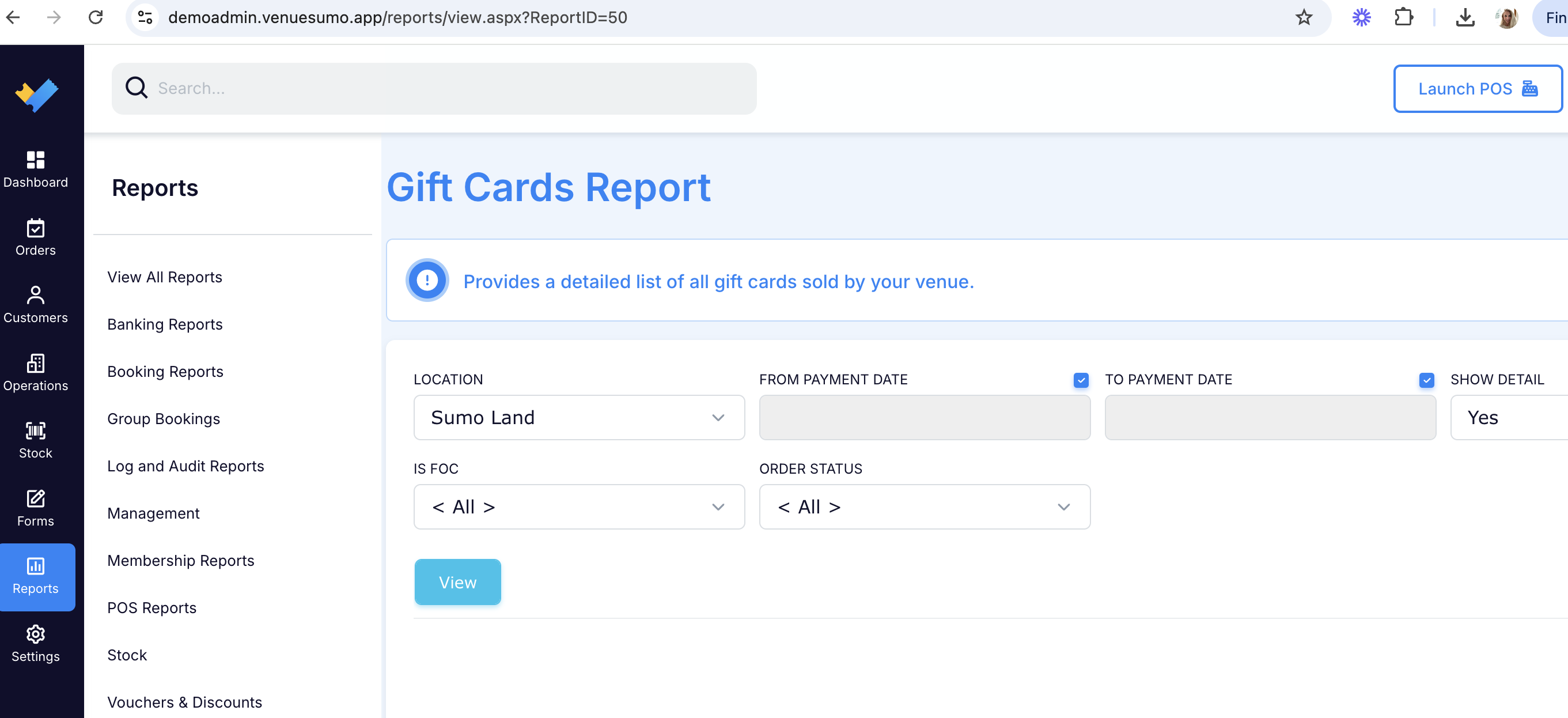
You will see a list of all Gift Cards.
To find the balance for a specific client, enter their surname in the search bar and press Find:
Scroll right to see the original Gift Card amount and the balance remaining.
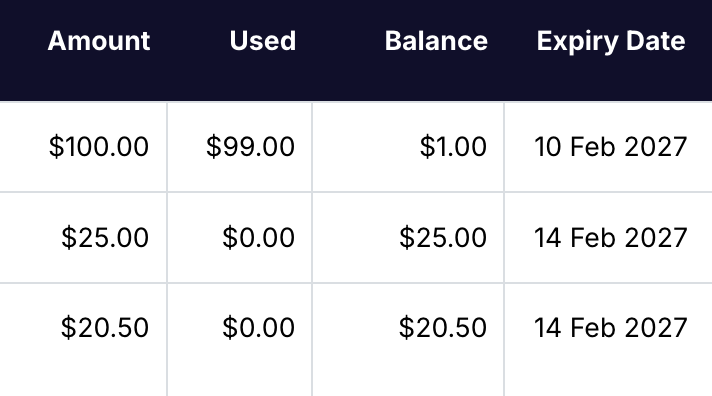
-
Accessing Gift Card Details in POS
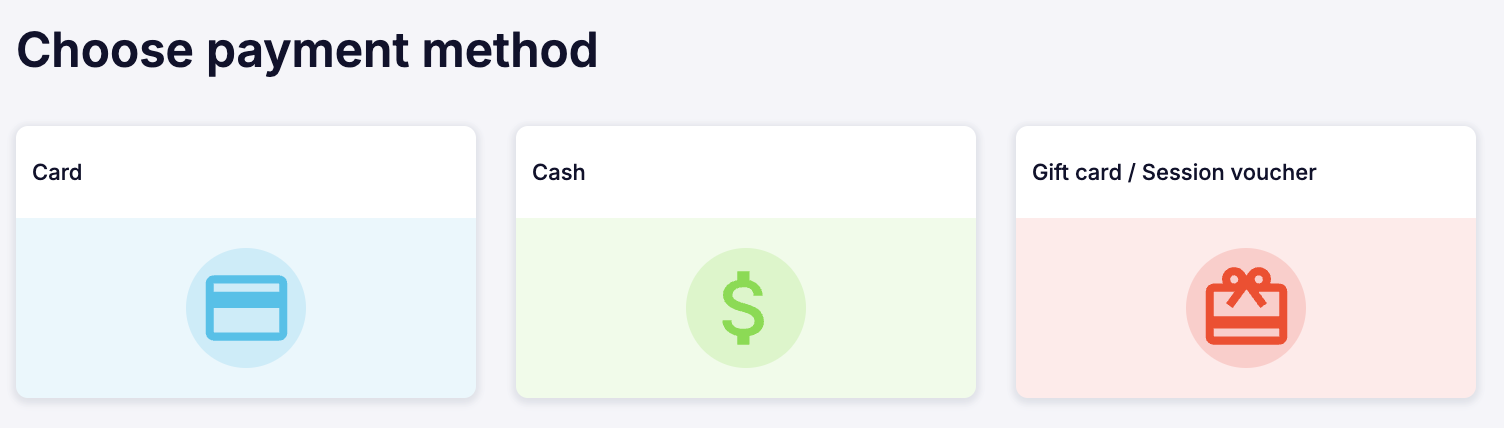
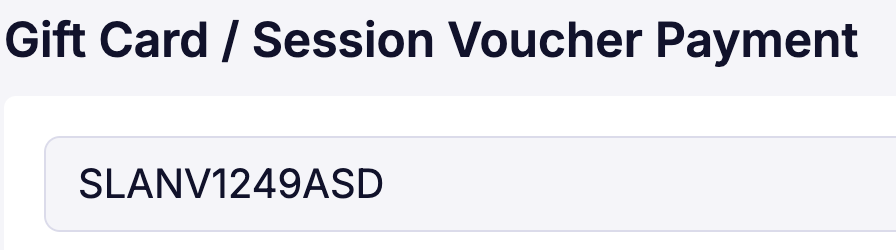
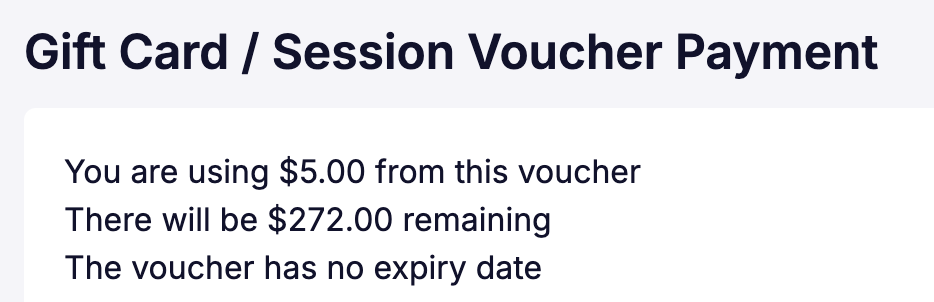
To use a gift card in POS, add items to the cart as usual, proceed to checkout, select "Gift Card/Session Voucher" as the payment type, enter the gift card number in the search bar, and press "Search" to view the balance in a popup message.
-
Accessing Gift Card Details Online
The customer portal must be enabled for clients to log in and check their gift card balance.
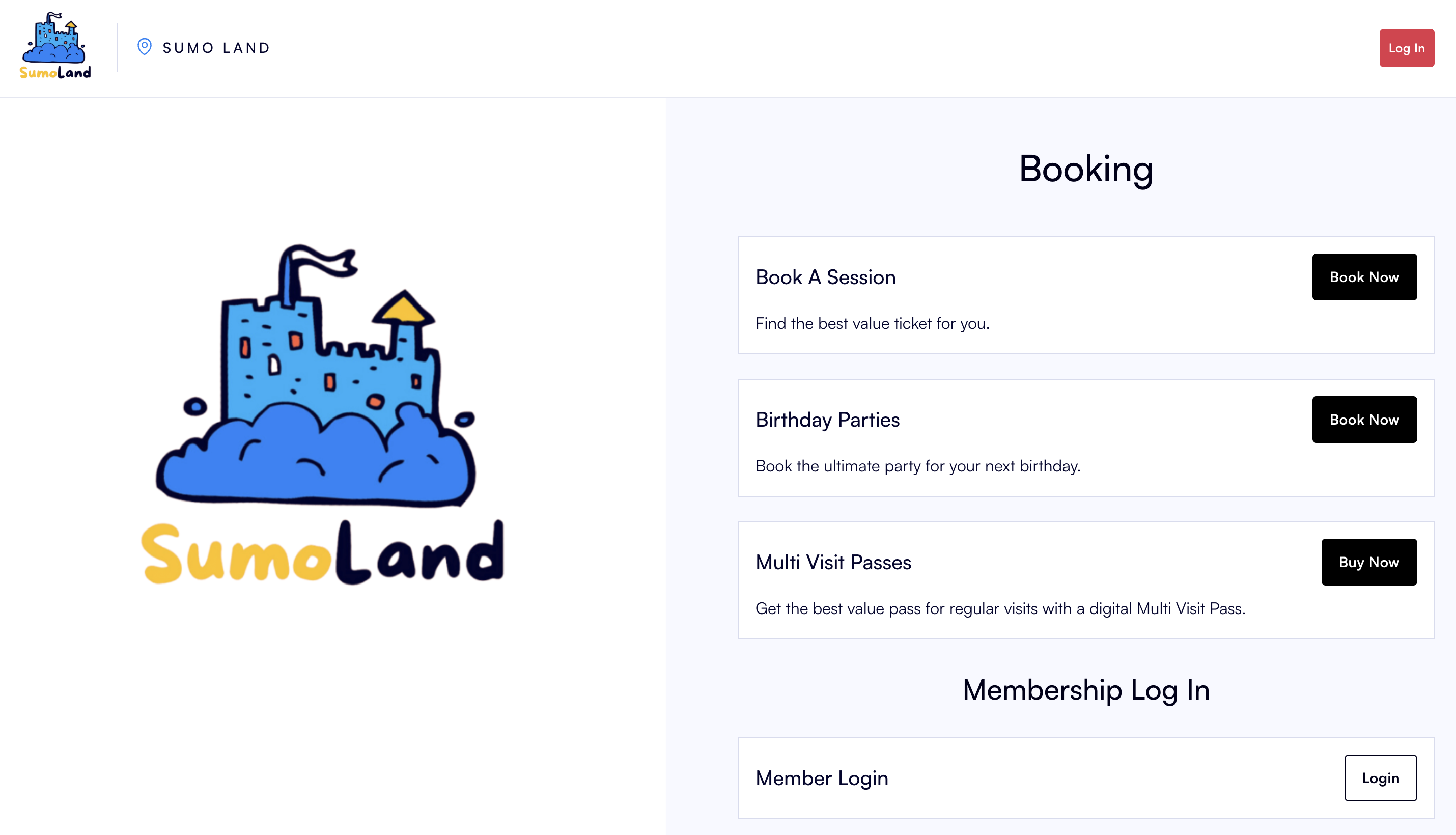
Customers can click on the Log in button or Member Login
If they don’t already have an account, they will be prompted to create one. Otherwise, they can log in with their credentials to access their bookings and other information.