.png)
Booking Website Layout Design Customising Options
There a number of design options for how you layout your venue's booking webiste. You can now customise your online booking website further with design options on the:
- Location page
- Location image
- Product images
- Group booking packages
Location Page
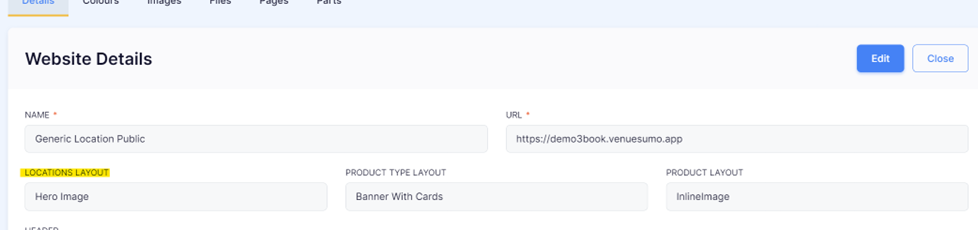
There are 3 different location page layout options which can be changed by navigating to: Settings > Assets & Branding > Public site and updating the LOCATIONS LAYOUT field.
The layout options to choose from are:
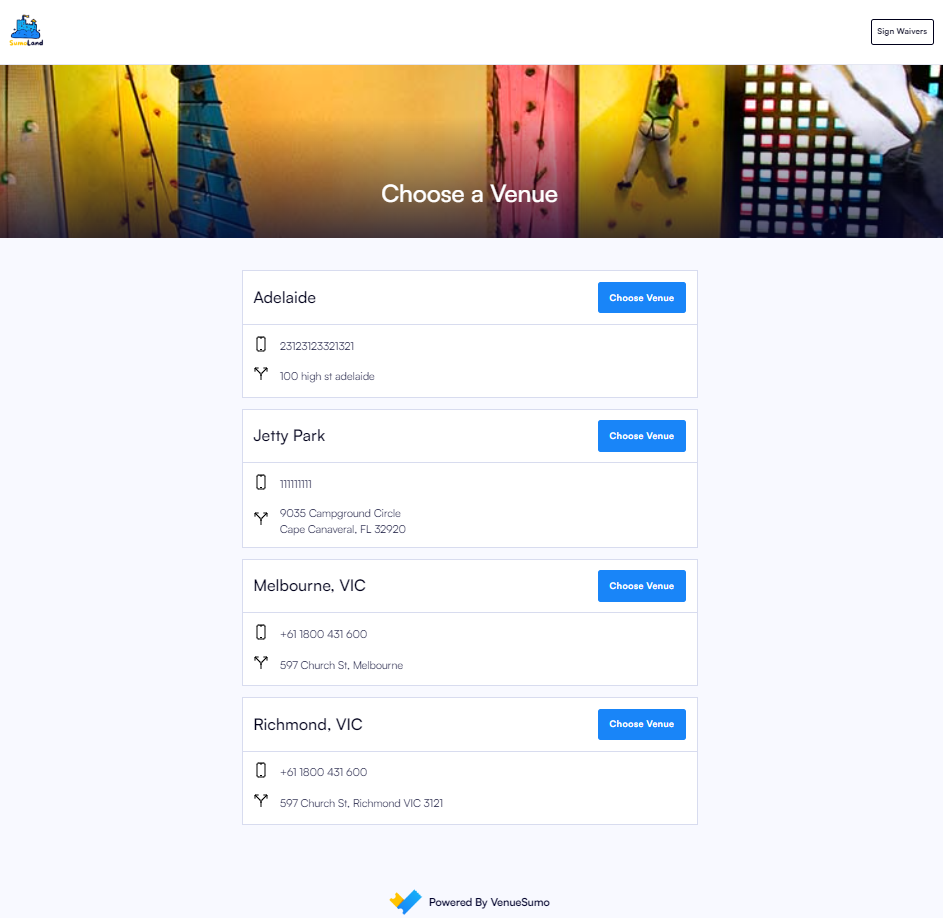
- Banner With List: This layout displays a banner at the top with a list of locations underneath.
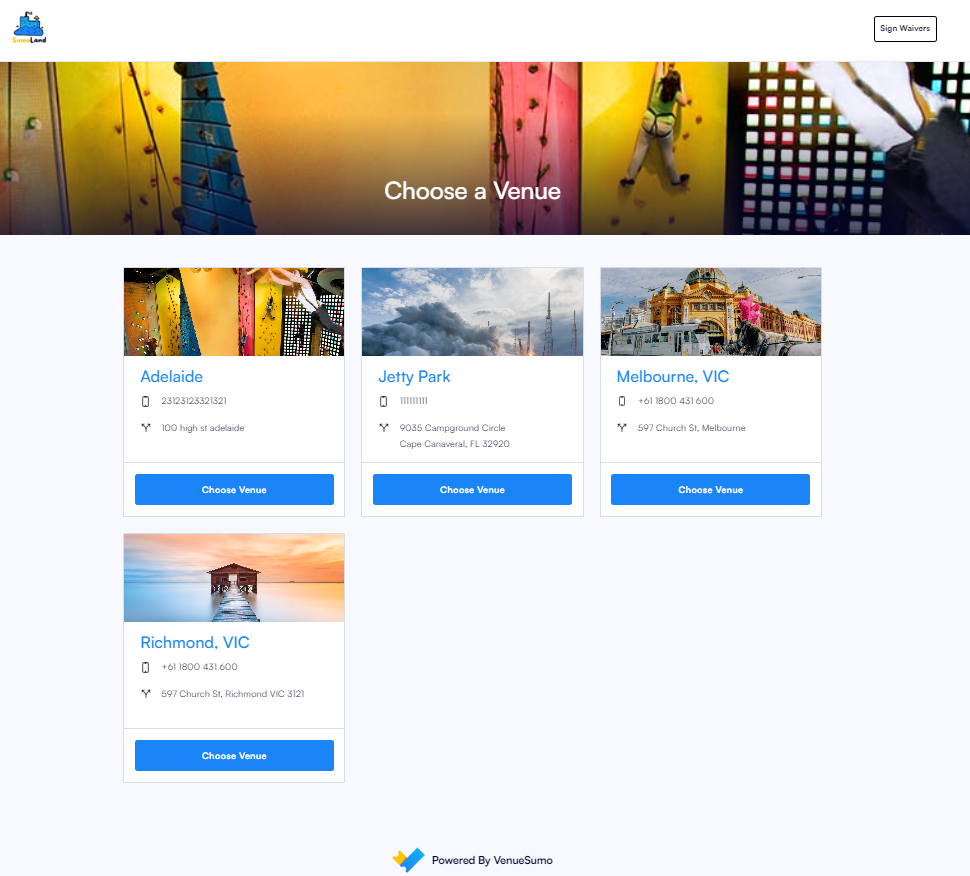
- Banner With Cards: This layout shows a banner at the top with location information displayed as individual cards.
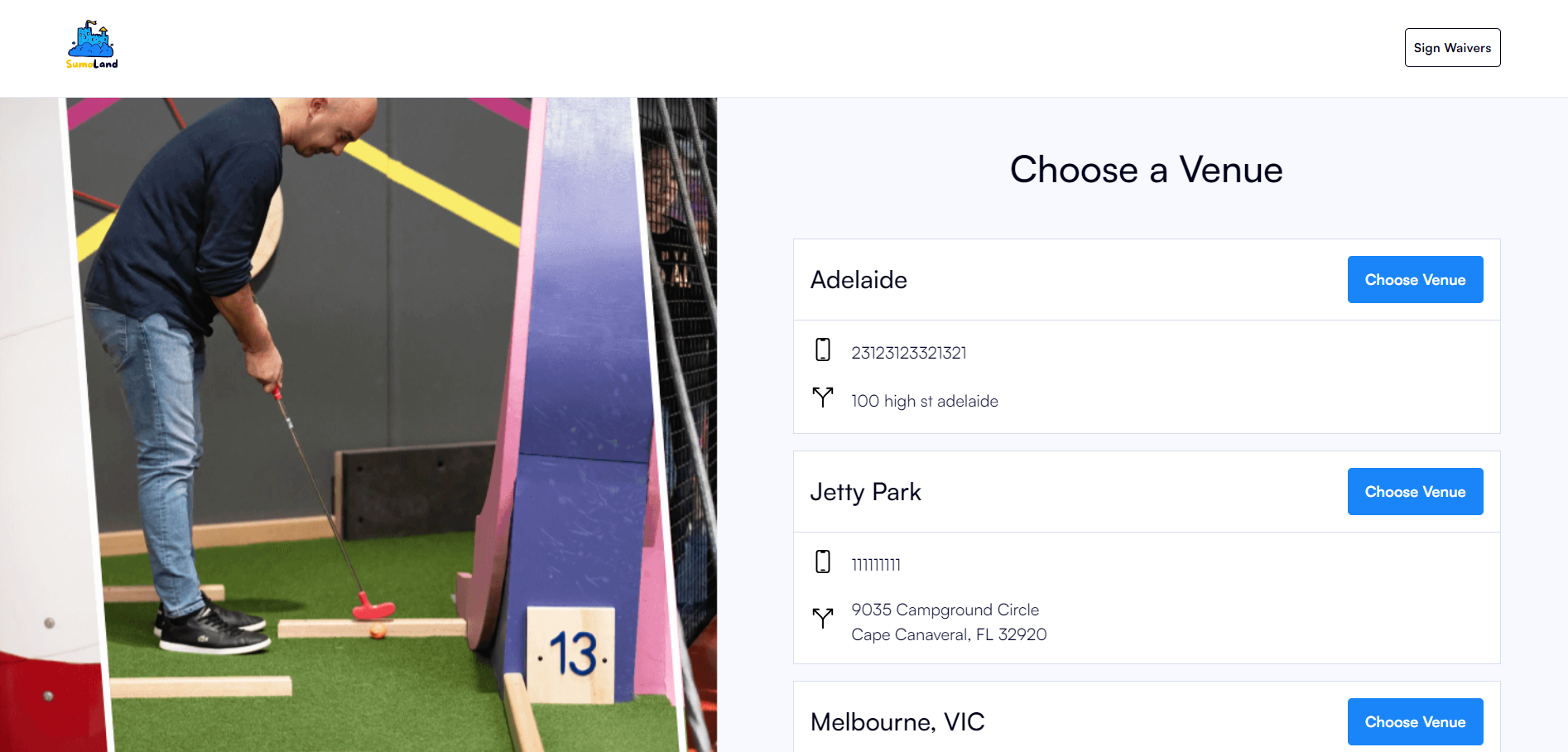
- Hero Image: This layout features a large hero image on the left with locations listed on the right.
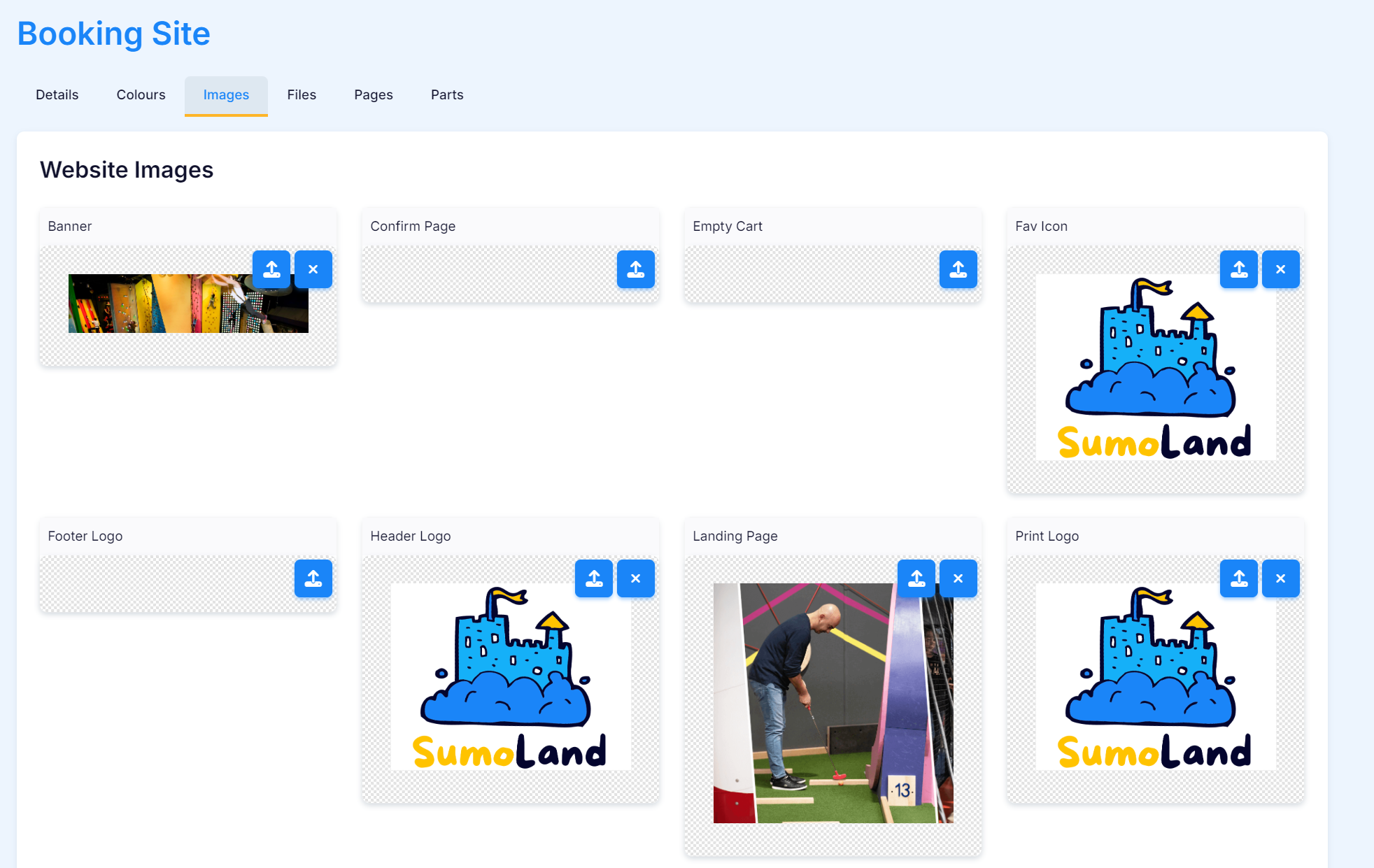
Banner image and Landing Page image can be changed from within Settings > Assets & Branding > Public site and the Images tab.
Banner image dimension suggestion:
- 1920px (W) x 260px (H)
- Landscape
Landing page image:
- 960px (W) vs 960px (H)
- Square
Banner With List
Banner With Cards
The default image will be the same as the top banner if no image for each location is uploaded.
Hero Image
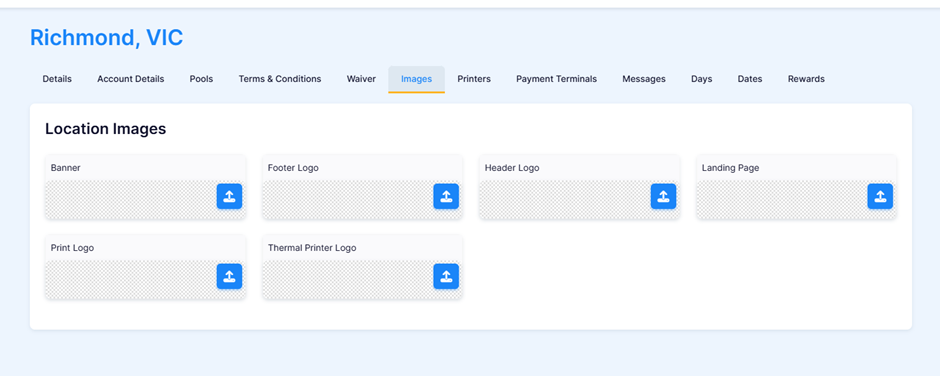
Location Image
Images can be uploaded for each Location by navagating to: Settings > locations > images
Update the "Banner" image to change.
Location image dimension suggestion:
- 1920px (W) x 260px (H)
- Landscape
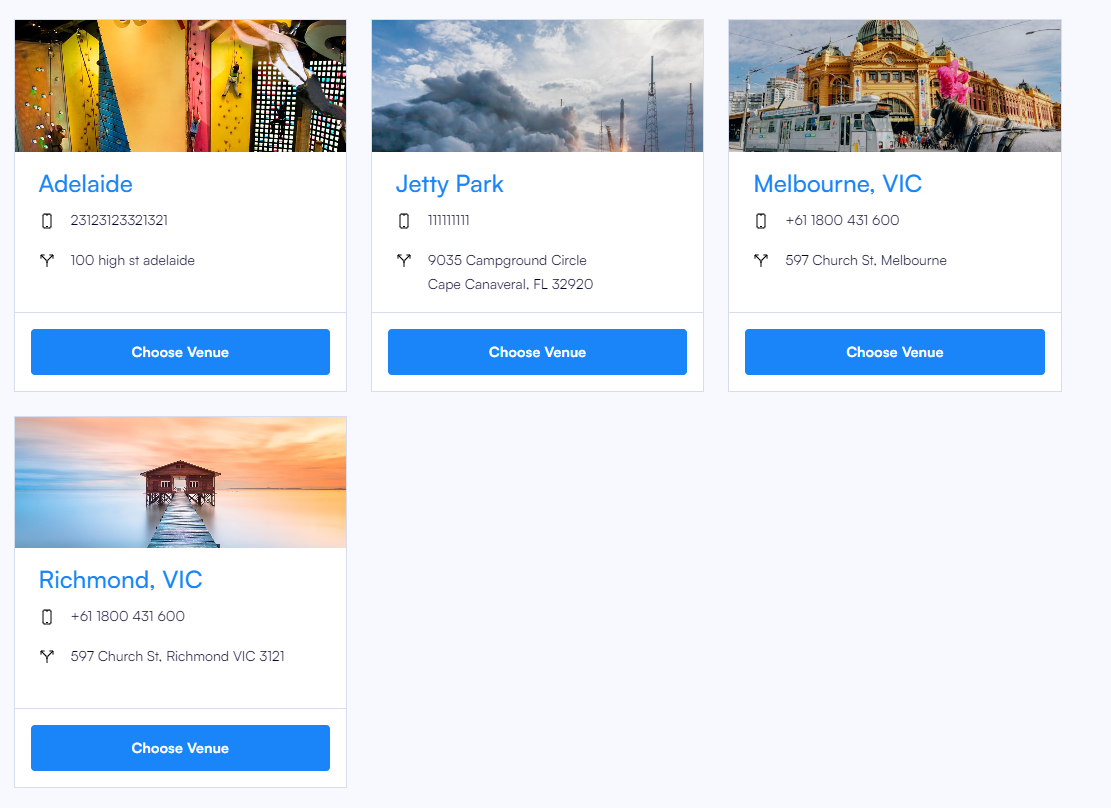
Banner with Cards Layout
When using the “Banner with Cards” layout, you can manage the images for each booking type in the following settings: Settings > Booking Tags and Operations > Product Categories.
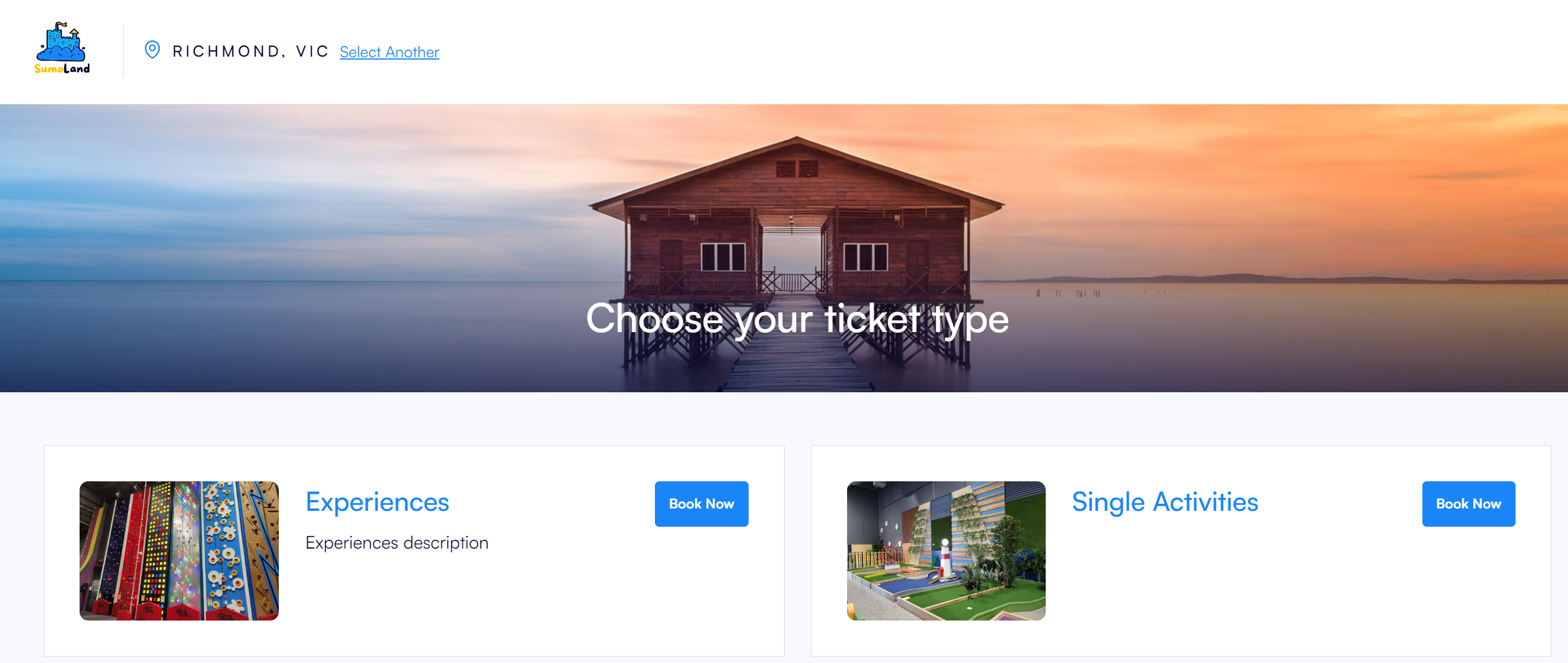
This is where you can update images for your Booking Tags. Additionally, each card will display a description that you can add to provide more details about the booking type.
Card image dimension suggestion:
- 320 px (W) x 240px (H)
- Landscape
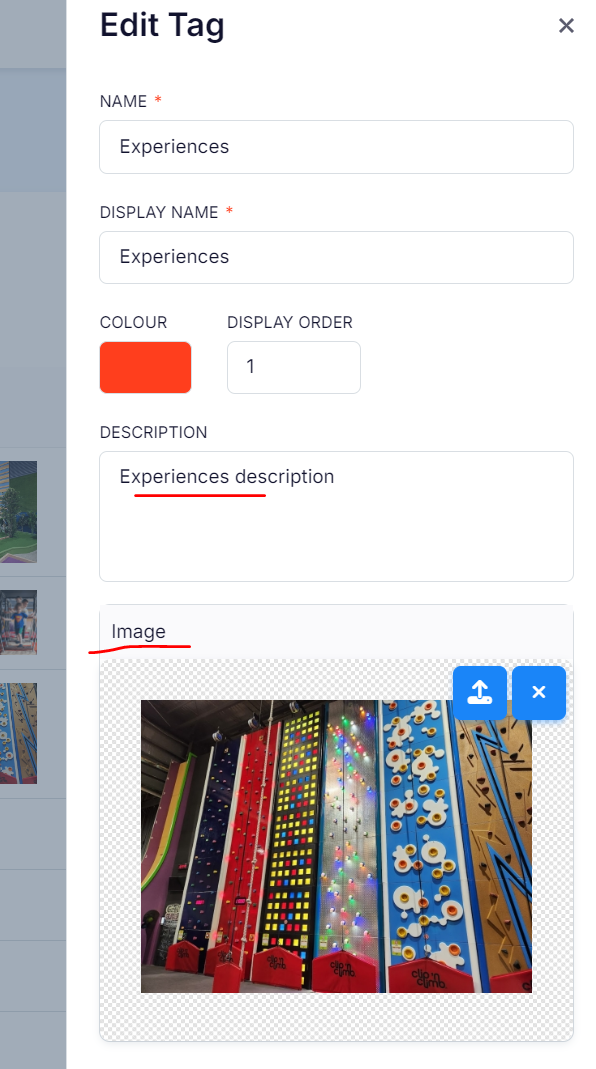
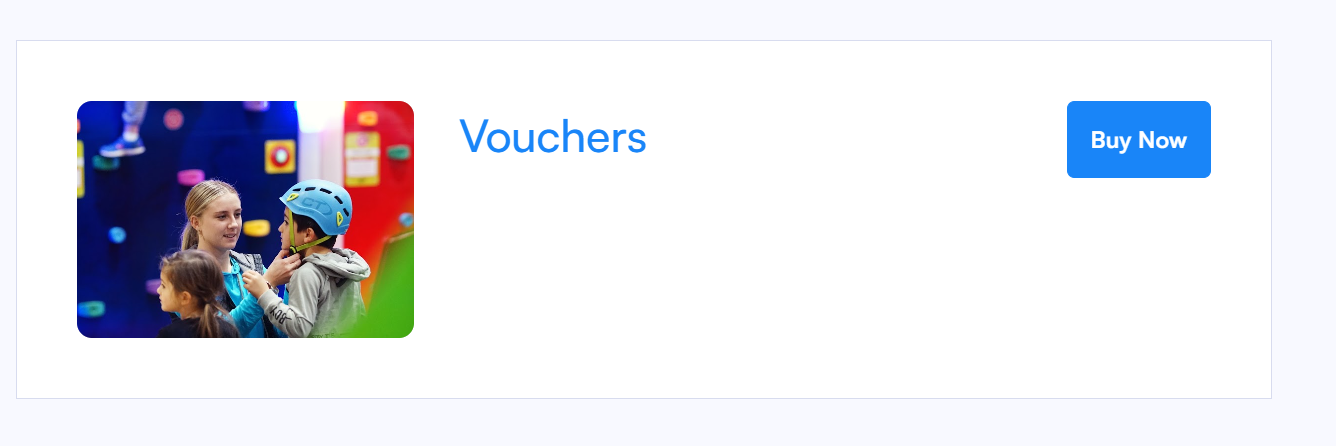
When you add a "DESCRIPTION" and "IMAGE" to a BOOKING TAG, they will be displayed on your booking website. If no image is selected, the default image will be used. See example below:
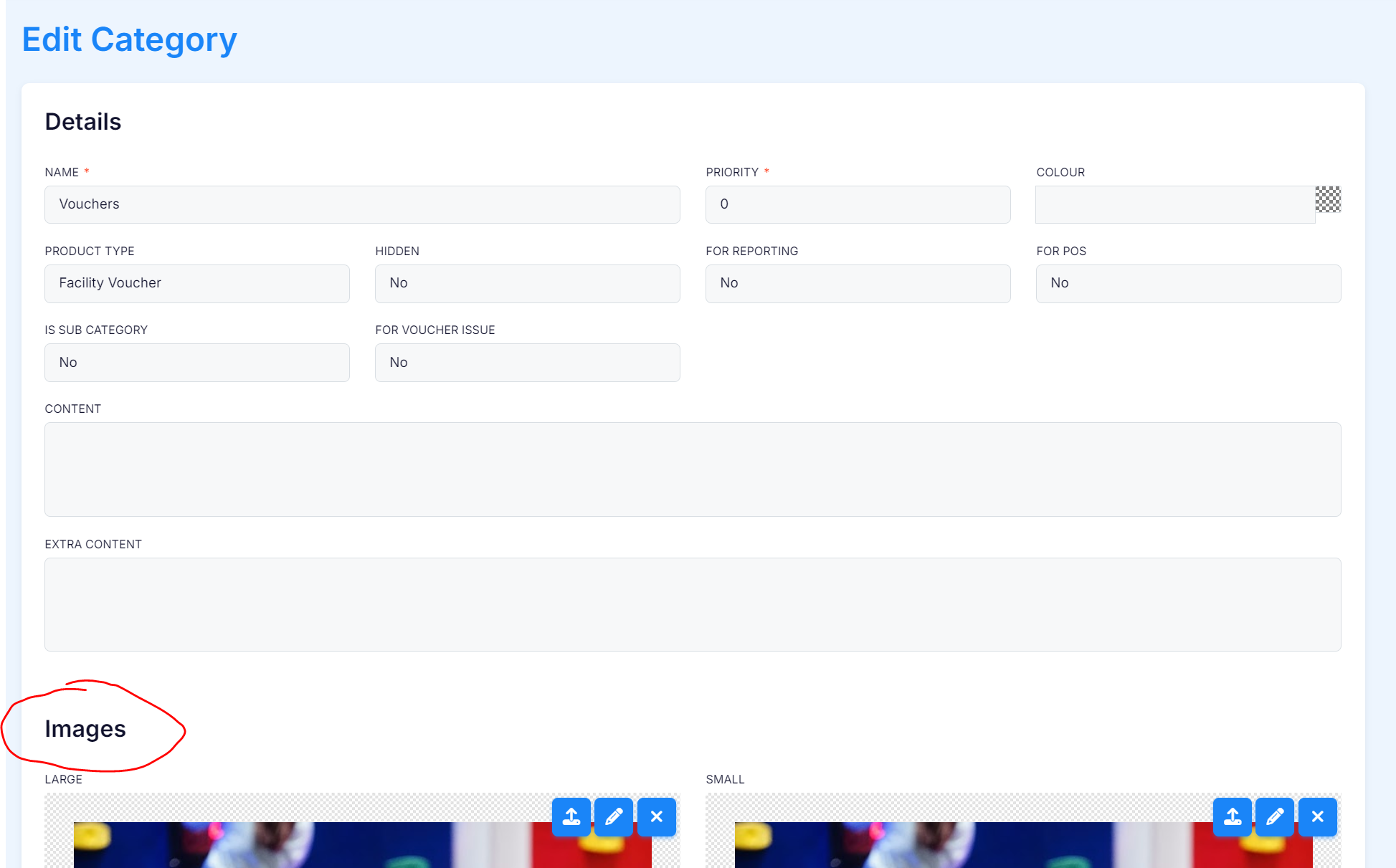
To display the "DESCRIPTION" and "IMAGE" for Gift Cards, Vouchers, and Memberships ensure that the product type is selected for the relevant category within Operations > Product Categories.
See example below.
Facility Product Images
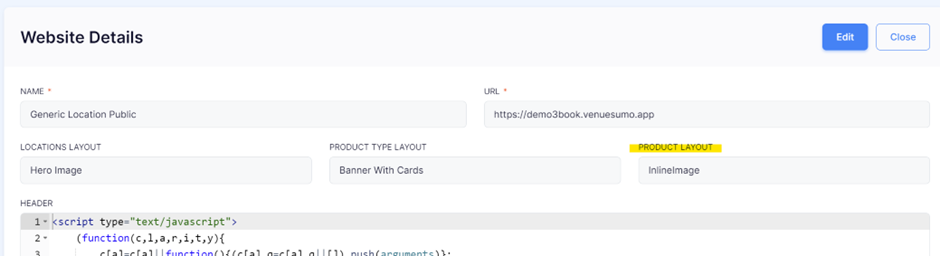
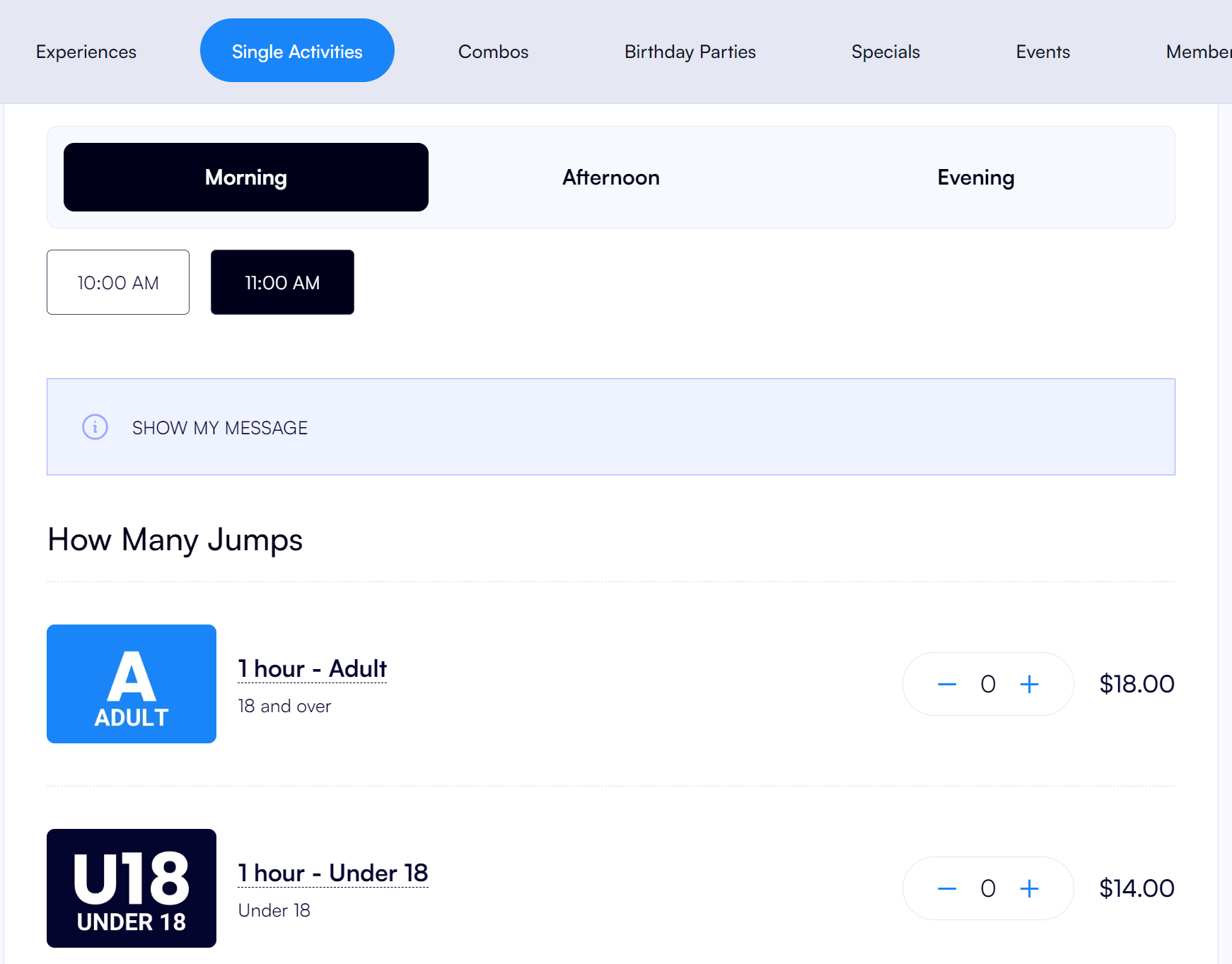
To display Facility Product images inline on the booking website, set the Product Layout to “Inline Image”.
Facilty product image dimension suggestion:
- 320 px (W) x 240px (H)
- Landscape
Selecting "Default" will not display an image.
This will display the image on the page and use a grayplaceholder if no image is uploaded.
Group bookings packages
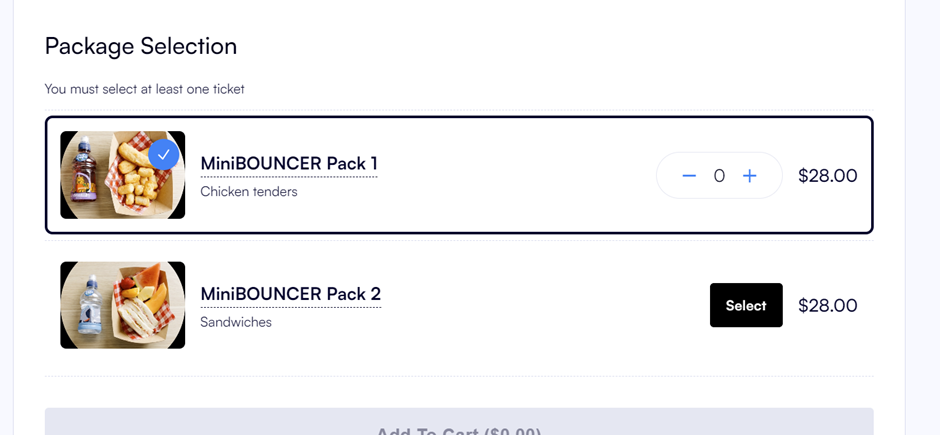
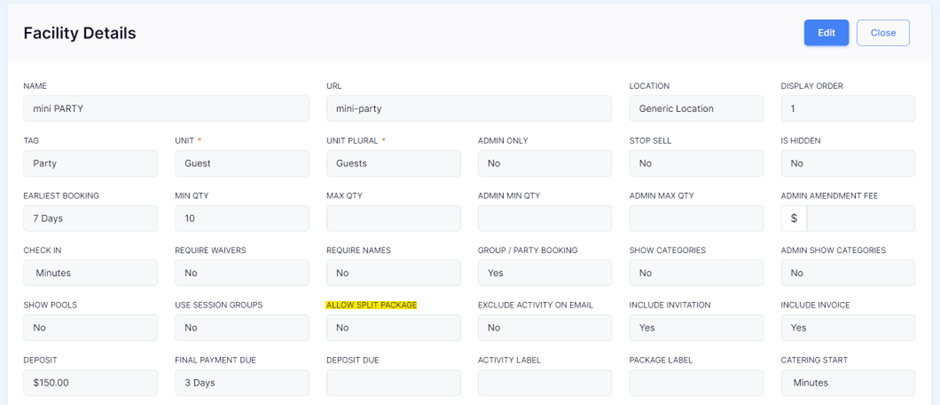
For group bookings you can force customers to select a package online by setting the "ALLOW SPLIT PACKAGE" field to "No" in the Facility details. We have also introduced a border outline around the selected package and blue tick which highlights after the "Select" button is clicked.
If you set the "ALLOW SPLIT PACKAGE" field to "Yes," users will be able to choose different numbers of guests for each package.
Tooltips
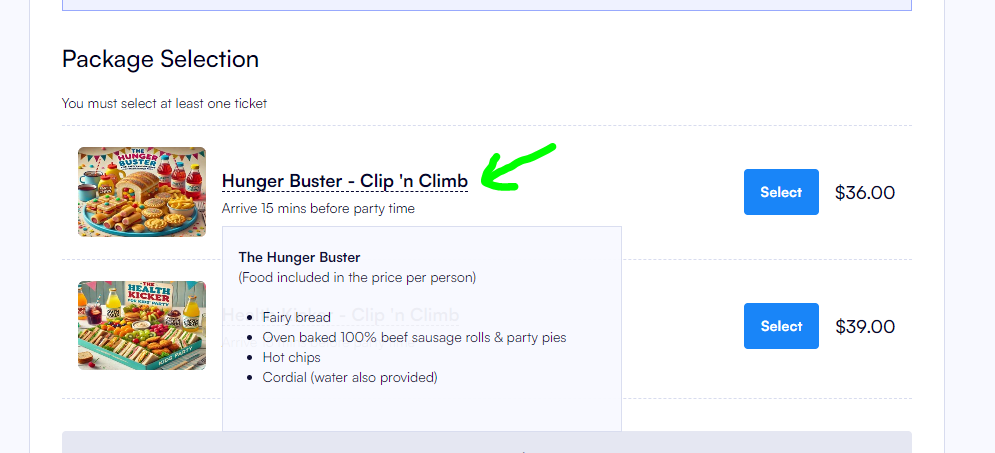
The "?" icon for tooltips has been replaced with a dashed underline under the product name.
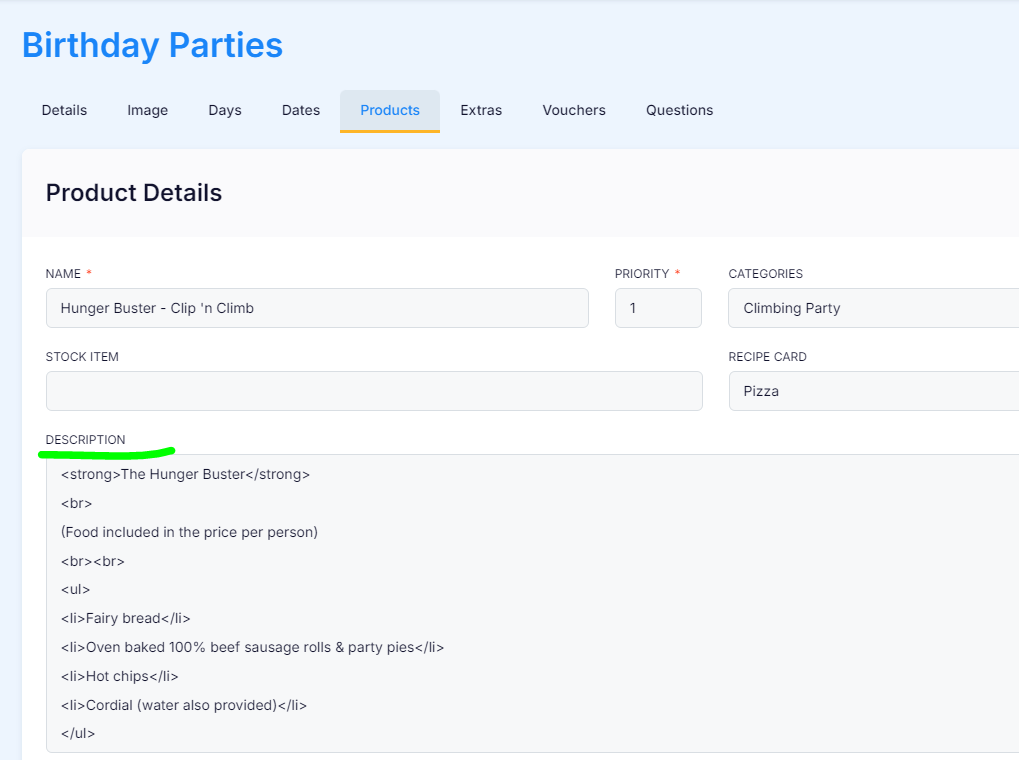
When users hover over the underline it reveals information populated from the "DESCRIPTION" field within Facility Products.